Resizing images is one of those tasks that looks simple at first, but becomes much more important once you start building real projects. A blog CMS needs thumbnails. An e-commerce app needs product images in consistent sizes. A Flask or Django backend may need to compress uploaded photos before saving them. A data pipeline may need to standardize thousands of images before feeding them into a machine learning model.
Python makes all of this very practical. With the right library, you can resize a single image in a few lines of code, or build a complete batch-processing script that handles folders full of files, keeps aspect ratios intact, preserves quality, and avoids memory problems.
In this article, we will look at how to resize images in Python using different approaches, from the simplest Pillow example to more advanced techniques with OpenCV. We will also cover resizing by width, by height, with aspect ratio preserved, by cropping, by fitting into a box, and in bulk for many files at once.
Why resizing images matters
Before writing code, it helps to understand why image resizing is such a common requirement.
A large camera photo might be 6000 by 4000 pixels. That is great for printing, but terrible for a website that only needs a 400 by 300 preview. If you upload the original file directly, your page will load slowly, your storage bill may grow, and mobile users may have a bad experience.
Resizing images helps you:
reduce file size
improve page load speed
create thumbnails
standardize image dimensions
save bandwidth
prepare images for machine learning or analytics
prevent layout problems in web apps
The key idea is simple: take a source image and create a new image with smaller or different dimensions, while trying to keep the result visually acceptable.
The two most popular Python libraries
The two libraries you will see most often for image resizing in Python are Pillow and OpenCV.
Pillow is usually the best choice for typical application work. It is easy to read, easy to install, and very good for web apps, scripts, and batch processing.
OpenCV is excellent when you are doing computer vision work, image analysis, or performance-sensitive tasks. It is also very flexible, but the code can feel a little more technical.
There are other options too, such as imageio or Wand, but Pillow and OpenCV cover most real-world cases.
Installing the libraries
To follow the examples, install Pillow and OpenCV.
pip install pillow opencv-python
If you are working inside a notebook, the same command works there too.
Resizing an image with Pillow
Pillow is the most beginner-friendly way to resize an image in Python.
Here is the simplest example:
from PIL import Image

image = Image.open("input.jpg")
resized_image = image.resize((800, 600))
resized_image.save("output.jpg")
This code opens the image, resizes it to exactly 800 by 600 pixels, and saves the result.
That said, this method has one important detail: it forces the image into the new size even if the aspect ratio changes. If the original image is not already in the same ratio, it may look stretched.
Resize while keeping the aspect ratio
In many cases, you do not want to distort the image. You want to shrink it proportionally.
Suppose your image is 3000 by 2000 pixels and you want the width to become 1000 pixels. The height should scale automatically to preserve the shape.
Here is how to do that with Pillow:
from PIL import Image

def resize_by_width(input_path, output_path, new_width):
    image = Image.open(input_path)
    width, height = image.size

    new_height = int((new_width / width) * height)
    resized_image = image.resize((new_width, new_height), Image.LANCZOS)
    resized_image.save(output_path)

resize_by_width("input.jpg", "output.jpg", 1000)
The formula is:
new_height = (new_width / original_width) * original_height
The important part here is Image.LANCZOS. This is a high-quality resampling filter that usually gives better results when shrinking images.
Resize by height
Sometimes you know the desired height instead of the width.
from PIL import Image

def resize_by_height(input_path, output_path, new_height):
    image = Image.open(input_path)
    width, height = image.size

    new_width = int((new_height / height) * width)
    resized_image = image.resize((new_width, new_height), Image.LANCZOS)
    resized_image.save(output_path)

resize_by_height("input.jpg", "output.jpg", 500)
This is useful when your layout requires a fixed vertical size, such as banner sections or profile previews.
Resize to fit inside a box
A very common task is resizing an image so that it fits inside a maximum width and height without distortion.
For example, you may want the image to fit inside a 1200 by 800 box. The image should shrink proportionally, but never exceed those limits.
Pillow has a built-in method called thumbnail() for this:
from PIL import Image

image = Image.open("input.jpg")
image.thumbnail((1200, 800), Image.LANCZOS)
image.save("output.jpg")
This keeps the aspect ratio and ensures the image fits inside the box. One important thing to remember is that thumbnail() modifies the image object in place.
If you need a new image object instead of changing the original, use resize() with calculated dimensions.
Resize and crop to exact dimensions
Sometimes you need an image to be exactly a certain size, such as 1080 by 1080 for social media cards or 1200 by 630 for Open Graph images.
If the aspect ratio does not match, you have two choices:
stretch the image
crop part of the image
Cropping usually looks better because it preserves proportions.
Here is a simple center-crop approach after resizing:
from PIL import Image

def resize_and_crop(input_path, output_path, target_width, target_height):
    image = Image.open(input_path)
    original_width, original_height = image.size

    scale = max(target_width / original_width, target_height / original_height)
    new_size = (int(original_width * scale), int(original_height * scale))

    resized = image.resize(new_size, Image.LANCZOS)

    left = (resized.width - target_width) / 2
    top = (resized.height - target_height) / 2
    right = left + target_width
    bottom = top + target_height

    cropped = resized.crop((left, top, right, bottom))
    cropped.save(output_path)

resize_and_crop("input.jpg", "output.jpg", 1200, 630)
This pattern is very useful for thumbnails and card images.
Choosing the best resampling filter
When resizing images, the resampling filter matters.
Pillow gives you several options:
Image.NEARESTImage.BILINEARImage.BICUBICImage.LANCZOS
For high-quality downscaling, LANCZOS is usually the best choice. It produces sharper results with fewer visible artifacts than simpler filters.
For quick previews, BILINEAR or BICUBIC may be fine.
Here is an example:
from PIL import Image

image = Image.open("input.jpg")
resized = image.resize((500, 500), Image.LANCZOS)
resized.save("output.jpg")
Resizing multiple images in a folder
Most real projects do not involve only one file. You may need to process a whole directory of images.
Here is a batch script with Pillow:
from PIL import Image
from pathlib import Path

def resize_folder(input_folder, output_folder, max_width):
    input_folder = Path(input_folder)
    output_folder = Path(output_folder)
    output_folder.mkdir(parents=True, exist_ok=True)

    for image_path in input_folder.iterdir():
        if image_path.suffix.lower() not in [".jpg", ".jpeg", ".png", ".webp"]:
            continue

        with Image.open(image_path) as image:
            width, height = image.size
            if width <= max_width:
                resized = image.copy()
            else:
                new_height = int((max_width / width) * height)
                resized = image.resize((max_width, new_height), Image.LANCZOS)

            output_path = output_folder / image_path.name
            resized.save(output_path)

resize_folder("photos", "resized_photos", 1200)
This example keeps the original file names and writes the resized images into a new folder.
Handling PNG transparency
PNG images often contain transparency. If you are resizing or saving them, you need to make sure the alpha channel is preserved.
Pillow handles this well, but you should pay attention to file formats when saving.
from PIL import Image

image = Image.open("transparent.png")
resized = image.resize((400, 400), Image.LANCZOS)
resized.save("output.png")
If you save a transparent PNG as JPEG, the transparency will be lost because JPEG does not support alpha.
If you really need a JPEG, you can paste the image onto a solid background first:
from PIL import Image

image = Image.open("transparent.png").convert("RGBA")
background = Image.new("RGBA", image.size, (255, 255, 255, 255))
combined = Image.alpha_composite(background, image).convert("RGB")
combined.save("output.jpg", quality=95)
Resize JPEG images and control quality
When saving JPEGs, quality settings matter a lot.
A resized image may still look bad if the JPEG compression is too aggressive.
from PIL import Image

image = Image.open("input.jpg")
resized = image.resize((800, 600), Image.LANCZOS)
resized.save("output.jpg", quality=90, optimize=True)
A quality value between 85 and 95 often gives a good balance between file size and visual quality.
You can also use optimize=True to reduce file size further.
Resize images using OpenCV
OpenCV is another strong choice, especially if you are already using it for image processing.
Here is a basic resize example:
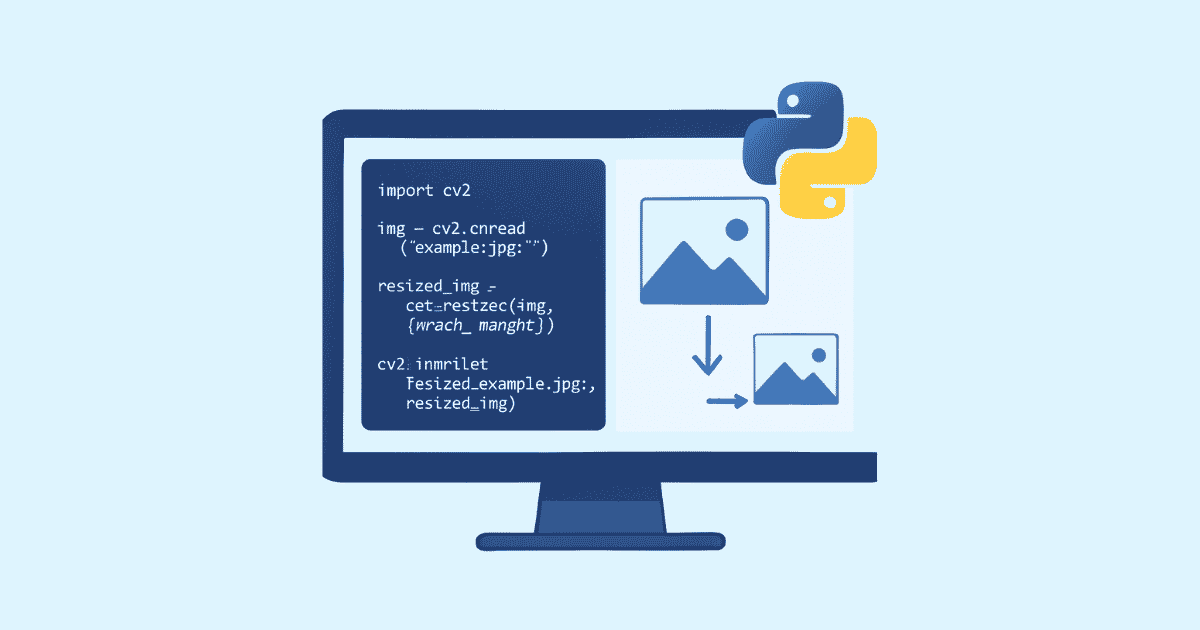
import cv2

image = cv2.imread("input.jpg")
resized = cv2.resize(image, (800, 600))
cv2.imwrite("output.jpg", resized)
This resizes the image to an exact width and height, similar to Pillow’s resize().
Keep aspect ratio with OpenCV
To preserve the aspect ratio, calculate the new dimensions first.
import cv2

def resize_by_width(input_path, output_path, new_width):
    image = cv2.imread(input_path)
    height, width = image.shape[:2]

    ratio = new_width / width
    new_height = int(height * ratio)

    resized = cv2.resize(image, (new_width, new_height), interpolation=cv2.INTER_AREA)
    cv2.imwrite(output_path, resized)

resize_by_width("input.jpg", "output.jpg", 1000)
For shrinking images, cv2.INTER_AREA is usually a good interpolation method.
Fit image inside a box with OpenCV
Here is a simple box-fitting version:
import cv2

def resize_to_fit(input_path, output_path, max_width, max_height):
    image = cv2.imread(input_path)
    height, width = image.shape[:2]

    ratio = min(max_width / width, max_height / height)
    new_width = int(width * ratio)
    new_height = int(height * ratio)

    resized = cv2.resize(image, (new_width, new_height), interpolation=cv2.INTER_AREA)
    cv2.imwrite(output_path, resized)

resize_to_fit("input.jpg", "output.jpg", 1200, 800)
This keeps the image proportional and ensures it fits within the maximum dimensions.
Pillow vs OpenCV for resizing
Both libraries are good, but they shine in different situations.
Pillow is usually better when:
you are building a web app
you need a simple and readable solution
you are doing basic file conversions
you want an easy installation and clean API
OpenCV is usually better when:
you need a computer vision pipeline
you already use OpenCV in your project
you want additional image analysis tools
you work with videos as well as images
For most standard resizing tasks, Pillow is the easiest starting point.
A reusable resize helper function
In a real project, you usually want one reusable function instead of repeating code everywhere.
Here is a clean helper using Pillow:
from PIL import Image

def resize_image(
    input_path,
    output_path,
    width=None,
    height=None,
    keep_aspect_ratio=True,
    quality=90
):
    image = Image.open(input_path)
    original_width, original_height = image.size

    if keep_aspect_ratio:
        if width and not height:
            ratio = width / original_width
            height = int(original_height * ratio)
        elif height and not width:
            ratio = height / original_height
            width = int(original_width * ratio)
        elif width and height:
            ratio = min(width / original_width, height / original_height)
            width = int(original_width * ratio)
            height = int(original_height * ratio)
        else:
            raise ValueError("Either width or height must be provided.")
        resized = image.resize((width, height), Image.LANCZOS)
    else:
        if not width or not height:
            raise ValueError("Both width and height are required when keep_aspect_ratio=False.")
        resized = image.resize((width, height), Image.LANCZOS)

    resized.save(output_path, quality=quality, optimize=True)

resize_image("input.jpg", "output.jpg", width=800)
This function is flexible enough for many projects.
Build a command-line image resizer
You can also make a small command-line tool with argparse.
import argparse
from PIL import Image

def resize_image(input_path, output_path, width):
    image = Image.open(input_path)
    original_width, original_height = image.size
    height = int((width / original_width) * original_height)
    resized = image.resize((width, height), Image.LANCZOS)
    resized.save(output_path)

if __name__ == "__main__":
    parser = argparse.ArgumentParser(description="Resize an image in Python")
    parser.add_argument("input", help="Input image path")
    parser.add_argument("output", help="Output image path")
    parser.add_argument("--width", type=int, required=True, help="New width in pixels")

    args = parser.parse_args()
    resize_image(args.input, args.output, args.width)
You can run it like this:
python resize.py input.jpg output.jpg --width 800
That is a nice base for a small utility script or internal developer tool.
Resize images for a web application
If you are building a website, resizing uploaded images is one of the first things you should automate.
A typical workflow looks like this:
user uploads an image
server validates the file type
server resizes the image
server stores the original or resized version
thumbnails are generated for previews
Here is a simple Flask-style example:
from flask import Flask, request
from PIL import Image
from pathlib import Path
import uuid

app = Flask(__name__)
UPLOAD_FOLDER = Path("uploads")
UPLOAD_FOLDER.mkdir(exist_ok=True)

def resize_and_save(image_file, output_path, width=800):
    image = Image.open(image_file)
    original_width, original_height = image.size
    height = int((width / original_width) * original_height)
    resized = image.resize((width, height), Image.LANCZOS)
    resized.save(output_path)

@app.route("/upload", methods=["POST"])
def upload():
    file = request.files["image"]
    filename = f"{uuid.uuid4().hex}.jpg"
    output_path = UPLOAD_FOLDER / filename

    resize_and_save(file, output_path)
    return {"message": "Image uploaded and resized successfully", "file": filename}
This is the kind of code that turns a basic upload feature into a more production-ready system.
Create thumbnails
Thumbnails are one of the most common uses of resizing.
A thumbnail should usually be small, fast to load, and visually clear enough to recognize the image.
from PIL import Image

def create_thumbnail(input_path, output_path, size=(200, 200)):
    image = Image.open(input_path)
    image.thumbnail(size, Image.LANCZOS)
    image.save(output_path)

create_thumbnail("input.jpg", "thumb.jpg")
This produces a small preview image while keeping the aspect ratio intact.
Resize only if the image is too large
Sometimes you do not want to resize every image. You only want to shrink images that exceed a maximum size.
That is a smart strategy because small images do not need extra processing.
from PIL import Image

def shrink_if_needed(input_path, output_path, max_width=1200):
    image = Image.open(input_path)
    width, height = image.size

    if width > max_width:
        new_height = int((max_width / width) * height)
        image = image.resize((max_width, new_height), Image.LANCZOS)

    image.save(output_path)

shrink_if_needed("input.jpg", "output.jpg")
This is often used in CMS systems or upload pipelines.
Common mistakes when resizing images
A few mistakes happen again and again.
The first mistake is stretching images by forcing them into a fixed size without checking the aspect ratio.
The second mistake is using a low-quality interpolation method, which makes the resized image look blurry or jagged.
The third mistake is ignoring the output format. For example, saving transparent PNGs as JPEGs without a background causes problems.
The fourth mistake is not managing memory when processing large batches of images. Opening many large files without closing them can cause performance issues.
The fifth mistake is not preserving EXIF orientation data in photos from phones and cameras. Some images appear rotated unless you handle orientation correctly.
Handle image orientation from EXIF data
Many photos taken on phones contain orientation metadata. Pillow can help with that.
from PIL import Image, ImageOps

image = Image.open("input.jpg")
image = ImageOps.exif_transpose(image)
resized = image.resize((800, 600), Image.LANCZOS)
resized.save("output.jpg")
ImageOps.exif_transpose() makes sure the image is rotated the way the camera intended before resizing.
Resize huge images safely
When you are dealing with very large files, try to keep your process efficient.
Open images with a context manager when possible:
from PIL import Image

with Image.open("large.jpg") as image:
    resized = image.resize((1200, 800), Image.LANCZOS)
    resized.save("small.jpg")
This helps release resources properly.
If you are resizing many files, process them one at a time instead of loading everything into memory.
Preserve metadata if needed
Some image workflows require metadata such as EXIF information, especially for photography apps.
Pillow can preserve some metadata manually, but this depends on the format and what you need to keep.
A simple approach is:
from PIL import Image

with Image.open("input.jpg") as image:
    exif = image.getexif()
    resized = image.resize((800, 600), Image.LANCZOS)
    resized.save("output.jpg", exif=exif)
Not every image has useful EXIF data, but this can be important in some applications.
Resize to a fixed square avatar
A square avatar is another frequent use case. Most profile pictures need to be exactly the same size.
Here is a practical crop-and-resize example:
from PIL import Image

def make_square_avatar(input_path, output_path, size=256):
    image = Image.open(input_path)
    width, height = image.size

    crop_size = min(width, height)
    left = (width - crop_size) // 2
    top = (height - crop_size) // 2
    right = left + crop_size
    bottom = top + crop_size

    cropped = image.crop((left, top, right, bottom))
    avatar = cropped.resize((size, size), Image.LANCZOS)
    avatar.save(output_path)

make_square_avatar("input.jpg", "avatar.jpg")
This is perfect for user profiles, team pages, and comment sections.
Resize images for machine learning pipelines
In machine learning, images are often resized into a consistent shape before being passed into a model.
For example, many deep learning models expect 224 by 224 or 256 by 256 images.
from PIL import Image

def prepare_for_model(input_path, output_path, size=(224, 224)):
    image = Image.open(input_path).convert("RGB")
    resized = image.resize(size, Image.LANCZOS)
    resized.save(output_path)

prepare_for_model("input.jpg", "model_input.jpg")
For ML work, consistency matters more than visual beauty. Exact dimensions are usually more important than preserving every tiny detail.
Resize in a Django project
If you are using Django, you might want to resize images when saving model files.
A simplified example:
from django.db import models
from PIL import Image

class Product(models.Model):
    name = models.CharField(max_length=200)
    image = models.ImageField(upload_to="products/")

    def save(self, *args, **kwargs):
        super().save(*args, **kwargs)

        if self.image:
            img = Image.open(self.image.path)
            if img.width > 1200:
                new_height = int((1200 / img.width) * img.height)
                img = img.resize((1200, new_height), Image.LANCZOS)
                img.save(self.image.path)
This example shows the general idea, although in a real project you may want to refine the storage workflow.
Resize in a FastAPI or API backend
A backend API often receives image uploads and returns a processed version.
Here is a lightweight example:
from fastapi import FastAPI, UploadFile, File
from PIL import Image
from io import BytesIO

app = FastAPI()

@app.post("/resize")
async def resize_image(file: UploadFile = File(...)):
    contents = await file.read()
    image = Image.open(BytesIO(contents))

    width, height = image.size
    new_width = 800
    new_height = int((new_width / width) * height)

    resized = image.resize((new_width, new_height), Image.LANCZOS)

    buffer = BytesIO()
    resized.save(buffer, format="JPEG")
    buffer.seek(0)

    return {"message": "Image resized successfully"}
This kind of route is useful for upload services, media tools, and content platforms.
A more complete batch processor
Let’s put together a slightly more complete folder processor that:
accepts all common image formats
preserves aspect ratio
skips unsupported files
creates the output folder if needed
logs what it is doing
from PIL import Image
from pathlib import Path

SUPPORTED_FORMATS = {".jpg", ".jpeg", ".png", ".webp", ".bmp", ".tiff"}

def batch_resize_images(input_dir, output_dir, max_width=1200):
    input_dir = Path(input_dir)
    output_dir = Path(output_dir)
    output_dir.mkdir(parents=True, exist_ok=True)

    for file_path in input_dir.iterdir():
        if not file_path.is_file() or file_path.suffix.lower() not in SUPPORTED_FORMATS:
            continue

        try:
            with Image.open(file_path) as image:
                width, height = image.size

                if width <= max_width:
                    resized = image.copy()
                else:
                    new_height = int((max_width / width) * height)
                    resized = image.resize((max_width, new_height), Image.LANCZOS)

                output_path = output_dir / file_path.name
                resized.save(output_path)

                print(f"Resized: {file_path.name} -> {output_path.name}")
        except Exception as e:
            print(f"Failed to process {file_path.name}: {e}")

batch_resize_images("images", "output_images", 1000)
This is a solid base for a production-like script.
How to choose the right size
There is no single perfect size for every image. The right size depends on the use case.
For websites, you may use:
1200 px wide for blog featured images
800 px wide for content images
300 px wide for thumbnails
1080 by 1080 for social media squares
For mobile apps, smaller sizes may be enough.
For photography, you may want to keep a larger version for quality and create smaller derivatives for previews.
A good habit is to think in terms of purpose, not just pixels. Ask: where will this image be shown, and how much detail do I really need?
Best practices for resizing images in Python
A few practical habits will save you time and avoid bugs.
First, preserve aspect ratio unless you truly need a fixed shape.
Second, use a high-quality filter such as LANCZOS when shrinking images.
Third, choose the right output format for the job. JPEG is good for photographs, PNG is good for transparency, and WebP is often excellent for the web.
Fourth, keep originals when possible. It is often safer to store the source image and generate resized versions separately.
Fifth, test with a few real images before processing thousands of files.
Sixth, think about metadata, orientation, and transparency if your app needs them.
A simple utility class for image resizing
If you prefer a more organized structure, here is a small class.
from PIL import Image, ImageOps

class ImageResizer:
    def __init__(self, quality=90):
        self.quality = quality

    def resize_to_width(self, input_path, output_path, width):
        with Image.open(input_path) as image:
            image = ImageOps.exif_transpose(image)
            original_width, original_height = image.size
            height = int((width / original_width) * original_height)
            resized = image.resize((width, height), Image.LANCZOS)
            resized.save(output_path, quality=self.quality, optimize=True)

    def resize_to_fit(self, input_path, output_path, max_width, max_height):
        with Image.open(input_path) as image:
            image = ImageOps.exif_transpose(image)
            image.thumbnail((max_width, max_height), Image.LANCZOS)
            image.save(output_path, quality=self.quality, optimize=True)

    def resize_exact(self, input_path, output_path, size):
        with Image.open(input_path) as image:
            image = ImageOps.exif_transpose(image)
            resized = image.resize(size, Image.LANCZOS)
            resized.save(output_path, quality=self.quality, optimize=True)

resizer = ImageResizer()
resizer.resize_to_width("input.jpg", "output.jpg", 800)
This is nice when you want to reuse the same resizing logic in several parts of an app.
Troubleshooting common problems
Sometimes resizing does not go as expected.
If the output looks blurry, try a better resampling filter or save with higher quality.
If the image looks stretched, check your aspect ratio math.
If the colors look strange, confirm that you are using the right color mode, especially when converting between formats.
If the file is not saving, make sure the output path exists and that your script has permission to write there.
If transparency disappears, check whether you accidentally saved a PNG as JPEG.
If the image is rotated incorrectly, apply EXIF transpose before resizing.
Final thoughts
Resizing images in Python is one of those small skills that pays off everywhere. You will use it in blogs, dashboards, upload forms, ecommerce systems, APIs, automation scripts, and machine learning workflows.
Pillow is usually the easiest and cleanest way to start. OpenCV becomes useful when your project moves into computer vision or advanced image handling. Once you understand how aspect ratio works, how to crop and fit images properly, and how to save them with the right settings, you can build reliable image-processing workflows with confidence.
The real trick is not just making an image smaller. It is making it smaller in a way that still looks good, still loads fast, and still fits the purpose of the project.
If you are building a practical tool, start with Pillow, keep your resizing logic reusable, and always test with real images from your own workflow. That is usually the fastest path to something stable and useful.
Hassan Agmir
Author · Filenewer
Writing about file tools and automation at Filenewer.
Try It Free
Process your files right now
No account needed · Fast & secure · 100% free
Browse All Tools