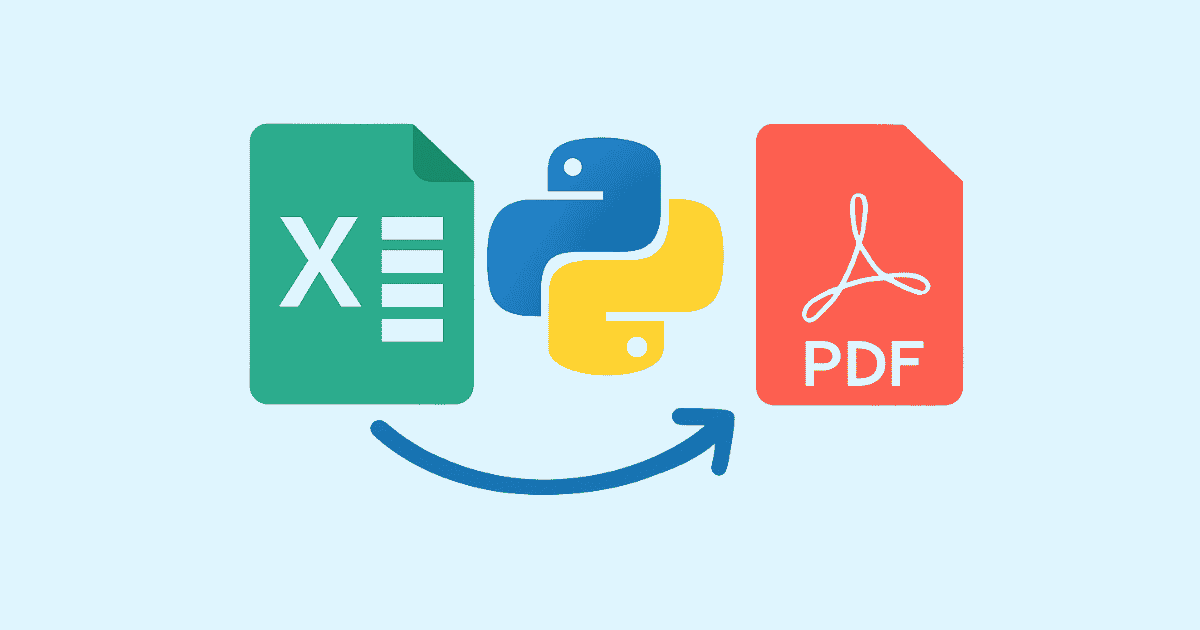
Converting Excel files to PDF is one of those tasks that sounds simple at first, but becomes more interesting once you care about formatting, page size, print areas, merged cells, charts, tables, and how the final PDF will look on paper or on screen. In many real projects, people do not just want to “save a spreadsheet as a PDF.” They want a clean, professional document that keeps the workbook readable, preserves structure, and opens correctly on any device.
Python is a great tool for this job because it gives you several possible approaches depending on your operating system and your goal. Some methods are excellent when you need perfect Excel rendering. Others are better when you only need to export the data into a neat PDF report. The best solution depends on whether you are working on Windows, Linux, or macOS, and whether Microsoft Excel or LibreOffice is installed on the machine.
In this guide, you will learn practical ways to convert Excel to PDF with Python, including working code examples, setup steps, and tips to avoid common problems. You will also see when each approach is the right choice, so you can pick the method that fits your project instead of forcing one tool to do everything.
Why Convert Excel to PDF?
Excel files are editable, flexible, and perfect for data entry, calculations, and analysis. PDF files are different. They are made for sharing, printing, and viewing in a stable layout. Once you convert an Excel sheet to PDF, the recipient sees exactly what you intended, without accidental edits or layout changes caused by different spreadsheet software.
This is useful in many situations. You may need to generate invoices, financial reports, sales summaries, attendance sheets, delivery documents, or printable forms. A PDF also looks more professional when sending files to clients or managers. It is easier to archive, email, and print.
The main challenge is that Excel is a layout engine and a calculation engine at the same time. A PDF exporter has to understand page breaks, margins, sheet scaling, hidden rows, sheet orientation, print titles, and many other print settings. That is why the conversion method matters so much.
The Main Ways to Convert Excel to PDF in Python
There are three common approaches:
The first is using Microsoft Excel itself through Python automation. This is the most accurate way on Windows because Excel handles the rendering exactly as it would when a person saves the file as PDF.
The second is using LibreOffice in headless mode. This is a strong cross-platform solution and works well on Linux, Windows, and macOS if LibreOffice is installed.
The third is building a PDF directly from the data using a Python PDF library such as ReportLab. This does not “render” Excel the same way, but it is very useful when you want a custom report rather than a literal copy of the spreadsheet.
Each method has strengths and trade-offs. If you want fidelity to the original workbook, use Excel automation or LibreOffice. If you want more control over the final design, consider generating the PDF yourself.
Method 1: Convert Excel to PDF with Microsoft Excel on Windows
If you are on Windows and Microsoft Excel is installed, this is usually the easiest and most accurate method. Python can control Excel through COM automation using the pywin32 package.
Install the package
pip install pywin32
Example: Convert a single Excel file to PDF
import os
from win32com import client


def excel_to_pdf(input_path: str, output_path: str) -> None:
    """
    Convert an Excel file to PDF using Microsoft Excel on Windows.
    """
    input_path = os.path.abspath(input_path)
    output_path = os.path.abspath(output_path)

    excel = client.Dispatch("Excel.Application")
    excel.Visible = False
    excel.DisplayAlerts = False

    try:
        workbook = excel.Workbooks.Open(input_path)

        # 0 = PDF format in Excel's ExportAsFixedFormat method
        workbook.ExportAsFixedFormat(0, output_path)

        workbook.Close(SaveChanges=False)
    finally:
        excel.Quit()


if __name__ == "__main__":
    excel_to_pdf("report.xlsx", "report.pdf")
    print("Done")
How it works
This code opens the workbook in Excel, exports it as a fixed-format file, and saves it as a PDF. The PDF output reflects Excel’s own rendering engine, which is why this approach is often preferred in business workflows.
When to use this method
Use it when:
you need the most accurate visual output,
the workbook contains charts, shapes, or complex formatting,
you are running on Windows,
Excel is installed on the machine.
Things to watch out for
Excel automation can fail if the workbook contains macro prompts, password protection, file corruption, or unsupported external links. It may also behave differently depending on printer settings and default page setup. In production scripts, it is a good idea to set sheet print areas and page orientation before exporting.
Method 2: Convert Excel to PDF with LibreOffice in Headless Mode
LibreOffice is a popular free office suite that can open Excel files and export them to PDF. Its command-line mode is especially useful for servers and Linux environments where Microsoft Excel is not available.
Install LibreOffice
You need LibreOffice installed on your system. After installation, the soffice command is usually available.
Example: Convert Excel to PDF using subprocess
import os
import subprocess
from pathlib import Path


def excel_to_pdf_libreoffice(input_path: str, output_dir: str | None = None) -> str:
    """
    Convert an Excel file to PDF using LibreOffice in headless mode.
    Returns the path to the generated PDF.
    """
    input_file = Path(input_path).resolve()

    if output_dir is None:
        output_dir = str(input_file.parent)

    output_dir = Path(output_dir).resolve()
    output_dir.mkdir(parents=True, exist_ok=True)

    cmd = [
        "soffice",
        "--headless",
        "--convert-to",
        "pdf",
        "--outdir",
        str(output_dir),
        str(input_file),
    ]

    result = subprocess.run(cmd, capture_output=True, text=True)

    if result.returncode != 0:
        raise RuntimeError(
            f"LibreOffice conversion failed:\nSTDOUT:\n{result.stdout}\nSTDERR:\n{result.stderr}"
        )

    pdf_path = output_dir / f"{input_file.stem}.pdf"
    return str(pdf_path)


if __name__ == "__main__":
    pdf_file = excel_to_pdf_libreoffice("report.xlsx")
    print(f"Saved to {pdf_file}")
Why this method is useful
LibreOffice is a great option for automation on servers because it does not require Microsoft Excel. It is especially practical for batch jobs, backend services, and cloud or Linux environments.
Limitations
LibreOffice does a good job with most workbooks, but the layout may not always match Excel perfectly. Complex charts, fonts, or advanced Excel-specific features can sometimes look slightly different. If exact visual fidelity matters, you should test the output carefully.
Method 3: Build a PDF Report from Excel Data with ReportLab
Sometimes the best answer is not to convert the sheet visually at all. Instead, you read the Excel data and build a clean PDF report from scratch. This is ideal when the spreadsheet is just a source of data and you want a custom-designed document.
This approach gives you full control over layout, colors, fonts, headers, and page breaks.
Install the packages
pip install openpyxl reportlab
Example: Read Excel and create a simple table PDF
from openpyxl import load_workbook
from reportlab.lib import colors
from reportlab.lib.pagesizes import A4, landscape
from reportlab.platypus import SimpleDocTemplate, Table, TableStyle, Paragraph, Spacer
from reportlab.lib.styles import getSampleStyleSheet


def excel_to_custom_pdf(excel_path: str, pdf_path: str, sheet_name: str | None = None) -> None:
    wb = load_workbook(excel_path, data_only=True)

    if sheet_name is None:
        ws = wb.active
    else:
        ws = wb[sheet_name]

    data = []
    for row in ws.iter_rows(values_only=True):
        data.append([str(cell) if cell is not None else "" for cell in row])

    doc = SimpleDocTemplate(pdf_path, pagesize=landscape(A4))
    styles = getSampleStyleSheet()
    elements = []

    elements.append(Paragraph("Excel Data Export", styles["Title"]))
    elements.append(Spacer(1, 12))

    table = Table(data, repeatRows=1)
    table.setStyle(TableStyle([
        ("BACKGROUND", (0, 0), (-1, 0), colors.lightgrey),
        ("TEXTCOLOR", (0, 0), (-1, 0), colors.black),
        ("GRID", (0, 0), (-1, -1), 0.5, colors.grey),
        ("FONTNAME", (0, 0), (-1, 0), "Helvetica-Bold"),
        ("ALIGN", (0, 0), (-1, -1), "LEFT"),
        ("VALIGN", (0, 0), (-1, -1), "MIDDLE"),
        ("FONTSIZE", (0, 0), (-1, -1), 8),
        ("BOTTOMPADDING", (0, 0), (-1, 0), 8),
    ]))

    elements.append(table)
    doc.build(elements)


if __name__ == "__main__":
    excel_to_custom_pdf("report.xlsx", "report_custom.pdf")
    print("PDF created")
Why use this approach
Use it when you do not need the exact spreadsheet appearance, but you do need a polished report. This is often better for invoices, summaries, dashboards, and printable business documents.
Main advantage
You are not limited by Excel print settings. You can design the PDF exactly the way you want.
Main drawback
You must build the layout yourself, and the result may not look like the original workbook.
Controlling the Excel Layout Before Export
One of the biggest mistakes people make is trying to convert an Excel file without setting up the print area first. If your workbook is messy for printing, the PDF will also be messy.
Before exporting, it helps to configure:
page orientation,
paper size,
margins,
fit-to-page scaling,
print area,
repeated header rows,
gridlines,
sheet selection.
If you use Microsoft Excel automation, you can set these properties before exporting.
Example: Set print settings in Excel via Python
import os
from win32com import client


def excel_to_pdf_with_settings(input_path: str, output_path: str) -> None:
    input_path = os.path.abspath(input_path)
    output_path = os.path.abspath(output_path)

    excel = client.Dispatch("Excel.Application")
    excel.Visible = False
    excel.DisplayAlerts = False

    try:
        workbook = excel.Workbooks.Open(input_path)
        sheet = workbook.Worksheets(1)

        # Page setup settings
        sheet.PageSetup.Orientation = 2  # 2 = landscape, 1 = portrait
        sheet.PageSetup.Zoom = False
        sheet.PageSetup.FitToPagesWide = 1
        sheet.PageSetup.FitToPagesTall = False

        # Optional: define print area
        # sheet.PageSetup.PrintArea = "$A$1:$H$40"

        workbook.ExportAsFixedFormat(0, output_path)
        workbook.Close(SaveChanges=False)
    finally:
        excel.Quit()


if __name__ == "__main__":
    excel_to_pdf_with_settings("report.xlsx", "report_landscape.pdf")
This kind of setup is extremely helpful when your sheet is too wide or too long. It keeps the content readable and prevents rows or columns from being cut off.
Converting Multiple Excel Files to PDF in Bulk
Real-world workflows often require batch conversion. Maybe you have a folder full of reports and you want to convert all of them into PDFs at once.
Example: Batch conversion with LibreOffice
from pathlib import Path
import subprocess


def batch_convert_excels_to_pdf(folder_path: str) -> None:
    folder = Path(folder_path).resolve()

    for file_path in folder.glob("*.xlsx"):
        cmd = [
            "soffice",
            "--headless",
            "--convert-to",
            "pdf",
            "--outdir",
            str(folder),
            str(file_path),
        ]
        result = subprocess.run(cmd, capture_output=True, text=True)

        if result.returncode == 0:
            print(f"Converted: {file_path.name}")
        else:
            print(f"Failed: {file_path.name}")
            print(result.stderr)


if __name__ == "__main__":
    batch_convert_excels_to_pdf("./excels")
Example: Batch conversion with Windows Excel
import os
from pathlib import Path
from win32com import client


def batch_convert_with_excel(folder_path: str) -> None:
    folder = Path(folder_path).resolve()

    excel = client.Dispatch("Excel.Application")
    excel.Visible = False
    excel.DisplayAlerts = False

    try:
        for file_path in folder.glob("*.xlsx"):
            pdf_path = file_path.with_suffix(".pdf")

            try:
                workbook = excel.Workbooks.Open(str(file_path))
                workbook.ExportAsFixedFormat(0, str(pdf_path))
                workbook.Close(SaveChanges=False)
                print(f"Converted: {file_path.name}")
            except Exception as e:
                print(f"Failed: {file_path.name} -> {e}")
    finally:
        excel.Quit()


if __name__ == "__main__":
    batch_convert_with_excel("./excels")
Batch processing is one of the best reasons to use Python instead of doing the conversion manually one file at a time.
Reading Excel Data Before Conversion
Sometimes you need to inspect or clean the spreadsheet before exporting it. Python can read the workbook first, remove empty rows, fix titles, or calculate new values.
Here is an example using openpyxl to read sheet content before creating a PDF report.
from openpyxl import load_workbook


def read_excel_values(path: str):
    wb = load_workbook(path, data_only=True)
    ws = wb.active

    for row in ws.iter_rows(values_only=True):
        print(row)


if __name__ == "__main__":
    read_excel_values("report.xlsx")
This can be useful if you want to create a custom PDF that only includes selected columns or filtered records.
A Practical Example: Export a Sales Sheet to PDF
Imagine you have an Excel file containing sales records with columns like date, product, quantity, unit price, and total. You want to generate a printable PDF summary for management.
Using Python, you can read the workbook, format the table, and produce a clean PDF.
Example
from openpyxl import load_workbook
from reportlab.lib import colors
from reportlab.lib.pagesizes import A4, landscape
from reportlab.platypus import SimpleDocTemplate, Table, TableStyle, Paragraph, Spacer
from reportlab.lib.styles import getSampleStyleSheet


def export_sales_report(excel_file: str, pdf_file: str) -> None:
    wb = load_workbook(excel_file, data_only=True)
    ws = wb.active

    rows = []
    for row in ws.iter_rows(values_only=True):
        rows.append([cell if cell is not None else "" for cell in row])

    doc = SimpleDocTemplate(pdf_file, pagesize=landscape(A4))
    styles = getSampleStyleSheet()
    elements = []

    elements.append(Paragraph("Sales Report", styles["Title"]))
    elements.append(Spacer(1, 12))

    table_data = [[str(cell) for cell in row] for row in rows]

    table = Table(table_data, repeatRows=1)
    table.setStyle(TableStyle([
        ("BACKGROUND", (0, 0), (-1, 0), colors.HexColor("#d9e2f3")),
        ("GRID", (0, 0), (-1, -1), 0.5, colors.grey),
        ("FONTNAME", (0, 0), (-1, 0), "Helvetica-Bold"),
        ("FONTSIZE", (0, 0), (-1, -1), 8),
        ("ALIGN", (0, 0), (-1, -1), "LEFT"),
        ("VALIGN", (0, 0), (-1, -1), "MIDDLE"),
        ("BOTTOMPADDING", (0, 0), (-1, 0), 8),
    ]))

    elements.append(table)
    doc.build(elements)


if __name__ == "__main__":
    export_sales_report("sales.xlsx", "sales_report.pdf")
This is not a pixel-perfect copy of Excel, but it is often the best choice for reports that need clarity and consistent formatting.
Choosing the Best Method
Here is the simplest way to decide:
Use Microsoft Excel automation when you want the best possible match to the workbook and you are on Windows.
Use LibreOffice headless mode when you need a server-friendly, free, cross-platform solution.
Use ReportLab or another PDF library when you want a custom report built from Excel data instead of a visual export.
The right method depends on your goal. A dashboard screenshot in PDF form is very different from a business report generated from spreadsheet data.
Common Problems and Fixes
1. The PDF cuts off columns
This usually means the print area is too wide or the sheet scaling is not set correctly. In Excel automation, use fit-to-page settings. In LibreOffice, check the sheet layout before conversion.
2. The output looks different from Excel
This happens most often with LibreOffice or custom PDF generation. Font substitution, margins, and chart rendering can all cause differences. Test with a few real files before using it in production.
3. Conversion fails on a server
If you are using Microsoft Excel automation, it may not work on a server without a desktop session. In that case, use LibreOffice instead.
4. Hidden rows or sheets appear unexpectedly
Check workbook visibility and print settings. Some libraries export all visible content unless you configure the sheet carefully.
5. Multiple sheets do not export the way you expect
Excel may export all sheets or only selected sheets depending on the workbook state. Make sure the correct sheets are active or configured before exporting.
A More Robust Windows Example with Error Handling
Here is a more production-friendly version for Windows automation.
import os
from win32com import client


def safe_excel_to_pdf(input_file: str, output_file: str) -> bool:
    input_file = os.path.abspath(input_file)
    output_file = os.path.abspath(output_file)

    excel = None
    workbook = None

    try:
        excel = client.DispatchEx("Excel.Application")
        excel.Visible = False
        excel.DisplayAlerts = False
        excel.ScreenUpdating = False

        workbook = excel.Workbooks.Open(input_file, ReadOnly=True)
        workbook.ExportAsFixedFormat(0, output_file)

        return True

    except Exception as exc:
        print(f"Conversion failed: {exc}")
        return False

    finally:
        if workbook is not None:
            workbook.Close(SaveChanges=False)
        if excel is not None:
            excel.Quit()


if __name__ == "__main__":
    ok = safe_excel_to_pdf("report.xlsx", "report.pdf")
    print("Success" if ok else "Failed")
This version is better because it uses cleanup in finally, which helps prevent leftover Excel processes from remaining open.
A More Robust LibreOffice Example
from pathlib import Path
import subprocess


def libreoffice_convert(input_file: str, output_dir: str | None = None) -> str:
    input_path = Path(input_file).resolve()

    if output_dir is None:
        output_path = input_path.parent
    else:
        output_path = Path(output_dir).resolve()

    output_path.mkdir(parents=True, exist_ok=True)

    cmd = [
        "soffice",
        "--headless",
        "--nologo",
        "--nofirststartwizard",
        "--convert-to",
        "pdf",
        "--outdir",
        str(output_path),
        str(input_path),
    ]

    process = subprocess.run(cmd, capture_output=True, text=True)

    if process.returncode != 0:
        raise RuntimeError(process.stderr.strip() or "LibreOffice conversion failed")

    return str(output_path / f"{input_path.stem}.pdf")
This version adds a few helpful command-line flags that reduce startup noise and make automation more stable.
Tips for Better PDF Output
If your PDF needs to look professional, these tips help a lot.
Make sure the spreadsheet has a clear header row. A PDF table is much easier to read when the first row tells the user what each column means.
Use consistent fonts and avoid very small text. If the sheet is crowded, the exported PDF may become difficult to read.
Check whether the workbook should be in portrait or landscape mode. Wide tables usually belong in landscape.
Reduce unnecessary empty columns and rows. They make the layout heavier and more confusing.
Use print areas whenever possible. This prevents accidental export of blank space.
Test on a real sample file before converting hundreds of files. A workbook with merged cells, hidden columns, or formulas may behave differently from a simple sheet.
Can Python Convert Excel to PDF Without Excel Installed?
Yes, but not in the same way. If Microsoft Excel is not installed, you still have options. LibreOffice is the most common alternative for visual conversion. If you only need the data, libraries like openpyxl, pandas, and reportlab let you build a PDF yourself.
So the answer is yes, but the quality and fidelity depend on the method you choose.
When You Should Not Use a Direct Conversion
Sometimes converting the whole spreadsheet to PDF is not the best approach. If the workbook contains interactive forms, complex formulas that only make sense in Excel, or very large amounts of raw data, a custom-generated PDF may be more readable.
For example, a 20-sheet workbook full of calculations may be better turned into a short summary PDF with selected results, charts, and totals. That often gives a better user experience than dumping the entire workbook into a document.
Final Thoughts
Converting Excel to PDF with Python is not one single task. It is a family of workflows, and the best one depends on what you need. If you want the closest match to Excel, use Microsoft Excel automation on Windows. If you need a free, server-friendly, cross-platform solution, LibreOffice headless mode is a solid choice. If you want a polished report rather than a visual copy of the workbook, generate the PDF directly from the data with ReportLab.
The most important thing is to think about the final result before writing the code. Ask yourself whether the PDF should preserve the spreadsheet exactly, or whether it should simply present the information clearly. Once you know that, the right Python solution becomes much easier to choose.
Python gives you the flexibility to automate all of it, from one file to thousands. With the examples above, you now have a practical starting point for building your own Excel-to-PDF converter, report generator, or batch export tool.
Hassan Agmir
Author · Filenewer
Writing about file tools and automation at Filenewer.
Try It Free
Process your files right now
No account needed · Fast & secure · 100% free
Browse All Tools