PDF to Word
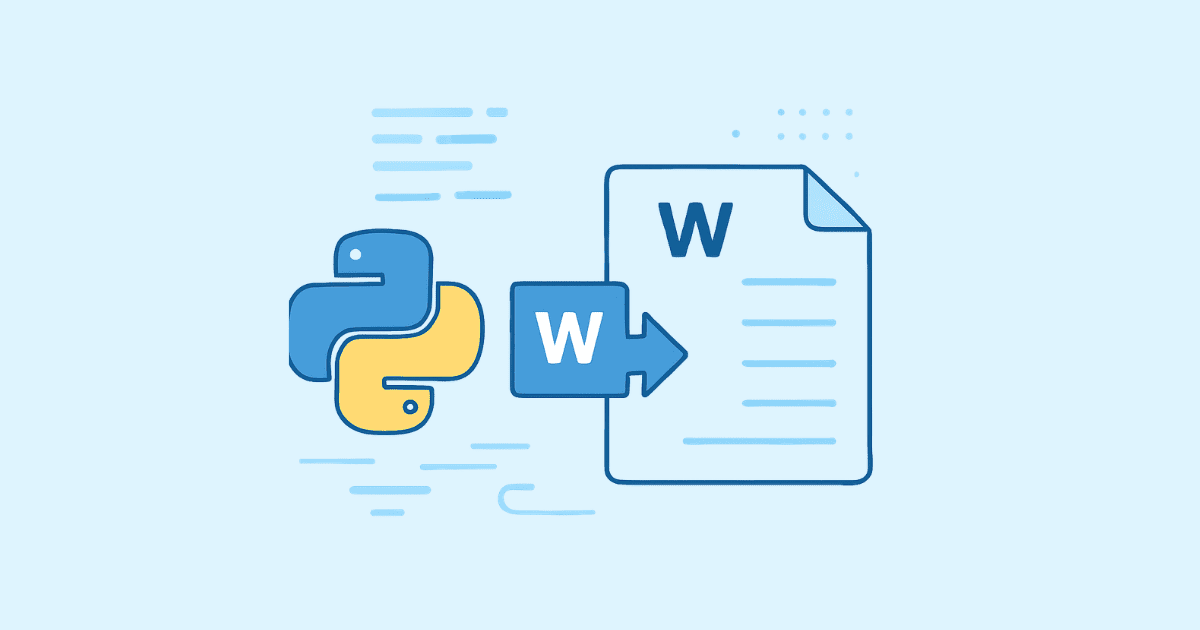
Converting a PDF file into a Word document is one of the most common tasks for students, professionals, and business users. Whether you want to edit text, update content, or reuse information, transforming a PDF into an editable Word file is essential.
In this guide, you’ll learn how to convert PDF to Word step-by-step, using different methods—online tools, software, and built-in features.
Why Convert PDF to Word?
PDF files are great for sharing and printing, but they are not easy to edit. Converting them to Word allows you to:
Edit text and images
Reuse content without retyping
Make quick updates to documents
Customize formatting
Method 1: Convert PDF to Word Online (Fastest Way)
Using an online tool is the easiest and fastest method.
Steps:
Go to your tool page (like PDF to Word on filenewer.com)
Upload your PDF file
Click on Convert
Download the Word (.docx) file
Advantages:
No installation required
Works on any device
Fast and simple
👉 Perfect for quick conversions.
Method 2: Using Microsoft Word
Did you know that Microsoft Word can open PDF files directly?
Steps:
Open Microsoft Word
Click File > Open
Select your PDF file
Word will automatically convert it
Save as
.docx
Notes:
Works best with simple PDFs
Formatting may change slightly
Method 3: Using Google Docs (Free Method)
You can also convert PDFs using Google Docs.
Steps:
Upload your PDF to Google Drive
Right-click → Open with Google Docs
The file will be converted automatically
Download as Word file
Advantages:
Completely free
No software needed
Works in browser
Method 4: Desktop Software Tools
Some professional tools provide better accuracy, especially for complex documents:
Adobe Acrobat
Other advanced PDF editors
These tools are ideal for:
Scanned documents
Complex layouts
High-quality formatting
Tips for Better Conversion Results
To get the best output when converting PDF to Word:
Use high-quality PDFs (not blurry scans)
Avoid heavily formatted documents
Check and fix formatting after conversion
Use OCR tools for scanned files
Common Problems and Solutions
1. Formatting Issues
Some layouts may break during conversion.
👉 Fix manually in Word or use a better converter.
2. Scanned PDFs Not Editable
Use OCR (Optical Character Recognition) tools.
3. Missing Fonts
Install the required fonts or replace them in Word.
Why Use filenewer.com?
Your website can stand out by offering:
Fast PDF conversion tools
Secure file processing
No registration required
Clean and simple UI
💡 Add a CTA like:
“Convert your PDF to Word instantly using our free tool!”
Conclusion
Converting a PDF to Word is simple once you know the right tools. Whether you use an online service, Microsoft Word, or Google Docs, each method has its advantages.
If you want the fastest and easiest option, try an online converter like the one on your site
Hassan Agmir
Author · Filenewer
Writing about file tools and automation at Filenewer.
Try It Free
Process your files right now
No account needed · Fast & secure · 100% free
Browse All Tools