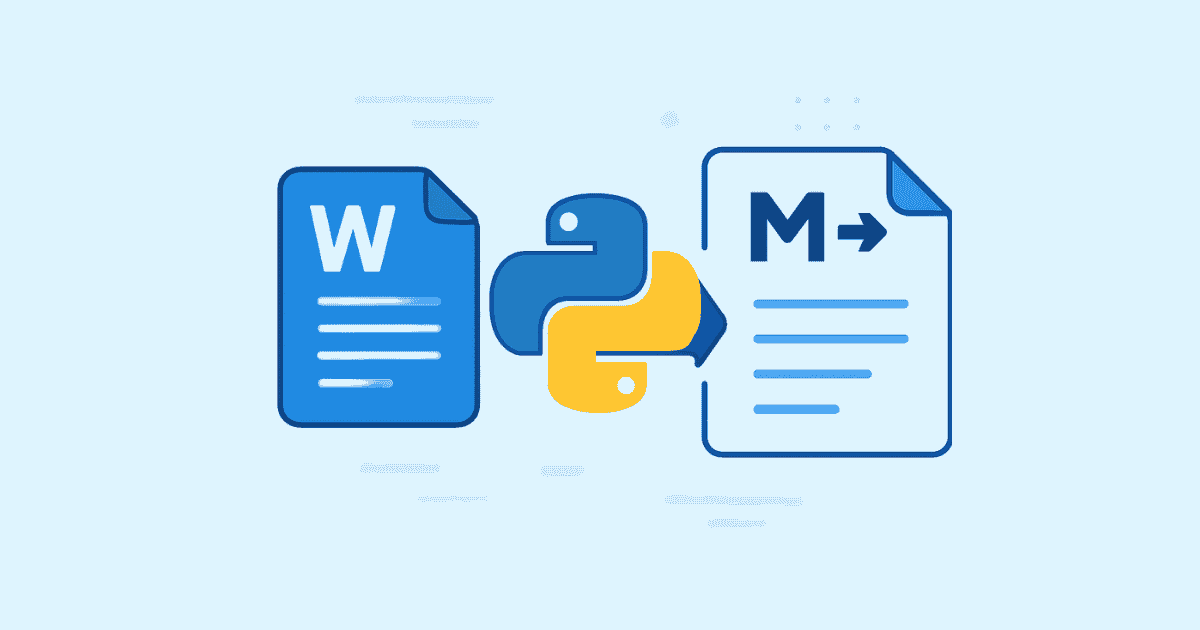
Converting Word documents to Markdown is one of those tasks that sounds simple until you actually need it in a real project. A Word file may contain headings, paragraphs, lists, tables, images, hyperlinks, bold text, italic text, block quotes, page breaks, and sometimes a mix of all of them in one section. Markdown, by contrast, is intentionally lightweight. It is designed to be easy to read, easy to write, and easy to store in a format that works well with documentation sites, static site generators, note-taking apps, and content pipelines.
That difference is exactly why Word to Markdown conversion is so useful. Word is excellent for authoring and editing. Markdown is excellent for publishing, automation, version control, and long-term portability. When you combine them, you get a workflow where content can be drafted in Microsoft Word and then converted into a clean, reusable Markdown file with Python.
In this article, we will explore the full process of converting Word to Markdown in Python. We will look at the core ideas, the common library choices, the limitations you need to expect, and several practical code examples you can adapt to your own project. By the end, you will understand not only how to do the conversion, but also how to improve the quality of the output and handle common edge cases.
Why Convert Word Documents to Markdown?
Word documents are everywhere. Businesses use them for reports, publishers use them for drafts, teachers use them for course content, and teams use them for internal documentation. But Word files are not always the best format for the web or for developer workflows.
Markdown solves many of the problems that Word creates. A Markdown file is plain text, so it works well with Git, code editors, CMS systems, documentation platforms, and static site generators like Hugo, Jekyll, Docusaurus, or Next.js-based documentation tools. It is also much easier to diff in version control. If one sentence changes, Git can show the exact line that changed. That is much harder with binary .docx files.
Python is a great choice for the conversion because it gives you flexibility. You can extract Word content, transform it, clean it, and save it exactly the way your project needs. You can use Python in a batch script, a web application, a content pipeline, or even a desktop automation tool.
The most common reasons to build this conversion are:
Migrating documentation from Word into a Markdown-based website.
Converting articles or drafts for blogging platforms.
Importing editorial content into a CMS.
Automating document processing in a backend system.
Turning internal office files into developer-friendly text.
Understanding the Difference Between Word and Markdown
Before writing code, it helps to understand what you are converting.
Word documents, especially .docx files, store structured content in XML inside a zipped archive. They can contain rich formatting and layout details. Markdown is much simpler. It represents structure with symbols:
#for headings**bold**for bold text_italic_or*italic*for italics-or*for lists[text](url)for links>for block quotescodefor inline codetriple backticks for code blocks
This means the conversion is not always one-to-one. Some Word features do not have a direct Markdown equivalent. For example, advanced page layouts, text boxes, floating shapes, complex tables, and some styling details may be reduced or simplified during conversion.
That is not a failure. It is simply the nature of the formats. Word is a rich document format; Markdown is a lightweight text format. The goal of conversion is usually to preserve the meaning and readability, not every visual detail.
The Best Python Libraries for Word to Markdown Conversion
There is no single perfect library for every case. The best option depends on how complex the Word file is and how much control you want over the output.
python-docx
python-docx is one of the most commonly used libraries for reading .docx files in Python. It gives you access to paragraphs, runs, headings, tables, and some document metadata. It does not directly convert Word to Markdown, but it is extremely useful if you want to build your own converter.
This is the best choice when you want full control and are willing to write conversion logic yourself.
mammoth
mammoth is a popular library for converting .docx files to HTML. Since Markdown is often easier to derive from HTML than directly from Word XML, many developers use Mammoth as a middle step. You convert Word to HTML, then HTML to Markdown.
This is often a practical route because Mammoth focuses on semantic structure instead of visual formatting. It tends to produce cleaner output than tools that try too hard to reproduce layout.
pandoc
Pandoc is one of the most powerful document conversion tools available. It can convert between Word, Markdown, HTML, PDF, LaTeX, and many other formats. In Python, you can call Pandoc from your script if it is installed locally.
Pandoc is an excellent option when you need a robust general-purpose converter. It often handles many document structures better than a handmade script. The tradeoff is that you depend on an external tool.
pypandoc
pypandoc is a Python wrapper around Pandoc. It makes it easier to invoke Pandoc from Python code. This is convenient for automation scripts and backend applications.
Custom parsing with python-docx
If you need maximum control, you can parse a Word document paragraph by paragraph and build Markdown manually. This is more work, but it gives you the best opportunity to apply project-specific rules. For example, you may want:
Heading styles mapped to specific Markdown levels
Custom handling for bold and italic text
Special formatting for tables
Image extraction into a media folder
Link cleanup
Front matter generation
A Simple Conversion Strategy
A practical Word to Markdown pipeline usually follows one of these patterns:
Option 1: Direct conversion with Pandoc
This is the easiest path when you just need a usable result quickly.
Option 2: Word to HTML to Markdown
This gives you more flexibility and can help with formatting cleanup.
Option 3: Direct parsing with Python
This is best when you need custom conversion rules or integration with your own system.
In many projects, the second or third option is the most useful. Direct “one-click” conversion often works for simple documents, but real-world documents usually need cleanup.
Installing the Required Tools
If you are using python-docx, install it with pip:
pip install python-docx
If you want HTML to Markdown conversion too, you may also install:
pip install mammoth markdownify
If you want to use Pandoc through Python:
pip install pypandoc
For Pandoc itself, you usually need to install the Pandoc binary on your system. The Python package alone is not enough in many environments.
Reading a Word Document with Python
Let’s start with a basic .docx reader using python-docx.
from docx import Document

doc = Document("sample.docx")

for para in doc.paragraphs:
    print(para.text)
This is a good starting point because it shows the plain text content of each paragraph. However, it does not preserve formatting yet. A Word document may contain headings, bold text, links, or lists, and all of those details matter when converting to Markdown.
To build a better converter, we need to inspect paragraph styles and inline runs.
Converting Paragraphs to Markdown
Markdown headings are based on structure. In Word, headings are usually stored as paragraph styles such as Heading 1, Heading 2, and so on. That makes them fairly easy to detect.
Here is a simple example:
from docx import Document

def paragraph_to_markdown(paragraph):
    style_name = paragraph.style.name if paragraph.style else ""

    text = paragraph.text.strip()
    if not text:
        return ""

    if style_name == "Heading 1":
        return f"# {text}"
    elif style_name == "Heading 2":
        return f"## {text}"
    elif style_name == "Heading 3":
        return f"### {text}"
    else:
        return text

doc = Document("sample.docx")

markdown_lines = []
for paragraph in doc.paragraphs:
    md = paragraph_to_markdown(paragraph)
    if md:
        markdown_lines.append(md)

markdown_text = "\n\n".join(markdown_lines)

with open("output.md", "w", encoding="utf-8") as f:
    f.write(markdown_text)
This script converts headings and plain paragraphs into Markdown. It is simple, readable, and useful for many documents that follow standard style conventions.
But real documents usually need more than this.
Preserving Bold and Italic Text
Word paragraphs can contain multiple runs, and each run may have a different formatting style. For example, one part of a sentence may be bold, and another part italic. If you only use paragraph.text, you lose that formatting.
To preserve inline styles, you need to inspect each run.
from docx import Document

def run_to_markdown(run):
    text = run.text
    if not text:
        return ""

    if run.bold and run.italic:
        return f"***{text}***"
    elif run.bold:
        return f"**{text}**"
    elif run.italic:
        return f"*{text}*"
    return text

def paragraph_to_markdown(paragraph):
    style_name = paragraph.style.name if paragraph.style else ""
    text = "".join(run_to_markdown(run) for run in paragraph.runs).strip()

    if not text:
        return ""

    if style_name == "Heading 1":
        return f"# {text}"
    elif style_name == "Heading 2":
        return f"## {text}"
    elif style_name == "Heading 3":
        return f"### {text}"
    return text

doc = Document("sample.docx")

markdown_lines = []
for paragraph in doc.paragraphs:
    md = paragraph_to_markdown(paragraph)
    if md:
        markdown_lines.append(md)

with open("output.md", "w", encoding="utf-8") as f:
    f.write("\n\n".join(markdown_lines))
This is already much better. It preserves both structure and emphasis. Of course, it still does not handle every Word feature, but it covers a lot of common content.
Converting Lists
Lists are one of the most common things in Word documents. In Markdown, bullet lists and numbered lists are easy to represent, but Word list detection can be tricky.
With python-docx, determining whether a paragraph is part of a list often requires checking numbering properties or style names. In many documents, list paragraphs use styles such as List Bullet or List Number.
A simplified approach looks like this:
from docx import Document

def paragraph_to_markdown(paragraph):
    style_name = paragraph.style.name if paragraph.style else ""
    text = paragraph.text.strip()

    if not text:
        return ""

    if style_name == "Heading 1":
        return f"# {text}"
    elif style_name == "Heading 2":
        return f"## {text}"
    elif style_name == "List Bullet":
        return f"- {text}"
    elif style_name == "List Number":
        return f"1. {text}"
    else:
        return text

doc = Document("sample.docx")

lines = [paragraph_to_markdown(p) for p in doc.paragraphs if paragraph_to_markdown(p)]
print("\n\n".join(lines))
This approach works when the Word file uses standard list styles. In some documents, however, the numbering can be more complex. Nested lists may need indentation, and numbered items may need proper sequence tracking. That is where custom logic becomes more important.
A more advanced list converter may track the current nesting level and use indentation:
def indent(level):
    return "  " * level

# Example output:
# - Item one
#   - Sub item
#   - Sub item
# - Item two
Handling Hyperlinks
Word documents often contain clickable links. Markdown supports these naturally using the format [label](url).
Unfortunately, extracting hyperlinks from Word with python-docx is not as straightforward as reading text. The hyperlink is not stored as part of normal paragraph text in a simple way. In many cases, it is better to use a library that already handles the conversion, or write a helper that reads the underlying XML relationships.
If your document has many links and you need reliable extraction, Pandoc or Mammoth may be a better choice than a fully custom parser.
Still, the Markdown representation is simple:
[OpenAI](https://openai.com)
Handling Images
Images are another important part of Word documents. Markdown can embed images like this:

The challenge is that Word stores images inside the document package, not as separate files. A good converter should extract them and save them in a local folder.
If you use Mammoth, image extraction is easier because it gives you a hook for saving image files. Here is an example:
import mammoth

def convert_image(image):
    with image.open() as img:
        data = img.read()

    image_filename = image.alt_text or "image"
    with open(f"images/{image_filename}.png", "wb") as f:
        f.write(data)

    return {"src": f"images/{image_filename}.png"}

with open("sample.docx", "rb") as docx_file:
    result = mammoth.convert_to_html(docx_file, convert_image=mammoth.images.img_element(convert_image))
    html = result.value

print(html)
After extracting HTML, you can convert it to Markdown. This is often easier than trying to manually rebuild image behavior from raw Word XML.
For a pure python-docx workflow, image extraction is possible, but it requires more low-level handling of the document archive and relationships.
Using Pandoc from Python
Pandoc is often the fastest route to a usable Word to Markdown converter.
Here is a simple example using pypandoc:
import pypandoc

output = pypandoc.convert_file("sample.docx", "md", format="docx")
with open("output.md", "w", encoding="utf-8") as f:
    f.write(output)
This is very clean and extremely useful for automation. Pandoc handles many formatting details well, including headings, lists, emphasis, links, and tables.
If you want better control over the flavor of Markdown, you can specify a target format. For example, GitHub Flavored Markdown may be useful in some projects. Pandoc also supports a huge range of conversion options.
The downside is that you depend on the external Pandoc installation. Still, for many production workflows, that is a very good tradeoff.
Word to Markdown via HTML
A very practical workflow is:
Convert
.docxto HTML.Convert HTML to Markdown.
Clean up the Markdown output.
This is a good compromise when you want better structure than raw Word parsing but still need Python-based control.
Using Mammoth:
import mammoth
from markdownify import markdownify as md

with open("sample.docx", "rb") as docx_file:
    html_result = mammoth.convert_to_html(docx_file)

html = html_result.value
markdown = md(html)

with open("output.md", "w", encoding="utf-8") as f:
    f.write(markdown)
This pipeline works well for many documents because HTML is a more flexible intermediate format. It also makes debugging easier. If the output is wrong, you can inspect the HTML first and see what went wrong before the Markdown step.
A More Complete Custom Converter
Now let’s build a more complete conversion script that handles headings, bold, italic, and simple lists.
from docx import Document

def convert_runs(paragraph):
    parts = []

    for run in paragraph.runs:
        text = run.text
        if not text:
            continue

        if run.bold and run.italic:
            text = f"***{text}***"
        elif run.bold:
            text = f"**{text}**"
        elif run.italic:
            text = f"*{text}*"

        parts.append(text)

    return "".join(parts).strip()

def paragraph_to_markdown(paragraph):
    style_name = paragraph.style.name if paragraph.style else ""
    text = convert_runs(paragraph)

    if not text:
        return ""

    if style_name == "Heading 1":
        return f"# {text}"
    if style_name == "Heading 2":
        return f"## {text}"
    if style_name == "Heading 3":
        return f"### {text}"
    if style_name == "Heading 4":
        return f"#### {text}"
    if style_name == "List Bullet":
        return f"- {text}"
    if style_name == "List Number":
        return f"1. {text}"

    return text

def docx_to_markdown(docx_path, md_path):
    doc = Document(docx_path)
    markdown_lines = []

    for paragraph in doc.paragraphs:
        md = paragraph_to_markdown(paragraph)
        if md:
            markdown_lines.append(md)

    markdown = "\n\n".join(markdown_lines)

    with open(md_path, "w", encoding="utf-8") as f:
        f.write(markdown)

docx_to_markdown("sample.docx", "output.md")
This script is not perfect, but it is a strong foundation. You can expand it to handle more styles, better list logic, tables, links, and images.
Converting Tables to Markdown
Tables are useful in Word documents, but Markdown tables have limitations. Markdown tables work well for simple grids, but they are not ideal for very complex or deeply nested table structures.
A simple Markdown table looks like this:
| Name | Age | City |
|------|-----|------|
| Ali  | 30  | Rabat |
| Sara | 27  | Fes |
You can extract Word tables with python-docx like this:
from docx import Document

def table_to_markdown(table):
    rows = []

    for row in table.rows:
        cells = [cell.text.strip().replace("\n", " ") for cell in row.cells]
        rows.append(cells)

    if not rows:
        return ""

    header = rows[0]
    separator = ["---"] * len(header)

    md_lines = [
        "| " + " | ".join(header) + " |",
        "| " + " | ".join(separator) + " |"
    ]

    for row in rows[1:]:
        md_lines.append("| " + " | ".join(row) + " |")

    return "\n".join(md_lines)

doc = Document("sample.docx")

for table in doc.tables:
    print(table_to_markdown(table))
This works well for simple tables. If your table contains merged cells, nested formatting, or multiline content, the conversion will require more cleanup.
Combining Paragraphs and Tables in the Right Order
One issue with python-docx is that doc.paragraphs and doc.tables are available separately, but not always in the exact order they appear in the document. If you care about preserving document flow, you may need to iterate through the underlying XML structure instead of reading paragraphs and tables independently.
This matters when a document looks like this:
Intro paragraph
Table
More text
Another table
Conclusion
If you read paragraphs first and tables later, the output order will not match the original document.
For simple documents, this may not matter. For production conversion, it often does.
Cleaning the Output
Even a good converter usually needs cleanup. This may include:
Removing extra blank lines
Normalizing heading spacing
Fixing list indentation
Converting smart quotes
Resolving broken links
Moving images into a media directory
Adding front matter for static site generators
For example, you may want to normalize multiple blank lines into one:
import re

def cleanup_markdown(text):
    text = re.sub(r"\n{3,}", "\n\n", text)
    text = text.strip()
    return text
You might also want to ensure that headings are followed by proper spacing or that tables do not contain stray line breaks.
Adding YAML Front Matter
If you are converting Word content for a blog or static site generator, front matter is often useful.
Example:
---
title: "My Article"
date: "2026-04-24"
author: "Hassan Agmir"
---
You can generate this automatically in Python:
from datetime import date

def add_front_matter(title, author):
    today = date.today().isoformat()
    return f"""---
title: "{title}"
date: "{today}"
author: "{author}"
---

"""
Then prepend it to your converted Markdown before saving the file.
Handling Special Characters
Word documents sometimes contain special characters that can cause problems in Markdown. For example:
Curly quotes
Em dashes
Non-breaking spaces
Bullet symbols
Accent marks
Invisible control characters
Python usually handles Unicode well, but you still need to make sure your files are saved with UTF-8 encoding. Always open output files with:
open("output.md", "w", encoding="utf-8")
If your content has special Markdown characters such as *, _, or # in plain text, you may need to escape them so they do not accidentally become formatting syntax.
Limitations You Should Expect
No Word to Markdown converter is perfect, especially for complex documents. Some things may not translate cleanly:
Text boxes
Floating shapes
Footnotes
Endnotes
Comments
Track changes
Complex nested tables
Custom fonts
Advanced page layout
Section breaks with visual meaning
Headers and footers
Watermarks
Markdown is not a page layout language. It is a semantic text format. So the best converter is one that preserves meaning, structure, and readability rather than trying to preserve every detail of the original Word design.
This is why many teams accept a “good enough” Markdown output and then refine it manually.
Best Practices for Better Conversions
If you want better results, the conversion quality often depends more on how the Word file is prepared than on the code itself.
Here are some important best practices:
Use proper heading styles instead of manually changing font size.
Use Word list styles instead of typing dashes manually.
Keep tables simple where possible.
Avoid text boxes for important content.
Place images inline when possible.
Use hyperlinks instead of colored text that merely looks like a link.
Keep formatting consistent throughout the document.
When the Word document is structured well, conversion becomes much easier and much more accurate.
Choosing the Right Approach
The right conversion method depends on your goal.
Use Pandoc if you want a powerful, general solution with strong formatting support.
Use Mammoth + Markdown conversion if you want cleaner semantic output and easier image handling.
Use python-docx if you need full control and want to write custom rules.
Use a hybrid approach if you need both automation and content cleanup.
For many real-world projects, a hybrid method is best. For example, you may use Pandoc to produce a first-pass Markdown file and then run a Python script to clean it up, add front matter, fix headings, and move images into the right folder.
Example Workflow for a Real Project
Imagine you have a folder full of .docx files from a content team. You want to turn them into Markdown articles for your website.
A good workflow might look like this:
Read each
.docxfile.Convert it to Markdown with Pandoc or Mammoth.
Clean the Markdown output.
Add front matter.
Save the result as
.md.Copy images into a shared media folder.
Review the output manually before publishing.
This approach scales nicely because it separates the conversion step from the editorial review step. That makes the whole process easier to manage.
Example Batch Converter
Here is a simple batch converter that processes all Word files in a folder.
import os
from pathlib import Path
import pypandoc

input_dir = Path("docs")
output_dir = Path("markdown")

output_dir.mkdir(exist_ok=True)

for docx_file in input_dir.glob("*.docx"):
    markdown = pypandoc.convert_file(str(docx_file), "md", format="docx")
    output_file = output_dir / f"{docx_file.stem}.md"

    with open(output_file, "w", encoding="utf-8") as f:
        f.write(markdown)

    print(f"Converted: {docx_file.name} -> {output_file.name}")
This is ideal when you need to convert many files at once. You can extend it with error handling, logging, image extraction, and filename cleanup.
Error Handling and Validation
In production, always expect some files to fail. A document may be corrupt, password-protected, malformed, or created with unusual formatting.
Add error handling like this:
import pypandoc

try:
    markdown = pypandoc.convert_file("sample.docx", "md", format="docx")
except RuntimeError as e:
    print("Conversion failed:", e)
You may also want to validate the output by checking whether the Markdown file is empty or whether it contains suspiciously little content.
Final Thoughts
Word to Markdown conversion in Python is a very practical skill. It sits at the intersection of document processing, content migration, and workflow automation. The best solution depends on the structure of your documents and the level of control you need.
If you want the fastest route, Pandoc is often the strongest starting point. If you want semantic conversion and image handling, Mammoth is a solid choice. If you need custom logic, python-docx lets you build exactly the converter you need.
The key idea is simple: do not try to force Word and Markdown to behave the same way. Instead, preserve the meaning of the document, map the structure carefully, and clean up the result afterward. That is what produces Markdown that is useful, readable, and ready for publishing.
Hassan Agmir
Author · Filenewer
Writing about file tools and automation at Filenewer.
Try It Free
Process your files right now
No account needed · Fast & secure · 100% free
Browse All Tools