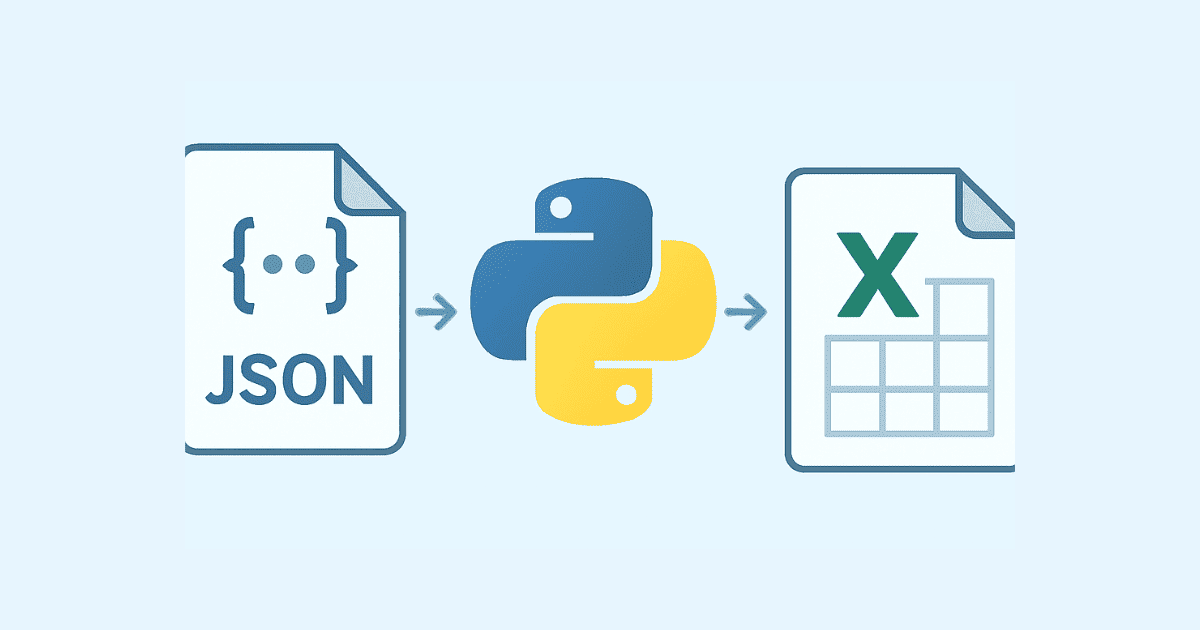
Converting JSON to Excel is one of the most useful tasks in Python when you work with APIs, data exports, reports, dashboards, logs, or business records. JSON is the most common format for exchanging data between systems, while Excel remains one of the most popular tools for viewing, filtering, and analyzing that data.
If you have ever received JSON from an API and needed to turn it into a clean spreadsheet, this guide is for you. In this article, you will learn how to convert JSON to Excel in Python using practical methods, including pandas, openpyxl, and custom code. You will also learn how to handle nested JSON, lists inside objects, multiple sheets, large files, formatting, errors, and real-world use cases.
By the end, you will know how to build a reliable JSON-to-Excel workflow in Python for both simple and advanced projects.
What Is JSON?
JSON stands for JavaScript Object Notation. It is a lightweight data format used to store and exchange information.
A JSON object may look like this:
{
  "name": "Hassan",
  "age": 30,
  "city": "Nador"
}
JSON is easy for humans to read and easy for machines to parse. It is widely used in APIs, config files, web apps, mobile apps, and backend systems.
What Is Excel?
Excel is a spreadsheet format used to organize data into rows and columns. It is ideal for:
reports
tables
financial data
analytics
inventory
exports
dashboards
Excel files usually have the extension .xlsx.
Why Convert JSON to Excel in Python?
You may need this conversion for many reasons:
Export API responses into spreadsheets
Transform complex JSON into a business-friendly report
Save structured data for non-technical users
Analyze JSON data in Excel
Share data with managers or clients
Clean and reshape nested data into tabular format
Python is a great choice because it gives you control over how the data is transformed before it reaches Excel.
Main Ways to Convert JSON to Excel in Python
There are several ways to convert JSON to Excel:
Use
pandasfor fast and simple table conversionUse
pandas.json_normalize()for nested JSONUse
openpyxlfor more control over formattingUse
xlsxwriterfor polished outputWrite custom code for special structures
The best method depends on your input JSON and your output needs.
Install the Required Libraries
Before you begin, make sure you have the necessary packages installed.
pip install pandas openpyxl
If you want advanced formatting support, you may also install:
pip install xlsxwriter
pandas is the easiest way to convert JSON to Excel in most cases. openpyxl is excellent for editing and formatting Excel files. xlsxwriter is very useful when you are generating new spreadsheets with formatting.
Basic JSON to Excel Conversion with Pandas
The simplest way to convert JSON to Excel in Python is with pandas.
Example JSON list of objects
Suppose you have a JSON file like this:
[
  {"name": "Ali", "age": 25, "city": "Rabat"},
  {"name": "Sara", "age": 29, "city": "Casablanca"},
  {"name": "Omar", "age": 33, "city": "Tangier"}
]
Python code to convert JSON to Excel
import pandas as pd

data = [
    {"name": "Ali", "age": 25, "city": "Rabat"},
    {"name": "Sara", "age": 29, "city": "Casablanca"},
    {"name": "Omar", "age": 33, "city": "Tangier"}
]

df = pd.DataFrame(data)
df.to_excel("output.xlsx", index=False)
This will create an Excel file called output.xlsx with three columns: name, age, and city.
Read JSON from a File and Export to Excel
In real projects, your JSON data often comes from a file.
Example data.json
[
  {"product": "Laptop", "price": 1200, "stock": 15},
  {"product": "Mouse", "price": 25, "stock": 200},
  {"product": "Keyboard", "price": 60, "stock": 100}
]
Python code
import pandas as pd

df = pd.read_json("data.json")
df.to_excel("products.xlsx", index=False)
This is one of the easiest ways to convert a JSON file to Excel.
Convert JSON String to Excel in Python
Sometimes JSON comes as a string, especially from an API or a web response.
Example
import json
import pandas as pd

json_string = '''
[
  {"name": "Ali", "age": 25, "city": "Rabat"},
  {"name": "Sara", "age": 29, "city": "Casablanca"}
]
'''

data = json.loads(json_string)
df = pd.DataFrame(data)
df.to_excel("people.xlsx", index=False)
Here, json.loads() converts the string into a Python object, and then pandas writes it into Excel.
Convert Nested JSON to Excel
Nested JSON is very common in real applications. It often contains dictionaries inside dictionaries or lists inside objects.
Example nested JSON
[
  {
    "id": 1,
    "name": "Ali",
    "contact": {
      "email": "ali@example.com",
      "phone": "123456789"
    }
  },
  {
    "id": 2,
    "name": "Sara",
    "contact": {
      "email": "sara@example.com",
      "phone": "987654321"
    }
  }
]
If you convert this directly into a DataFrame, the nested object may stay inside one column. A better way is to flatten it.
Use json_normalize()
import pandas as pd

data = [
    {
        "id": 1,
        "name": "Ali",
        "contact": {
            "email": "ali@example.com",
            "phone": "123456789"
        }
    },
    {
        "id": 2,
        "name": "Sara",
        "contact": {
            "email": "sara@example.com",
            "phone": "987654321"
        }
    }
]

df = pd.json_normalize(data)
df.to_excel("nested_people.xlsx", index=False)
The output columns will look like:
idnamecontact.emailcontact.phone
This is the most common solution for nested JSON to Excel conversion.
Flatten Deeply Nested JSON
When JSON contains multiple nested levels, json_normalize() is still helpful.
Example
import pandas as pd

data = [
    {
        "user": {
            "id": 1,
            "profile": {
                "name": "Ali",
                "address": {
                    "city": "Rabat",
                    "country": "Morocco"
                }
            }
        }
    }
]

df = pd.json_normalize(data)
df.to_excel("deep_nested.xlsx", index=False)
This turns deep keys into flat columns, which is much easier to use in Excel.
Convert JSON with Lists to Excel
JSON often contains lists inside each record.
Example
[
  {
    "order_id": 1001,
    "customer": "Ali",
    "items": ["Book", "Pen", "Notebook"]
  }
]
A list inside one field is not a standard Excel column value. You have a few options.
Option 1: Join list values into one string
import pandas as pd

data = [
    {
        "order_id": 1001,
        "customer": "Ali",
        "items": ["Book", "Pen", "Notebook"]
    }
]

for item in data:
    item["items"] = ", ".join(item["items"])

df = pd.DataFrame(data)
df.to_excel("orders.xlsx", index=False)
Option 2: Expand each list item into rows
If each list item should be a separate record, you can transform the data.
import pandas as pd

data = [
    {
        "order_id": 1001,
        "customer": "Ali",
        "items": ["Book", "Pen", "Notebook"]
    }
]

rows = []
for record in data:
    for item in record["items"]:
        rows.append({
            "order_id": record["order_id"],
            "customer": record["customer"],
            "item": item
        })

df = pd.DataFrame(rows)
df.to_excel("order_items.xlsx", index=False)
This creates one row per item.
Convert JSON Array into Multiple Excel Rows
When JSON is a list of objects, each object becomes a row in Excel.
Example
import pandas as pd

data = [
    {"id": 1, "name": "Ali", "score": 90},
    {"id": 2, "name": "Sara", "score": 85},
    {"id": 3, "name": "Omar", "score": 92}
]

df = pd.DataFrame(data)
df.to_excel("scores.xlsx", index=False)
This is the most natural mapping between JSON and Excel.
Convert JSON Dictionary to Excel
Sometimes JSON is not a list. It may be a dictionary containing keys and values.
Example
{
  "name": "Ali",
  "age": 25,
  "city": "Rabat"
}
This can be converted to a one-row Excel sheet.
import pandas as pd

data = {
    "name": "Ali",
    "age": 25,
    "city": "Rabat"
}

df = pd.DataFrame([data])
df.to_excel("single_record.xlsx", index=False)
Wrapping the dictionary in a list creates one row.
Convert Key-Value JSON to Excel
Sometimes JSON represents settings or configuration rather than records.
Example
import pandas as pd

data = {
    "site_name": "My Blog",
    "language": "English",
    "version": "1.0",
    "theme": "dark"
}

df = pd.DataFrame(list(data.items()), columns=["key", "value"])
df.to_excel("settings.xlsx", index=False)
This creates a table with two columns: key and value.
Convert JSON to Excel with Custom Column Names
You may want to rename columns before exporting.
import pandas as pd

data = [
    {"name": "Ali", "age": 25, "city": "Rabat"},
    {"name": "Sara", "age": 29, "city": "Casablanca"}
]

df = pd.DataFrame(data)

df = df.rename(columns={
    "name": "Full Name",
    "age": "Age",
    "city": "City"
})

df.to_excel("renamed_columns.xlsx", index=False)
This is useful when preparing reports for business users.
Convert JSON to Excel with Specific Column Order
Sometimes Excel needs columns in a certain order.
import pandas as pd

data = [
    {"name": "Ali", "city": "Rabat", "age": 25},
    {"name": "Sara", "city": "Casablanca", "age": 29}
]

df = pd.DataFrame(data)

df = df[["name", "age", "city"]]
df.to_excel("ordered_columns.xlsx", index=False)
This ensures the spreadsheet looks exactly how you want.
Convert JSON to Excel with Multiple Sheets
If your JSON contains separate groups of data, you can export them to different sheets.
Example
import pandas as pd

users = [
    {"id": 1, "name": "Ali"},
    {"id": 2, "name": "Sara"}
]

orders = [
    {"order_id": 101, "amount": 250},
    {"order_id": 102, "amount": 480}
]

with pd.ExcelWriter("multi_sheet.xlsx", engine="openpyxl") as writer:
    pd.DataFrame(users).to_excel(writer, sheet_name="Users", index=False)
    pd.DataFrame(orders).to_excel(writer, sheet_name="Orders", index=False)
This is a very common pattern in business reporting.
Convert Large JSON Files to Excel
Large JSON files may consume a lot of memory. If the file is huge, you may need to process data in chunks or use a streaming approach.
Simple approach for moderately large files
import json
import pandas as pd

with open("large_data.json", "r", encoding="utf-8") as f:
    data = json.load(f)

df = pd.DataFrame(data)
df.to_excel("large_output.xlsx", index=False)
For very large datasets, this may still be enough if the machine has sufficient memory.
Chunking idea
If your JSON data is already a list, you can split it into chunks and write each chunk separately.
import pandas as pd

def chunk_list(data, chunk_size):
    for i in range(0, len(data), chunk_size):
        yield data[i:i + chunk_size]

data = [
    {"id": i, "value": f"Item {i}"}
    for i in range(1, 10001)
]

with pd.ExcelWriter("chunked_output.xlsx", engine="openpyxl") as writer:
    for index, chunk in enumerate(chunk_list(data, 2000), start=1):
        df = pd.DataFrame(chunk)
        df.to_excel(writer, sheet_name=f"Part{index}", index=False)
This approach can help with large exports.
Convert JSON from API Response to Excel
One of the most practical uses of JSON-to-Excel conversion is API data export.
Example using requests
import requests
import pandas as pd

response = requests.get("https://api.example.com/users")
data = response.json()

df = pd.DataFrame(data)
df.to_excel("api_users.xlsx", index=False)
If the API returns nested JSON, flatten it first:
import requests
import pandas as pd

response = requests.get("https://api.example.com/users")
data = response.json()

df = pd.json_normalize(data)
df.to_excel("api_users_flat.xlsx", index=False)
This is a common task in automation scripts.
Convert JSON to Excel and Format the Spreadsheet
A raw Excel export is useful, but a formatted spreadsheet is often better. For that, openpyxl gives you more control.
Example: style the header row
import pandas as pd
from openpyxl import load_workbook
from openpyxl.styles import Font, PatternFill

data = [
    {"name": "Ali", "age": 25, "city": "Rabat"},
    {"name": "Sara", "age": 29, "city": "Casablanca"}
]

df = pd.DataFrame(data)
file_name = "formatted.xlsx"
df.to_excel(file_name, index=False)

workbook = load_workbook(file_name)
sheet = workbook.active

header_fill = PatternFill("solid", fgColor="1F4E78")
header_font = Font(color="FFFFFF", bold=True)

for cell in sheet[1]:
    cell.fill = header_fill
    cell.font = header_font

workbook.save(file_name)
This creates a much more professional-looking Excel file.
Auto-Adjust Column Widths
A common improvement is resizing columns to fit the content.
import pandas as pd
from openpyxl import load_workbook

data = [
    {"name": "Ali", "age": 25, "city": "Rabat"},
    {"name": "Sara", "age": 29, "city": "Casablanca"},
    {"name": "Mohamed", "age": 41, "city": "Marrakesh"}
]

df = pd.DataFrame(data)
file_name = "auto_width.xlsx"
df.to_excel(file_name, index=False)

workbook = load_workbook(file_name)
sheet = workbook.active

for column_cells in sheet.columns:
    max_length = 0
    column_letter = column_cells[0].column_letter
    for cell in column_cells:
        try:
            if cell.value:
                max_length = max(max_length, len(str(cell.value)))
        except:
            pass
    sheet.column_dimensions[column_letter].width = max_length + 2

workbook.save(file_name)
This makes the exported file easier to read.
Add Filters to Excel Columns
Filters help users sort and search data in Excel.
import pandas as pd
from openpyxl import load_workbook

data = [
    {"name": "Ali", "age": 25, "city": "Rabat"},
    {"name": "Sara", "age": 29, "city": "Casablanca"}
]

df = pd.DataFrame(data)
file_name = "filtered.xlsx"
df.to_excel(file_name, index=False)

workbook = load_workbook(file_name)
sheet = workbook.active
sheet.auto_filter.ref = sheet.dimensions
workbook.save(file_name)
This gives the user built-in Excel filter controls.
Freeze the Header Row
Freezing the top row keeps headers visible while scrolling.
import pandas as pd
from openpyxl import load_workbook

data = [
    {"name": "Ali", "age": 25, "city": "Rabat"},
    {"name": "Sara", "age": 29, "city": "Casablanca"},
    {"name": "Omar", "age": 33, "city": "Tangier"}
]

df = pd.DataFrame(data)
file_name = "frozen_header.xlsx"
df.to_excel(file_name, index=False)

workbook = load_workbook(file_name)
sheet = workbook.active
sheet.freeze_panes = "A2"
workbook.save(file_name)
This is useful for long tables.
Convert JSON to Excel with Conditional Formatting
You can also highlight values based on rules.
import pandas as pd
from openpyxl import load_workbook
from openpyxl.styles import PatternFill

data = [
    {"name": "Ali", "score": 90},
    {"name": "Sara", "score": 65},
    {"name": "Omar", "score": 45}
]

df = pd.DataFrame(data)
file_name = "scores_highlighted.xlsx"
df.to_excel(file_name, index=False)

workbook = load_workbook(file_name)
sheet = workbook.active

for row in range(2, sheet.max_row + 1):
    score_cell = sheet[f"B{row}"]
    if score_cell.value < 50:
        score_cell.fill = PatternFill("solid", fgColor="FFC7CE")

workbook.save(file_name)
This highlights low scores in red.
Write JSON to Excel with xlsxwriter
xlsxwriter is another strong option for creating Excel files.
Example
import pandas as pd

data = [
    {"name": "Ali", "age": 25, "city": "Rabat"},
    {"name": "Sara", "age": 29, "city": "Casablanca"}
]

df = pd.DataFrame(data)

with pd.ExcelWriter("xlsxwriter_example.xlsx", engine="xlsxwriter") as writer:
    df.to_excel(writer, sheet_name="People", index=False)
xlsxwriter is excellent when you want rich formatting, charts, and polished layouts.
Convert JSON to Excel Without Pandas
Although pandas is the easiest approach, you can also use openpyxl directly.
Example
import json
from openpyxl import Workbook

with open("data.json", "r", encoding="utf-8") as f:
    data = json.load(f)

workbook = Workbook()
sheet = workbook.active
sheet.title = "Data"

if data and isinstance(data, list):
    headers = list(data[0].keys())
    sheet.append(headers)

    for item in data:
        row = [item.get(header, "") for header in headers]
        sheet.append(row)

workbook.save("openpyxl_output.xlsx")
This is a good option when you want full control without using pandas.
Convert Mixed JSON Records to Excel
Some JSON records do not all share the same keys. This happens often in real data.
Example
import pandas as pd

data = [
    {"name": "Ali", "age": 25},
    {"name": "Sara", "city": "Casablanca"},
    {"name": "Omar", "age": 33, "city": "Tangier"}
]

df = pd.DataFrame(data)
df.to_excel("mixed_records.xlsx", index=False)
Missing values become blank cells in Excel.
Handle Missing Fields in JSON
If some objects have missing properties, pandas will fill them with NaN.
You can replace them with blank strings if needed:
import pandas as pd

data = [
    {"name": "Ali", "age": 25},
    {"name": "Sara", "city": "Casablanca"},
    {"name": "Omar", "age": 33, "city": "Tangier"}
]

df = pd.DataFrame(data)
df = df.fillna("")
df.to_excel("clean_missing_values.xlsx", index=False)
This is often better for business reports.
Convert JSON to Excel with Dates
JSON may contain date strings or timestamps.
Example
import pandas as pd

data = [
    {"name": "Ali", "created_at": "2026-04-01"},
    {"name": "Sara", "created_at": "2026-04-02"}
]

df = pd.DataFrame(data)
df["created_at"] = pd.to_datetime(df["created_at"])
df.to_excel("dates.xlsx", index=False)
Excel will recognize these as dates if the values are converted properly.
Convert Timestamp in JSON to Excel Date
If the JSON contains Unix timestamps, convert them before exporting.
import pandas as pd

data = [
    {"name": "Ali", "created_at": 1700000000},
    {"name": "Sara", "created_at": 1700003600}
]

df = pd.DataFrame(data)
df["created_at"] = pd.to_datetime(df["created_at"], unit="s")
df.to_excel("timestamp_dates.xlsx", index=False)
If the timestamps are in milliseconds:
df["created_at"] = pd.to_datetime(df["created_at"], unit="ms")
This is very important when exporting logs or API responses.
Convert JSON to Excel and Preserve Unicode Characters
If your data includes Arabic, French, accented characters, or emojis, make sure the output handles them correctly.
import pandas as pd

data = [
    {"name": "Hassan", "city": "Nador"},
    {"name": "أحمد", "city": "الدار البيضاء"},
    {"name": "Élodie", "city": "Paris"}
]

df = pd.DataFrame(data)
df.to_excel("unicode_data.xlsx", index=False)
Excel supports Unicode well, so this usually works without extra effort.
Convert JSON to Excel with Nested Arrays Expanded into Separate Sheets
For complex JSON, sometimes one sheet is not enough.
Example
import pandas as pd

data = [
    {
        "order_id": 1,
        "customer": "Ali",
        "items": [
            {"product": "Book", "qty": 2},
            {"product": "Pen", "qty": 5}
        ]
    },
    {
        "order_id": 2,
        "customer": "Sara",
        "items": [
            {"product": "Notebook", "qty": 1}
        ]
    }
]

orders = []
items = []

for order in data:
    orders.append({
        "order_id": order["order_id"],
        "customer": order["customer"]
    })
    for item in order["items"]:
        items.append({
            "order_id": order["order_id"],
            "product": item["product"],
            "qty": item["qty"]
        })

with pd.ExcelWriter("orders_with_items.xlsx", engine="openpyxl") as writer:
    pd.DataFrame(orders).to_excel(writer, sheet_name="Orders", index=False)
    pd.DataFrame(items).to_excel(writer, sheet_name="Items", index=False)
This structure is much easier to analyze later in Excel.
Convert JSON to Excel for Reports
Here is a more realistic reporting example.
Example sales JSON
sales_data = [
    {"date": "2026-04-01", "product": "Book", "quantity": 10, "price": 12.5},
    {"date": "2026-04-01", "product": "Pen", "quantity": 30, "price": 1.5},
    {"date": "2026-04-02", "product": "Notebook", "quantity": 15, "price": 3.0}
]
Generate Excel report
import pandas as pd

df = pd.DataFrame(sales_data)
df["total"] = df["quantity"] * df["price"]
df["date"] = pd.to_datetime(df["date"])

with pd.ExcelWriter("sales_report.xlsx", engine="openpyxl") as writer:
    df.to_excel(writer, sheet_name="Sales", index=False)
You can later add summary sheets, totals, and charts.
Add a Summary Sheet
A summary sheet is useful for dashboards and management reports.
import pandas as pd

df = pd.DataFrame([
    {"product": "Book", "quantity": 10, "price": 12.5},
    {"product": "Pen", "quantity": 30, "price": 1.5},
    {"product": "Notebook", "quantity": 15, "price": 3.0}
])

df["total"] = df["quantity"] * df["price"]

summary = pd.DataFrame({
    "metric": ["Total Quantity", "Total Revenue"],
    "value": [df["quantity"].sum(), df["total"].sum()]
})

with pd.ExcelWriter("report_with_summary.xlsx", engine="openpyxl") as writer:
    df.to_excel(writer, sheet_name="Data", index=False)
    summary.to_excel(writer, sheet_name="Summary", index=False)
This is a great way to make the Excel output more useful.
Convert JSON to Excel with Custom Function
A reusable function makes your code cleaner.
import json
import pandas as pd

def json_to_excel(json_input, output_file, sheet_name="Sheet1"):
    """
    Convert JSON data to an Excel file.

    json_input can be:
    - a JSON string
    - a Python list of dictionaries
    - a Python dictionary
    """
    if isinstance(json_input, str):
        data = json.loads(json_input)
    else:
        data = json_input

    if isinstance(data, dict):
        data = [data]

    if isinstance(data, list):
        df = pd.json_normalize(data)
    else:
        raise ValueError("Unsupported JSON structure")

    df.to_excel(output_file, sheet_name=sheet_name, index=False)

# Example usage
json_data = [
    {"name": "Ali", "age": 25, "city": "Rabat"},
    {"name": "Sara", "age": 29, "city": "Casablanca"}
]

json_to_excel(json_data, "custom_converter.xlsx")
This function can be reused across multiple projects.
Build a More Advanced JSON-to-Excel Converter
Here is a more complete version with support for nested JSON and custom formatting.
import json
import pandas as pd
from openpyxl import load_workbook
from openpyxl.styles import Font, PatternFill

def convert_json_to_excel(input_file, output_file):
    with open(input_file, "r", encoding="utf-8") as f:
        data = json.load(f)

    if isinstance(data, dict):
        data = [data]

    df = pd.json_normalize(data)

    with pd.ExcelWriter(output_file, engine="openpyxl") as writer:
        df.to_excel(writer, index=False, sheet_name="Data")

    workbook = load_workbook(output_file)
    sheet = workbook["Data"]

    header_fill = PatternFill("solid", fgColor="4F81BD")
    header_font = Font(color="FFFFFF", bold=True)

    for cell in sheet[1]:
        cell.fill = header_fill
        cell.font = header_font

    for column_cells in sheet.columns:
        max_length = 0
        column_letter = column_cells[0].column_letter
        for cell in column_cells:
            if cell.value is not None:
                max_length = max(max_length, len(str(cell.value)))
        sheet.column_dimensions[column_letter].width = max_length + 2

    sheet.freeze_panes = "A2"
    sheet.auto_filter.ref = sheet.dimensions

    workbook.save(output_file)

convert_json_to_excel("data.json", "final_report.xlsx")
This creates a clean, readable spreadsheet automatically.
Common Problems When Converting JSON to Excel
1. Nested objects appear in one cell
Use pd.json_normalize() to flatten them.
2. Lists do not fit naturally in Excel
Join them into strings or expand them into rows.
3. Column order is wrong
Reorder the DataFrame before export.
4. Dates are not formatted correctly
Convert them with pd.to_datetime().
5. Excel file is too large
Split data into sheets or chunks.
6. Data contains NaN
Replace missing values with empty strings if needed.
7. Non-ASCII characters look broken
Use UTF-8 when reading JSON files and ensure proper Excel export.
Best Practices for JSON to Excel in Python
To make your code reliable and maintainable, follow these best practices:
Use pandas for simple table conversions.
Use json_normalize() for nested JSON.
Use openpyxl for styling and post-processing.
Clean your data before exporting.
Check whether fields are missing or inconsistent.
Convert dates and timestamps explicitly.
Use multiple sheets when the JSON contains separate groups of data.
Give clear column names in the Excel output.
Freeze headers and add filters for better usability.
Test the output with realistic sample data before running on large datasets.
Real-World Example: Export User Profile JSON
Here is a full example that converts user profile JSON into Excel.
import pandas as pd

users = [
    {
        "id": 1,
        "name": "Ali",
        "email": "ali@example.com",
        "profile": {
            "age": 25,
            "city": "Rabat"
        }
    },
    {
        "id": 2,
        "name": "Sara",
        "email": "sara@example.com",
        "profile": {
            "age": 29,
            "city": "Casablanca"
        }
    }
]

df = pd.json_normalize(users)
df.to_excel("user_profiles.xlsx", index=False)
This produces a spreadsheet with flattened profile data, which is much easier to work with.
Real-World Example: Export Orders JSON
import pandas as pd

orders = [
    {
        "order_id": 1001,
        "customer": "Ali",
        "items": [
            {"product": "Book", "qty": 2},
            {"product": "Pen", "qty": 4}
        ],
        "status": "Shipped"
    },
    {
        "order_id": 1002,
        "customer": "Sara",
        "items": [
            {"product": "Notebook", "qty": 1}
        ],
        "status": "Pending"
    }
]

rows = []

for order in orders:
    for item in order["items"]:
        rows.append({
            "order_id": order["order_id"],
            "customer": order["customer"],
            "product": item["product"],
            "qty": item["qty"],
            "status": order["status"]
        })

df = pd.DataFrame(rows)
df.to_excel("orders_flat.xlsx", index=False)
This is ideal when each order contains multiple products.
Real-World Example: Export Log Records
import pandas as pd

logs = [
    {"timestamp": "2026-04-01 10:00:00", "level": "INFO", "message": "System started"},
    {"timestamp": "2026-04-01 10:05:00", "level": "WARN", "message": "Low memory"},
    {"timestamp": "2026-04-01 10:10:00", "level": "ERROR", "message": "Connection failed"}
]

df = pd.DataFrame(logs)
df.to_excel("logs.xlsx", index=False)
This can be useful for monitoring and support teams.
When to Use Pandas and When to Use Openpyxl
Use pandas when you want:
fast conversion
easy JSON loading
table-based export
data analysis
Use openpyxl when you want:
formatting
formulas
freezing panes
filters
workbook editing after export
In many projects, using both together is the best solution.
Full End-to-End Example
Here is a complete JSON-to-Excel script that handles nested data, formatting, and a polished final file.
import json
import pandas as pd
from openpyxl import load_workbook
from openpyxl.styles import Font, PatternFill

def export_json_to_excel(json_path, excel_path):
    with open(json_path, "r", encoding="utf-8") as f:
        data = json.load(f)

    if isinstance(data, dict):
        data = [data]

    df = pd.json_normalize(data)
    df = df.fillna("")

    with pd.ExcelWriter(excel_path, engine="openpyxl") as writer:
        df.to_excel(writer, sheet_name="Data", index=False)

    workbook = load_workbook(excel_path)
    sheet = workbook["Data"]

    header_fill = PatternFill("solid", fgColor="1F4E78")
    header_font = Font(color="FFFFFF", bold=True)

    for cell in sheet[1]:
        cell.fill = header_fill
        cell.font = header_font

    for column_cells in sheet.columns:
        max_length = 0
        column_letter = column_cells[0].column_letter

        for cell in column_cells:
            value = cell.value
            if value is not None:
                max_length = max(max_length, len(str(value)))

        sheet.column_dimensions[column_letter].width = max_length + 3

    sheet.freeze_panes = "A2"
    sheet.auto_filter.ref = sheet.dimensions

    workbook.save(excel_path)

export_json_to_excel("data.json", "output.xlsx")
This is a practical script you can adapt for many tasks.
Conclusion
Converting JSON to Excel in Python is straightforward once you understand the structure of your data. For simple JSON arrays, pandas is usually enough. For nested JSON, pd.json_normalize() makes flattening easy. For polished Excel files, openpyxl gives you styling, filters, column widths, and sheet management.
The key is to choose the right approach for the structure you are handling. Small and simple JSON files can be converted in just a few lines. Large, nested, or messy JSON files may require flattening, cleaning, splitting into sheets, or formatting after export.
Python gives you everything you need to turn JSON into professional Excel files for reports, analysis, and sharing. With the examples in this guide, you now have a strong base for building your own JSON-to-Excel converter.
Hassan Agmir
Author · Filenewer
Writing about file tools and automation at Filenewer.
Try It Free
Process your files right now
No account needed · Fast & secure · 100% free
Browse All Tools