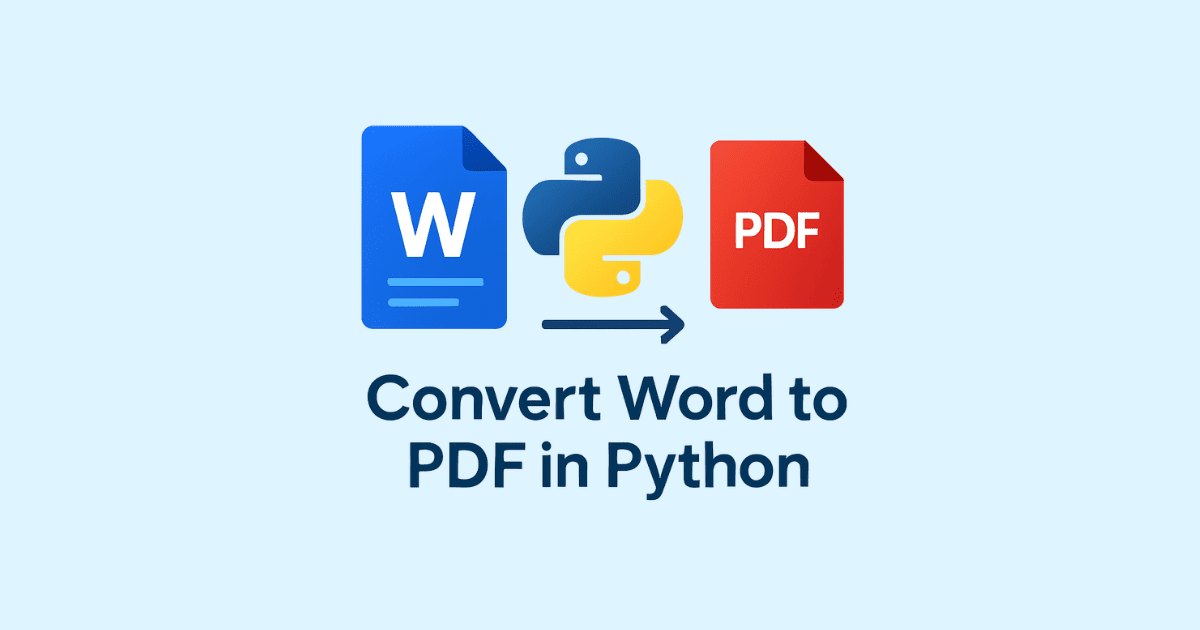
Converting Word files to PDF is one of the most common document automation tasks in Python. PDFs are easier to share, look the same on every device, and are much better for final documents, reports, invoices, resumes, and contracts. Word files, on the other hand, are better for editing. That is why many developers need a reliable way to convert .doc and .docx files into PDF format from Python.
In this guide, you will learn several practical ways to convert Word to PDF in Python, along with full code examples, setup instructions, batch conversion, error handling, and deployment tips. By the end, you will know which method is best for your system and how to build your own Word to PDF automation workflow.
Why Convert Word to PDF?
A Word document is editable, but PDF is stable. That difference matters in real projects.
When you convert Word to PDF, you get these benefits:
The layout stays fixed. Fonts, spacing, tables, images, and page breaks remain consistent. It is easier to share. Almost every device can open PDF files without needing Microsoft Word. It looks professional. PDF is the standard format for reports, proposals, invoices, and official documents. It is harder to edit by mistake. This is helpful for finalized documents. It works better in workflows. Many web apps, CRMs, and document systems store or send PDFs instead of Word files.
If your app generates documents, Word to PDF conversion is often one of the last steps before delivery.
What Python Can and Cannot Do
Python can handle the conversion process, but the method matters.
A very important point is this: Python alone does not natively render Word documents into PDF. A Word file must be converted by an engine that understands Word layout. That engine may be:
Microsoft Word on Windows or macOS, LibreOffice in headless mode, a third-party library like docx2pdf that depends on Word or LibreOffice, or a cloud API or document service.
So when people ask how to convert Word to PDF in Python, the real answer depends on your environment.
Best Methods to Convert Word to PDF in Python
There are three common approaches: using docx2pdf, using Microsoft Word automation with win32com, and using LibreOffice in headless mode. Let's go through each one carefully.
Method 1: Convert Word to PDF Using docx2pdf
docx2pdf is one of the easiest tools for this task. It works by using Microsoft Word on Windows/macOS or LibreOffice on some setups. It is ideal for simple scripts and batch conversion.
Installation
Install it with pip:
pip install docx2pdf
If you are on Windows or macOS, make sure Microsoft Word is installed. On some systems, docx2pdf may use Word directly. On others, you may need LibreOffice depending on your setup.
Basic Example
from docx2pdf import convert

# Convert a single Word document to PDF
convert("sample.docx")
This will create sample.pdf in the same folder.
Convert to a Specific Output Path
from docx2pdf import convert

convert("sample.docx", "output/sample.pdf")
Convert an Entire Folder
from docx2pdf import convert

convert("input_folder", "output_folder")
This is useful when you need to process many documents at once.
Complete Script with Error Handling
from docx2pdf import convert
from pathlib import Path

def convert_word_to_pdf(input_file: str, output_file: str = None):
    input_path = Path(input_file)

    if not input_path.exists():
        raise FileNotFoundError(f"Input file not found: {input_file}")

    if input_path.suffix.lower() not in [".doc", ".docx"]:
        raise ValueError("Only .doc and .docx files are supported")

    try:
        if output_file:
            convert(str(input_path), output_file)
        else:
            convert(str(input_path))
        print(f"Converted successfully: {input_path.name}")
    except Exception as e:
        print(f"Conversion failed: {e}")

if __name__ == "__main__":
    convert_word_to_pdf("sample.docx", "sample.pdf")
When to Use docx2pdf
Use this method when you want the fastest setup, you are on Windows or macOS, you already have Microsoft Word installed, or you want an easy script for personal tools or internal automation.
Limitations of docx2pdf
docx2pdf is simple, but it is not always the best server-side solution. It depends on external software, so deployment can be tricky on Linux servers. It is not ideal if you need full control over page layout or conversion options.
Method 2: Convert Word to PDF Using Microsoft Word and win32com
If you are on Windows and Microsoft Word is installed, this is one of the most reliable solutions. It gives you direct control over Word through COM automation.
Installation
Install the needed package:
pip install pywin32
Basic Word to PDF Conversion
import os
import win32com.client

def word_to_pdf(input_path, output_path):
    input_path = os.path.abspath(input_path)
    output_path = os.path.abspath(output_path)

    word = win32com.client.Dispatch("Word.Application")
    word.Visible = False

    try:
        doc = word.Documents.Open(input_path)
        doc.SaveAs(output_path, FileFormat=17)  # 17 = PDF
        doc.Close()
        print(f"Saved PDF to: {output_path}")
    except Exception as e:
        print(f"Error: {e}")
    finally:
        word.Quit()

if __name__ == "__main__":
    word_to_pdf("sample.docx", "sample.pdf")
Why FileFormat=17?
Microsoft Word uses a constant value for PDF export. The number 17 tells Word to save the document as PDF.
A Safer Version with Cleanup
import os
from pathlib import Path
import win32com.client

def convert_word_to_pdf(input_file: str, output_file: str):
    input_path = Path(input_file).resolve()
    output_path = Path(output_file).resolve()

    if not input_path.exists():
        raise FileNotFoundError(f"File not found: {input_path}")

    if input_path.suffix.lower() not in [".doc", ".docx"]:
        raise ValueError("Input must be a Word file (.doc or .docx)")

    word = None
    doc = None

    try:
        word = win32com.client.Dispatch("Word.Application")
        word.Visible = False
        word.DisplayAlerts = 0

        doc = word.Documents.Open(str(input_path))
        doc.SaveAs(str(output_path), FileFormat=17)

        print(f"Converted {input_path.name} -> {output_path.name}")

    except Exception as e:
        print(f"Conversion error: {e}")

    finally:
        if doc is not None:
            doc.Close(False)
        if word is not None:
            word.Quit()

if __name__ == "__main__":
    convert_word_to_pdf("report.docx", "report.pdf")
Advantages of win32com
It is very accurate. It preserves formatting well because it uses Microsoft Word itself. It supports many Word features that lightweight libraries do not handle perfectly. It is good for automation on Windows machines.
Disadvantages of win32com
It only works on Windows with Microsoft Word installed. It is not ideal for Linux servers. It may be harder to run in containers or cloud environments.
Method 3: Convert Word to PDF Using LibreOffice Headless Mode
This is one of the best choices for Linux servers and cross-platform automation. LibreOffice can convert Word files to PDF without opening a graphical interface.
Why Choose LibreOffice?
It is open source, it runs on Linux, Windows, and macOS, it can be used in servers and automation scripts, and it is often the best solution when Microsoft Word is unavailable.
Installation
You need LibreOffice installed on your system. On Linux:
sudo apt install libreoffice
Or on other systems, install it through your package manager.
Basic Command-Line Conversion
Before writing Python code, it helps to know the command that LibreOffice uses:
soffice --headless --convert-to pdf sample.docx --outdir output
This converts sample.docx to sample.pdf in the output folder.
Python Script Using subprocess
import subprocess
from pathlib import Path

def convert_word_to_pdf(input_file: str, output_dir: str):
    input_path = Path(input_file).resolve()
    output_path = Path(output_dir).resolve()

    if not input_path.exists():
        raise FileNotFoundError(f"Input file not found: {input_path}")

    if input_path.suffix.lower() not in [".doc", ".docx"]:
        raise ValueError("Only .doc and .docx files are supported")

    output_path.mkdir(parents=True, exist_ok=True)

    command = [
        "soffice",
        "--headless",
        "--convert-to",
        "pdf",
        "--outdir",
        str(output_path),
        str(input_path)
    ]

    try:
        result = subprocess.run(
            command,
            stdout=subprocess.PIPE,
            stderr=subprocess.PIPE,
            text=True,
            check=True
        )
        print(result.stdout)
        print(f"Converted file saved in: {output_path}")
    except subprocess.CalledProcessError as e:
        print("Conversion failed.")
        print("STDOUT:", e.stdout)
        print("STDERR:", e.stderr)

if __name__ == "__main__":
    convert_word_to_pdf("sample.docx", "pdf_output")
Batch Conversion with LibreOffice
import subprocess
from pathlib import Path

def batch_convert_word_to_pdf(input_folder: str, output_folder: str):
    input_dir = Path(input_folder).resolve()
    output_dir = Path(output_folder).resolve()
    output_dir.mkdir(parents=True, exist_ok=True)

    word_files = list(input_dir.glob("*.doc")) + list(input_dir.glob("*.docx"))

    if not word_files:
        print("No Word files found.")
        return

    for file_path in word_files:
        command = [
            "soffice",
            "--headless",
            "--convert-to",
            "pdf",
            "--outdir",
            str(output_dir),
            str(file_path)
        ]

        try:
            subprocess.run(command, check=True, stdout=subprocess.PIPE, stderr=subprocess.PIPE, text=True)
            print(f"Converted: {file_path.name}")
        except subprocess.CalledProcessError as e:
            print(f"Failed to convert {file_path.name}")
            print(e.stderr)

if __name__ == "__main__":
    batch_convert_word_to_pdf("word_files", "pdf_files")
When LibreOffice Is the Right Choice
Choose this method when you are running on Linux, you need server automation, you want an open-source solution, you are converting files in bulk, or you do not want to depend on Microsoft Word.
Possible Issues with LibreOffice
LibreOffice may render some advanced Word documents slightly differently than Microsoft Word. Fonts installed on one machine may not exist on another. If your document depends on special typography or complex layouts, test carefully.
Method 4: Convert Word to PDF Using a Custom Service Workflow
Sometimes a local library is not enough. In production systems, developers often build a workflow around document storage, background jobs, and conversion services.
A common architecture looks like this: the user uploads a Word file, Python saves it to storage, a background worker converts it to PDF, and the PDF is stored and returned to the user. This is especially useful in web apps.
Example Using Flask
Here is a simple example that accepts a Word file upload and converts it to PDF using LibreOffice.
from flask import Flask, request, send_file, jsonify
from pathlib import Path
import subprocess
import uuid
import os

app = Flask(__name__)

UPLOAD_DIR = Path("uploads")
OUTPUT_DIR = Path("outputs")
UPLOAD_DIR.mkdir(exist_ok=True)
OUTPUT_DIR.mkdir(exist_ok=True)

def convert_with_libreoffice(input_path: Path, output_dir: Path):
    command = [
        "soffice",
        "--headless",
        "--convert-to",
        "pdf",
        "--outdir",
        str(output_dir),
        str(input_path)
    ]
    subprocess.run(command, check=True, stdout=subprocess.PIPE, stderr=subprocess.PIPE, text=True)

@app.route("/convert", methods=["POST"])
def convert_word_to_pdf():
    if "file" not in request.files:
        return jsonify({"error": "No file uploaded"}), 400

    file = request.files["file"]
    if file.filename == "":
        return jsonify({"error": "Empty filename"}), 400

    if not file.filename.lower().endswith((".doc", ".docx")):
        return jsonify({"error": "Only Word files are allowed"}), 400

    file_id = uuid.uuid4().hex
    input_path = UPLOAD_DIR / f"{file_id}_{file.filename}"
    file.save(input_path)

    try:
        convert_with_libreoffice(input_path, OUTPUT_DIR)
        pdf_name = input_path.stem + ".pdf"
        pdf_path = OUTPUT_DIR / pdf_name

        if not pdf_path.exists():
            return jsonify({"error": "PDF not generated"}), 500

        return send_file(pdf_path, as_attachment=True)
    except subprocess.CalledProcessError as e:
        return jsonify({
            "error": "Conversion failed",
            "details": e.stderr
        }), 500

if __name__ == "__main__":
    app.run(debug=True)
Notes About the Flask Example
This is a simple demo. In a real app, you should also add file size limits, virus scanning, authentication, cleanup of old uploads, asynchronous background processing, and better filename sanitization.
Creating Word Documents First, Then Converting to PDF
Sometimes your project does not start with a Word file. Instead, Python generates a Word document dynamically, and then you convert it to PDF. A common example is report generation.
Step 1: Create a Word Document with python-docx
Install the library:
pip install python-docx
Then create a document:
from docx import Document

doc = Document()
doc.add_heading("Monthly Report", level=1)
doc.add_paragraph("This report was generated using Python.")
doc.add_paragraph("It will be converted to PDF after creation.")

doc.save("report.docx")
print("Word document created.")
Step 2: Convert the Word Document to PDF
After generating the DOCX file, use any conversion method you want.
For example, with docx2pdf:
from docx2pdf import convert

convert("report.docx", "report.pdf")
Or with LibreOffice:
import subprocess

subprocess.run([
    "soffice",
    "--headless",
    "--convert-to",
    "pdf",
    "--outdir",
    ".",
    "report.docx"
], check=True)
This workflow is very common in business automation.
Choosing the Right Method
If you are on Windows and have Word installed, win32com is powerful and accurate. If you want the easiest script, docx2pdf is a great choice. If you are on Linux or need server automation, LibreOffice is usually the best option. If you are building a web app, use LibreOffice or an external conversion service in a background worker.
There is no single perfect method for every project. The best one depends on your deployment environment and document complexity.
Common Problems and How to Fix Them
Conversion Works Locally but Not on the Server
This usually means the server does not have the required engine installed. For docx2pdf, you may need Microsoft Word or compatible support. For LibreOffice, make sure soffice is installed and accessible from the command line.
Fonts Look Different in PDF
Fonts must exist on the machine doing the conversion. If the document uses custom fonts, install them on the server. Otherwise, the PDF may substitute a different font and change the layout slightly.
Images Are Missing or Misplaced
Make sure the Word document is saved correctly before conversion. Test the original DOCX in Word or LibreOffice first. Embedded images and floating objects can behave differently in different engines.
Tables Break Across Pages in Unexpected Ways
This is usually a document design issue. Try adjusting table settings in the Word document itself. Conversion engines generally preserve what is already in the file, so the layout must be clean from the start.
Python Says It Cannot Find soffice
That means LibreOffice is not in your PATH. You may need to provide the full path to the executable.
command = [
    "/usr/bin/soffice",
    "--headless",
    "--convert-to",
    "pdf",
    "--outdir",
    "output",
    "sample.docx"
]
docx2pdf Fails on Linux
That is expected in many Linux environments unless the right support is available. Use LibreOffice instead for Linux servers.
Best Practices for Reliable Word to PDF Conversion
To get stable results in real projects, follow these best practices.
Use .docx instead of .doc when possible. Keep fonts standard and installed on the target machine. Avoid extremely complex layouts unless necessary. Test a few sample documents before mass conversion. Always handle exceptions. Clean temporary files after conversion. Use batch processing carefully and log failures. Save PDFs to a separate folder so you do not overwrite source files by accident. If you are running a website, convert files in background jobs, not inside the main request thread.
Batch Convert Many Word Files with a Reusable Python Function
Here is a more complete example that processes all Word files in a folder.
import subprocess
from pathlib import Path

def convert_all_word_files(source_folder: str, target_folder: str):
    source = Path(source_folder).resolve()
    target = Path(target_folder).resolve()
    target.mkdir(parents=True, exist_ok=True)

    if not source.exists():
        raise FileNotFoundError(f"Source folder does not exist: {source}")

    files = list(source.glob("*.doc")) + list(source.glob("*.docx"))

    if not files:
        print("No Word files found.")
        return

    for file_path in files:
        try:
            subprocess.run([
                "soffice",
                "--headless",
                "--convert-to",
                "pdf",
                "--outdir",
                str(target),
                str(file_path)
            ], check=True, stdout=subprocess.PIPE, stderr=subprocess.PIPE, text=True)

            print(f"Converted: {file_path.name}")

        except subprocess.CalledProcessError as e:
            print(f"Failed: {file_path.name}")
            print("Error:", e.stderr)

if __name__ == "__main__":
    convert_all_word_files("docs", "pdfs")
Recursive Conversion from Subfolders
Sometimes documents are stored in nested directories. Here is a recursive version.
import subprocess
from pathlib import Path

def recursive_convert_word_to_pdf(source_folder: str, output_folder: str):
    source = Path(source_folder).resolve()
    output = Path(output_folder).resolve()
    output.mkdir(parents=True, exist_ok=True)

    for file_path in source.rglob("*"):
        if file_path.suffix.lower() in [".doc", ".docx"]:
            relative_parent = file_path.parent.relative_to(source)
            destination_dir = output / relative_parent
            destination_dir.mkdir(parents=True, exist_ok=True)

            try:
                subprocess.run([
                    "soffice",
                    "--headless",
                    "--convert-to",
                    "pdf",
                    "--outdir",
                    str(destination_dir),
                    str(file_path)
                ], check=True, stdout=subprocess.PIPE, stderr=subprocess.PIPE, text=True)

                print(f"Converted: {file_path}")
            except subprocess.CalledProcessError as e:
                print(f"Error converting {file_path}")
                print(e.stderr)

if __name__ == "__main__":
    recursive_convert_word_to_pdf("input_docs", "output_pdfs")
This preserves folder structure, which is helpful when converting archives of reports or legal files.
A Simple Command-Line Tool in Python
You can also create a small CLI utility for Word to PDF conversion.
import argparse
import subprocess
from pathlib import Path
import sys

def convert_word_to_pdf(input_file: str, output_dir: str):
    input_path = Path(input_file).resolve()
    output_path = Path(output_dir).resolve()
    output_path.mkdir(parents=True, exist_ok=True)

    if not input_path.exists():
        raise FileNotFoundError(f"File not found: {input_path}")

    if input_path.suffix.lower() not in [".doc", ".docx"]:
        raise ValueError("Input must be a Word file")

    subprocess.run([
        "soffice",
        "--headless",
        "--convert-to",
        "pdf",
        "--outdir",
        str(output_path),
        str(input_path)
    ], check=True)

if __name__ == "__main__":
    parser = argparse.ArgumentParser(description="Convert Word to PDF")
    parser.add_argument("input_file", help="Path to the Word document")
    parser.add_argument("-o", "--output", default=".", help="Output directory")

    args = parser.parse_args()

    try:
        convert_word_to_pdf(args.input_file, args.output)
        print("Conversion completed.")
    except Exception as e:
        print(f"Error: {e}")
        sys.exit(1)
Run it like this:
python convert.py resume.docx -o pdf_output
Comparing the Methods
docx2pdf is easiest to use and good for simple workflows. win32com gives strong fidelity on Windows because it uses Microsoft Word directly. LibreOffice is the best cross-platform and server-friendly approach.
In many real applications, LibreOffice becomes the default choice because it works well on Linux servers and can be automated without a GUI.
Tips for Production Systems
If you are building a production document platform, think beyond the code snippet.
Store source files and PDF files separately. Use unique filenames to avoid collisions. Track conversion status in your database. Add retry logic for temporary failures. Use a queue system like Celery or RQ for large jobs. Monitor conversion errors and log the exact filename, timestamp, and stack trace. Clean old temporary files on a schedule. Validate uploaded files before converting them.
These small steps make a big difference when your app grows.
FAQ About Converting Word to PDF in Python
Can Python Convert Word to PDF Without External Software?
Not directly in a fully reliable way. Python usually needs a rendering engine such as Microsoft Word, LibreOffice, or a third-party service.
Which Method Is Best for Linux?
LibreOffice in headless mode is usually the best option for Linux.
Which Method Preserves Formatting Best?
Microsoft Word automation on Windows often preserves formatting very well because it uses Word itself.
Can I Convert .doc Files as Well as .docx?
Yes, many tools support both formats, although .docx is usually more reliable and modern.
Is python-docx Enough to Convert Word to PDF?
No. python-docx can create and edit DOCX files, but it does not convert them into PDF by itself.
Can I Convert Many Files at Once?
Yes. Batch conversion is easy with loops in Python, especially when using LibreOffice or docx2pdf.
Final Thoughts
Converting Word to PDF in Python is a very practical task, and the best approach depends on your system and your project. If you want the easiest setup, docx2pdf is a great place to start. If you are on Windows with Microsoft Word installed, win32com gives you powerful and accurate control. If you need a server-friendly and cross-platform solution, LibreOffice headless mode is one of the best choices.
For most real-world projects, the safest pattern is: generate or receive a Word document, validate it, convert it using a reliable engine, save the PDF, and return or store the result.
That workflow works for reports, invoices, letters, contracts, resumes, and many other document types. If you are building a document tool or a web app, this conversion process can become one of the most valuable features in your system.
Hassan Agmir
Author · Filenewer
Writing about file tools and automation at Filenewer.
Try It Free
Process your files right now
No account needed · Fast & secure · 100% free
Browse All Tools