Reading a PDF line by line in Python is one of those tasks that sounds simple at first, but quickly becomes more interesting once you actually try it. PDFs are not plain text files. They are designed to preserve layout, fonts, spacing, and visual structure, which means the text inside them is often stored in a way that is not naturally “line by line” the way a .txt file is.
That is why working with PDFs in Python usually requires a library that can extract text first, and then you process that extracted text as lines. In real projects, this is useful for reading invoices, reports, books, logs exported as PDF, contracts, and many other documents.
In this article, we will see how to read a PDF line by line in Python, how to handle common problems, and how to write clean code that feels practical rather than robotic.
Why PDF line reading is different
When you open a text file in Python, each line is already separated by newline characters. With PDFs, the document may look like it has neat lines on the screen, but the internal structure is often based on positioning rather than line breaks.
So the process usually looks like this:
Open the PDF.
Extract text from each page.
Split the extracted text into lines.
Loop through the lines and work with them.
That means “read line by line” in PDF usually means “extract text and then process it line by line.”
A simple example with PyPDF2
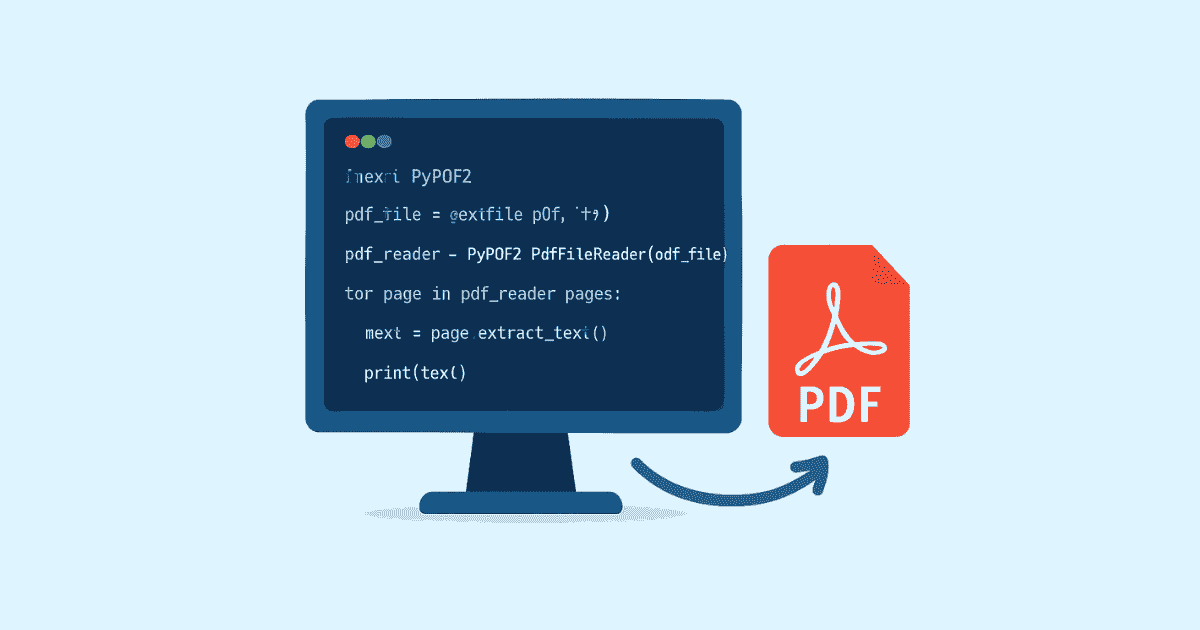
One of the easiest libraries to start with is PyPDF2. It is lightweight and useful for many basic PDF tasks.
First, install it:
pip install PyPDF2
Now let’s read a PDF and print its content line by line:
from PyPDF2 import PdfReader

pdf_path = "sample.pdf"

reader = PdfReader(pdf_path)

for page_number, page in enumerate(reader.pages, start=1):
    text = page.extract_text()
    if text:
        print(f"--- Page {page_number} ---")
        lines = text.splitlines()
        for line in lines:
            print(line)
This code does a few important things:
It opens the PDF.
It loops through each page.
It extracts the text from the page.
It splits the text into lines using
splitlines().It prints each line separately.
This is often enough for simple documents.
Saving lines into a list
Sometimes you do not want to print the lines immediately. Instead, you may want to store them in a list so you can search, clean, or analyze them later.
from PyPDF2 import PdfReader

pdf_path = "sample.pdf"
reader = PdfReader(pdf_path)

all_lines = []

for page in reader.pages:
    text = page.extract_text()
    if text:
        lines = text.splitlines()
        all_lines.extend(lines)

for line in all_lines:
    print(line)
This is a better approach when you plan to process the text afterward. For example, you might want to search for keywords, remove empty lines, or detect headings.
Reading only meaningful lines
PDF text often contains empty lines or awkward spacing. A small cleanup step can make your output much nicer.
from PyPDF2 import PdfReader

pdf_path = "sample.pdf"
reader = PdfReader(pdf_path)

for page in reader.pages:
    text = page.extract_text()
    if not text:
        continue

    lines = [line.strip() for line in text.splitlines() if line.strip()]

    for line in lines:
        print(line)
Here, strip() removes extra spaces, and if line.strip() removes blank lines. This is a small change, but it makes the output feel much cleaner.
Using pdfplumber for better text extraction
If the PDF is complex, PyPDF2 may not always give the best result. In that case, pdfplumber can be a better option because it often extracts text more accurately.
Install it:
pip install pdfplumber
Example:
import pdfplumber

pdf_path = "sample.pdf"

with pdfplumber.open(pdf_path) as pdf:
    for page_number, page in enumerate(pdf.pages, start=1):
        text = page.extract_text()

        if text:
            print(f"--- Page {page_number} ---")
            for line in text.splitlines():
                print(line)
This works in a very similar way, but you may notice better results with documents that have tables, columns, or unusual formatting.
Handling page by page processing
Sometimes you want to know exactly which line came from which page. That is very useful when debugging or building document analysis tools.
from PyPDF2 import PdfReader

pdf_path = "sample.pdf"
reader = PdfReader(pdf_path)

for page_number, page in enumerate(reader.pages, start=1):
    text = page.extract_text()

    if not text:
        continue

    lines = [line.strip() for line in text.splitlines() if line.strip()]

    for line_number, line in enumerate(lines, start=1):
        print(f"Page {page_number}, Line {line_number}: {line}")
This kind of output is helpful when you are processing legal documents, research papers, or reports where page references matter.
Searching for a keyword line by line
A common real-world use case is finding a specific word or phrase inside a PDF.
from PyPDF2 import PdfReader

pdf_path = "sample.pdf"
keyword = "invoice"

reader = PdfReader(pdf_path)

for page_number, page in enumerate(reader.pages, start=1):
    text = page.extract_text()
    if not text:
        continue

    for line in text.splitlines():
        if keyword.lower() in line.lower():
            print(f"Found on page {page_number}: {line}")
This script checks each line and prints only the ones that contain the keyword. It is simple, but surprisingly powerful for searching through PDF files.
Writing a reusable function
It is always a good idea to wrap your logic in a function. That makes your code cleaner and easier to reuse.
from PyPDF2 import PdfReader

def read_pdf_line_by_line(pdf_path):
    reader = PdfReader(pdf_path)

    for page_number, page in enumerate(reader.pages, start=1):
        text = page.extract_text()
        if not text:
            continue

        lines = [line.strip() for line in text.splitlines() if line.strip()]

        for line_number, line in enumerate(lines, start=1):
            yield page_number, line_number, line


pdf_path = "sample.pdf"

for page_number, line_number, line in read_pdf_line_by_line(pdf_path):
    print(f"Page {page_number}, Line {line_number}: {line}")
Using yield here is elegant because it streams the lines one by one instead of storing everything in memory at once. That is a nice pattern when dealing with large PDFs.
Common problems you may face
Reading PDFs is not always smooth. Here are a few issues you may run into:
Sometimes the extracted text is messy. That happens because the PDF may not contain a true text layer, or the content may be arranged visually rather than logically.
Sometimes line breaks are missing. In that case, the text may come back as one big paragraph, and you may need extra cleanup logic.
Sometimes scanned PDFs return no text at all. That means the file is probably an image-based PDF, and you will need OCR tools such as Tesseract instead of normal text extraction.
Sometimes tables get broken into strange spacing. That is common in PDFs because table structure is not always preserved during extraction.
Knowing these limitations saves a lot of frustration later.
Example: clean and collect all lines
Here is a more complete example that reads a PDF, cleans the text, and stores the lines in a list:
from PyPDF2 import PdfReader

def extract_clean_lines(pdf_path):
    reader = PdfReader(pdf_path)
    lines = []

    for page in reader.pages:
        text = page.extract_text()
        if not text:
            continue

        for line in text.splitlines():
            cleaned = line.strip()
            if cleaned:
                lines.append(cleaned)

    return lines


pdf_path = "sample.pdf"
lines = extract_clean_lines(pdf_path)

for line in lines:
    print(line)
This version is easy to understand and easy to reuse in another project.
Final thoughts
Reading a PDF line by line in Python is really about understanding how PDFs work. They are not simple text files, so you usually need to extract text first and then process it line by line. For basic tasks, PyPDF2 is a good starting point. For better extraction quality, pdfplumber it can help. And for scanned documents, OCR may be the next step.
The best approach depends on your file. A clean report, a scanned book, and a multi-column invoice will not behave the same way. That is normal. Once you accept that, working with PDFs becomes much easier.
Hassan Agmir
Author · Filenewer
Writing about file tools and automation at Filenewer.
Try It Free
Process your files right now
No account needed · Fast & secure · 100% free
Browse All Tools