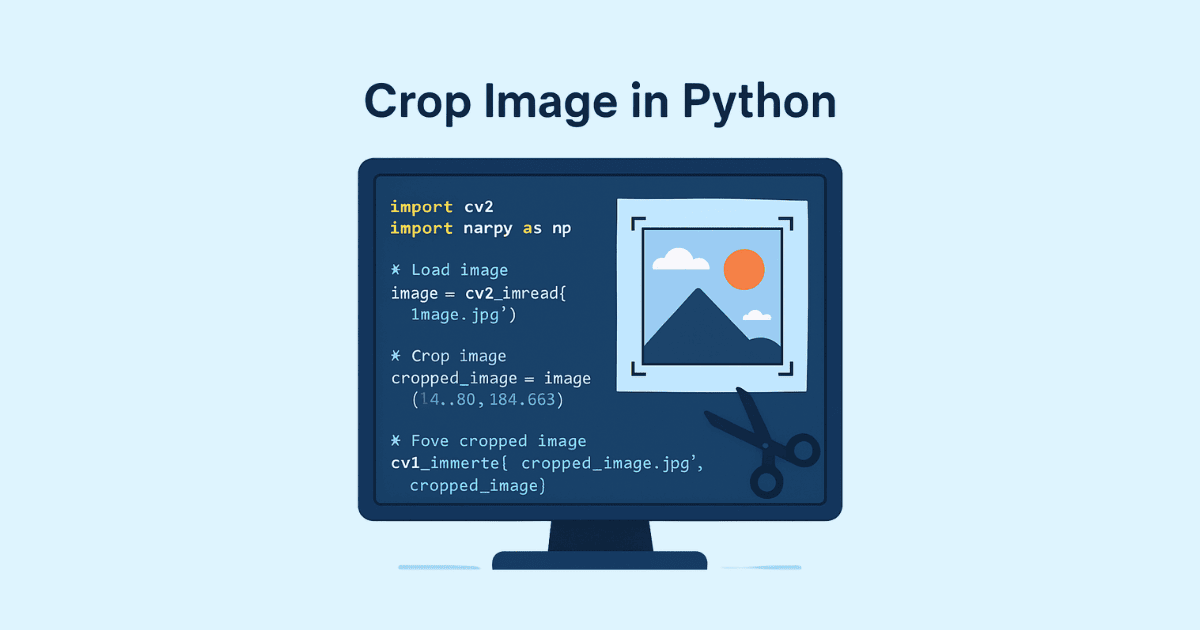
Cropping images is one of the most common tasks in image processing. Whether you are building a photo editor, preparing product images for an e-commerce site, cleaning up dataset images for machine learning, or generating thumbnails for a website, cropping is often the first step in turning a raw image into something useful.
In Python, image cropping can be done in several ways depending on your goal. The simplest approach uses Pillow, the modern fork of PIL. For more advanced work, OpenCV gives you faster processing and more control. If you are dealing with large batches of images, automation matters just as much as the crop itself.
This article walks through cropping images in Python from beginner-friendly basics to practical real-world examples. By the end, you will know how to crop by coordinates, center-crop, crop to an aspect ratio, crop faces or objects, batch-process folders, and avoid the most common mistakes.
Why cropping matters
Cropping is not just removing edges from an image. It is a way to:
focus attention on the important part of the image
remove unnecessary background
fit images into a required size or ratio
improve presentation on websites and apps
prepare consistent image inputs for machine learning models
create thumbnails, previews, and social media visuals
A well-cropped image often looks more professional than a larger image that includes too much empty space.
What does cropping mean in Python?
At its core, cropping means selecting a rectangular region from an image and discarding the rest.
Imagine an image as a grid of pixels. Each pixel has a position, usually described by:
x: horizontal positiony: vertical position
A crop is defined by a rectangle with four values:
left
top
right
bottom
In Python, this rectangle is often expressed as:
(left, top, right, bottom)
The exact syntax depends on the library you use.
The easiest way: crop with Pillow
Pillow is the most beginner-friendly library for working with images in Python. It is widely used, easy to install, and perfect for simple edits like cropping, resizing, rotating, and saving.
Install it with:
pip install pillow
Basic crop example
Here is the simplest form of cropping with Pillow:
from PIL import Image

# Open the image
img = Image.open("photo.jpg")

# Define crop box: (left, top, right, bottom)
cropped = img.crop((100, 50, 400, 300))

# Save the result
cropped.save("cropped_photo.jpg")
How this works
The crop box means:
start 100 pixels from the left
start 50 pixels from the top
end at 400 pixels from the left
end at 300 pixels from the top
The result is a new image containing only that rectangle.
Important note
Pillow does not modify the original image in place. It returns a new image object.
Understanding image coordinates
If you are new to image processing, coordinates may feel a little strange at first.
The top-left corner of an image is usually (0, 0).
xincreases as you move rightyincreases as you move down
So a crop box like (50, 50, 250, 200) means:
left edge at x = 50
top edge at y = 50
right edge at x = 250
bottom edge at y = 200
That creates a rectangle 200 pixels wide and 150 pixels tall.
You can calculate the size of the crop like this:
width = right - left
height = bottom - top
Crop by center coordinates
Sometimes you do not want to hardcode pixel positions. Instead, you want to crop based on the center of the image.
Here is a common example: create a centered 300×300 crop.
from PIL import Image

def center_crop(img, crop_width, crop_height):
    img_width, img_height = img.size

    left = (img_width - crop_width) // 2
    top = (img_height - crop_height) // 2
    right = left + crop_width
    bottom = top + crop_height

    return img.crop((left, top, right, bottom))

img = Image.open("photo.jpg")
cropped = center_crop(img, 300, 300)
cropped.save("center_cropped.jpg")
This is useful for profile photos, thumbnails, and social previews.
Crop safely when the image is smaller than the target
If the target crop size is larger than the original image, your crop box may go outside the image boundaries.
Pillow allows that, but the result may contain empty black areas depending on the operation and output handling. It is usually better to check the dimensions first.
from PIL import Image

def safe_center_crop(img, crop_width, crop_height):
    img_width, img_height = img.size

    crop_width = min(crop_width, img_width)
    crop_height = min(crop_height, img_height)

    left = (img_width - crop_width) // 2
    top = (img_height - crop_height) // 2
    right = left + crop_width
    bottom = top + crop_height

    return img.crop((left, top, right, bottom))
Crop from a specific area
When you know the exact region you want, cropping is straightforward.
Example: crop the top-left quarter of the image.
from PIL import Image

img = Image.open("photo.jpg")
width, height = img.size

cropped = img.crop((0, 0, width // 2, height // 2))
cropped.save("top_left_quarter.jpg")
Example: crop the bottom half.
from PIL import Image

img = Image.open("photo.jpg")
width, height = img.size

cropped = img.crop((0, height // 2, width, height))
cropped.save("bottom_half.jpg")
Resize and crop to fit a fixed aspect ratio
A very common requirement is to make all images fit the same aspect ratio, such as:
1:1 for square thumbnails
16:9 for banners
4:5 for social posts
3:2 for standard photos
The challenge is that images usually come in different shapes. If you simply resize them, they may look stretched. The correct method is usually to resize first, then crop.
Example: crop to 1:1 square
from PIL import Image

def crop_to_square(img):
    width, height = img.size
    side = min(width, height)

    left = (width - side) // 2
    top = (height - side) // 2
    right = left + side
    bottom = top + side

    return img.crop((left, top, right, bottom))

img = Image.open("photo.jpg")
square = crop_to_square(img)
square.save("square.jpg")
Example: crop to 16:9 ratio
from PIL import Image

def crop_to_aspect_ratio(img, target_ratio):
    width, height = img.size
    current_ratio = width / height

    if current_ratio > target_ratio:
        # Image is too wide
        new_width = int(height * target_ratio)
        left = (width - new_width) // 2
        top = 0
        right = left + new_width
        bottom = height
    else:
        # Image is too tall
        new_height = int(width / target_ratio)
        left = 0
        top = (height - new_height) // 2
        right = width
        bottom = top + new_height

    return img.crop((left, top, right, bottom))

img = Image.open("photo.jpg")
cropped = crop_to_aspect_ratio(img, 16 / 9)
cropped.save("banner_16x9.jpg")
This function keeps the image centered while matching a specific ratio.
Crop and then resize
Cropping gives you the right composition. Resizing gives you the right dimensions.
Often you need both.
Example: create a 300×300 thumbnail from any image:
from PIL import Image

def make_square_thumbnail(input_path, output_path, size=300):
    img = Image.open(input_path)

    width, height = img.size
    side = min(width, height)

    left = (width - side) // 2
    top = (height - side) // 2
    right = left + side
    bottom = top + side

    cropped = img.crop((left, top, right, bottom))
    resized = cropped.resize((size, size))

    resized.save(output_path)

make_square_thumbnail("photo.jpg", "thumbnail.jpg")
For better quality, you can use a high-quality resampling filter:
resized = cropped.resize((size, size), Image.Resampling.LANCZOS)
Using OpenCV for cropping
OpenCV is a powerful computer vision library. It is especially useful when you need speed, detection, or image analysis.
Install it with:
pip install opencv-python
Basic crop with OpenCV
import cv2

img = cv2.imread("photo.jpg")

# Crop rows 50:300 and columns 100:400
cropped = img[50:300, 100:400]

cv2.imwrite("cropped_photo.jpg", cropped)
OpenCV coordinate order
OpenCV uses array slicing:
image[y1:y2, x1:x2]
That means:
first dimension = vertical range
second dimension = horizontal range
This is different from Pillow’s (left, top, right, bottom) box format.
Important difference from Pillow
OpenCV loads images in BGR format, not RGB. That matters when you display or convert images, but for cropping alone it usually does not matter.
Crop using OpenCV and display the result
import cv2
import matplotlib.pyplot as plt

img = cv2.imread("photo.jpg")
cropped = img[60:260, 120:420]

# Convert BGR to RGB for display
cropped_rgb = cv2.cvtColor(cropped, cv2.COLOR_BGR2RGB)

plt.imshow(cropped_rgb)
plt.axis("off")
plt.show()
Crop based on image dimensions dynamically
Hardcoded crop values are fine for testing, but real applications often need dynamic logic.
Example: crop the middle third
from PIL import Image

img = Image.open("photo.jpg")
width, height = img.size

left = width // 3
top = height // 3
right = 2 * width // 3
bottom = 2 * height // 3

cropped = img.crop((left, top, right, bottom))
cropped.save("middle_third.jpg")
Example: crop the bottom-right area
from PIL import Image

img = Image.open("photo.jpg")
width, height = img.size

cropped = img.crop((width // 2, height // 2, width, height))
cropped.save("bottom_right.jpg")
Batch crop multiple images in a folder
In real projects, you often need to crop dozens or hundreds of images.
Here is a simple batch processor using Pillow:
from PIL import Image
from pathlib import Path

input_folder = Path("input_images")
output_folder = Path("cropped_images")
output_folder.mkdir(exist_ok=True)

def center_crop(img):
    width, height = img.size
    side = min(width, height)
    left = (width - side) // 2
    top = (height - side) // 2
    right = left + side
    bottom = top + side
    return img.crop((left, top, right, bottom))

for image_path in input_folder.iterdir():
    if image_path.suffix.lower() not in [".jpg", ".jpeg", ".png", ".webp"]:
        continue

    img = Image.open(image_path)
    cropped = center_crop(img)
    cropped.save(output_folder / image_path.name)

print("Done.")
This script:
reads all image files in a folder
crops each one to a square
saves the cropped versions into a new folder
Add logging and error handling
When processing many files, some may be corrupted or not valid images. It is wise to handle errors.
from PIL import Image, UnidentifiedImageError
from pathlib import Path

input_folder = Path("input_images")
output_folder = Path("cropped_images")
output_folder.mkdir(exist_ok=True)

def crop_center_square(img):
    width, height = img.size
    side = min(width, height)
    left = (width - side) // 2
    top = (height - side) // 2
    right = left + side
    bottom = top + side
    return img.crop((left, top, right, bottom))

for image_path in input_folder.iterdir():
    if image_path.suffix.lower() not in [".jpg", ".jpeg", ".png", ".webp"]:
        continue

    try:
        with Image.open(image_path) as img:
            cropped = crop_center_square(img)
            cropped.save(output_folder / image_path.name)
            print(f"Processed: {image_path.name}")
    except UnidentifiedImageError:
        print(f"Skipped invalid image: {image_path.name}")
    except Exception as e:
        print(f"Error processing {image_path.name}: {e}")
This is much safer for real-world use.
Crop a face from an image
Cropping a face is a typical computer vision task. You usually detect the face first, then crop around it.
OpenCV has Haar cascades that can detect faces.
Face detection and crop example
import cv2

img = cv2.imread("people.jpg")
gray = cv2.cvtColor(img, cv2.COLOR_BGR2GRAY)

face_cascade = cv2.CascadeClassifier(
    cv2.data.haarcascades + "haarcascade_frontalface_default.xml"
)

faces = face_cascade.detectMultiScale(
    gray,
    scaleFactor=1.1,
    minNeighbors=5,
    minSize=(50, 50)
)

for i, (x, y, w, h) in enumerate(faces):
    face = img[y:y+h, x:x+w]
    cv2.imwrite(f"face_{i}.jpg", face)

print(f"Found {len(faces)} faces")
Crop the first face with padding
Sometimes you want a little space around the face.
import cv2

img = cv2.imread("people.jpg")
gray = cv2.cvtColor(img, cv2.COLOR_BGR2GRAY)

face_cascade = cv2.CascadeClassifier(
    cv2.data.haarcascades + "haarcascade_frontalface_default.xml"
)

faces = face_cascade.detectMultiScale(gray, 1.1, 5)

if len(faces) > 0:
    x, y, w, h = faces[0]
    pad = 30

    x1 = max(0, x - pad)
    y1 = max(0, y - pad)
    x2 = min(img.shape[1], x + w + pad)
    y2 = min(img.shape[0], y + h + pad)

    cropped_face = img[y1:y2, x1:x2]
    cv2.imwrite("face_padded.jpg", cropped_face)
This kind of crop is useful for avatars, ID photos, and auto-generated previews.
Crop with NumPy arrays
Since OpenCV images are NumPy arrays, cropping is really array slicing.
import cv2
import numpy as np

img = cv2.imread("photo.jpg")

# Crop using NumPy slicing
cropped = img[100:350, 200:500]

print(type(cropped))  # <class 'numpy.ndarray'>
cv2.imwrite("numpy_cropped.jpg", cropped)
NumPy slicing is fast and efficient. It is one reason OpenCV performs well on large image sets.
How to crop an image without losing quality
Cropping itself does not reduce the quality of pixels you keep. But quality can suffer when you save the cropped image in a low-quality format or when you resize it badly after cropping.
Tips to preserve quality
Use these practices:
save as PNG for lossless output when appropriate
for JPEG, use a high quality setting
avoid unnecessary repeated save operations
use high-quality resizing filters if resizing after cropping
Pillow JPEG quality example
from PIL import Image

img = Image.open("photo.jpg")
cropped = img.crop((100, 100, 500, 500))

cropped.save("cropped_quality.jpg", quality=95, optimize=True)
Pillow PNG example
cropped.save("cropped.png")
Crop images for web use
When preparing images for websites, you often need a fixed shape, reasonable file size, and consistent visual alignment.
For example, product cards often require square images.
from PIL import Image

def prepare_web_image(input_path, output_path, size=(800, 800)):
    img = Image.open(input_path)

    # Center crop to square
    width, height = img.size
    side = min(width, height)
    left = (width - side) // 2
    top = (height - side) // 2
    right = left + side
    bottom = top + side
    cropped = img.crop((left, top, right, bottom))

    # Resize for web
    resized = cropped.resize(size, Image.Resampling.LANCZOS)

    # Save compressed JPEG
    resized.save(output_path, quality=85, optimize=True)

prepare_web_image("product.jpg", "product_web.jpg")
This is a good approach for galleries, product listings, and CMS uploads.
Create a reusable crop utility
A small utility function saves time and keeps your code clean.
from PIL import Image
from typing import Tuple

def crop_image(
    image_path: str,
    output_path: str,
    box: Tuple[int, int, int, int]
) -> None:
    """
    Crop an image using a Pillow crop box.
    box = (left, top, right, bottom)
    """
    with Image.open(image_path) as img:
        cropped = img.crop(box)
        cropped.save(output_path)

crop_image("photo.jpg", "cropped.jpg", (100, 50, 400, 300))
You can expand this into a module for your project.
Build a command-line crop tool
Sometimes you need a quick command-line script to crop images without opening an editor.
Here is a simple CLI-style script:
import sys
from pathlib import Path
from PIL import Image

def main():
    if len(sys.argv) != 6:
        print("Usage: python crop.py input.jpg output.jpg left top right bottom")
        sys.exit(1)

    input_path = sys.argv[1]
    output_path = sys.argv[2]
    left = int(sys.argv[3])
    top = int(sys.argv[4])
    right = int(sys.argv[5])
    bottom = int(sys.argv[6])

    with Image.open(input_path) as img:
        cropped = img.crop((left, top, right, bottom))
        cropped.save(output_path)

if __name__ == "__main__":
    main()
A better version would use argparse, which is more user-friendly.
argparse version
import argparse
from PIL import Image

def parse_args():
    parser = argparse.ArgumentParser(description="Crop an image")
    parser.add_argument("input")
    parser.add_argument("output")
    parser.add_argument("left", type=int)
    parser.add_argument("top", type=int)
    parser.add_argument("right", type=int)
    parser.add_argument("bottom", type=int)
    return parser.parse_args()

def main():
    args = parse_args()

    with Image.open(args.input) as img:
        cropped = img.crop((args.left, args.top, args.right, args.bottom))
        cropped.save(args.output)

if __name__ == "__main__":
    main()
Crop images with transparency
PNG and WebP files can include transparency. Cropping works the same way, but you should be careful when saving.
from PIL import Image

img = Image.open("transparent.png")
cropped = img.crop((50, 50, 300, 300))
cropped.save("cropped_transparent.png")
If you save a transparent image as JPEG, the transparent parts will be lost because JPEG does not support transparency.
Crop and keep EXIF metadata
Photos from phones often contain EXIF metadata such as orientation information.
When cropping, you may want to preserve that metadata.
from PIL import Image
from PIL import ImageOps

with Image.open("phone_photo.jpg") as img:
    img = ImageOps.exif_transpose(img)
    cropped = img.crop((100, 100, 600, 600))
    cropped.save("cropped_phone_photo.jpg")
ImageOps.exif_transpose helps correct rotation based on EXIF orientation before cropping.
Common mistakes when cropping images
Cropping is simple, but several mistakes happen often.
1. Mixing up width and height
With Pillow:
img.sizereturns(width, height)
With OpenCV:
image shape is
(height, width, channels)
That difference causes many bugs.
2. Reversing coordinate order
Pillow uses:
(left, top, right, bottom)
OpenCV slicing uses:
image[top:bottom, left:right]
3. Cropping outside the image bounds
Negative or oversized coordinates can lead to unexpected results.
4. Forgetting to close files
Use with Image.open(...) so files are properly closed.
5. Saving in the wrong format
A PNG crop is not the same as a JPEG crop. Choose the format based on your use case.
6. Stretching instead of cropping
If you need a fixed ratio, resize alone is not enough. Crop first, then resize.
Crop images for machine learning datasets
Cropping is especially important in machine learning.
For example:
crop objects from labeled bounding boxes
center-crop validation images
create consistent input sizes
remove irrelevant background
Crop from bounding box coordinates
Suppose your annotation gives you a box like:
bbox = (120, 80, 340, 260)
You can crop it directly:
from PIL import Image

with Image.open("dataset_image.jpg") as img:
    cropped = img.crop(bbox)
    cropped.save("object_crop.jpg")
Crop multiple labeled objects
If you have annotations for many objects:
from PIL import Image

annotations = [
    {"file": "img1.jpg", "bbox": (10, 20, 150, 180)},
    {"file": "img2.jpg", "bbox": (40, 60, 200, 220)},
]

for item in annotations:
    with Image.open(item["file"]) as img:
        cropped = img.crop(item["bbox"])
        cropped.save(f'crop_{item["file"]}')
This kind of script is useful for dataset preparation.
Crop images based on content
Sometimes you want to crop not by fixed coordinates, but by where the important content is.
Examples include:
detect faces and crop around them
detect text regions and crop around them
detect objects and crop around their bounding boxes
This is where computer vision becomes valuable. OpenCV, OCR tools, and object detection models can tell you where the useful area is.
A very simple heuristic is to crop to the brightest or most central region, but for production use, detection-based cropping is usually better.
Make a smart center crop
A “smart crop” tries to preserve the main subject while cutting away less important parts.
A simple smart crop could:
detect faces
place the crop around the largest face
keep some padding
fall back to center crop if no face is found
Example:
import cv2

def smart_crop_face(image_path, output_path):
    img = cv2.imread(image_path)
    gray = cv2.cvtColor(img, cv2.COLOR_BGR2GRAY)

    face_cascade = cv2.CascadeClassifier(
        cv2.data.haarcascades + "haarcascade_frontalface_default.xml"
    )

    faces = face_cascade.detectMultiScale(gray, 1.1, 5)

    if len(faces) == 0:
        # Fallback to center crop
        h, w = img.shape[:2]
        side = min(h, w)
        x1 = (w - side) // 2
        y1 = (h - side) // 2
        cropped = img[y1:y1+side, x1:x1+side]
    else:
        # Use the first detected face
        x, y, w, h = faces[0]
        pad = int(max(w, h) * 0.4)

        x1 = max(0, x - pad)
        y1 = max(0, y - pad)
        x2 = min(img.shape[1], x + w + pad)
        y2 = min(img.shape[0], y + h + pad)

        cropped = img[y1:y2, x1:x2]

    cv2.imwrite(output_path, cropped)

smart_crop_face("portrait.jpg", "smart_crop.jpg")
Crop images in a web backend
If you are building a web app in Flask or Django, cropping often happens after upload.
Typical workflow:
user uploads an image
server stores original image
server crops or resizes it
server stores the processed version
Example with Pillow in a backend-style function:
from PIL import Image
from io import BytesIO

def crop_uploaded_image(file_stream):
    with Image.open(file_stream) as img:
        width, height = img.size
        side = min(width, height)
        left = (width - side) // 2
        top = (height - side) // 2
        cropped = img.crop((left, top, left + side, top + side))

        output = BytesIO()
        cropped.save(output, format="JPEG", quality=90)
        output.seek(0)
        return output
This pattern is very useful for APIs and upload handlers.
Performance considerations
If you are cropping just a few images, performance is not a big concern. But if you process thousands of files, the details matter.
Pillow
Good for:
simple tasks
easy scripting
moderate batch work
OpenCV
Good for:
large-scale processing
detection-based cropping
integration with computer vision workflows
Tips for better performance
avoid unnecessary conversions between libraries
process images in memory only when needed
use
withblocks to manage files properlyskip huge resize operations unless required
parallelize batch jobs if the workload is large
Advanced example: crop, resize, and save all images from a folder
This example combines several useful ideas.
from pathlib import Path
from PIL import Image

input_dir = Path("photos")
output_dir = Path("output")
output_dir.mkdir(exist_ok=True)

def crop_to_square(img):
    width, height = img.size
    side = min(width, height)
    left = (width - side) // 2
    top = (height - side) // 2
    return img.crop((left, top, left + side, top + side))

for image_file in input_dir.iterdir():
    if image_file.suffix.lower() not in {".jpg", ".jpeg", ".png", ".webp"}:
        continue

    try:
        with Image.open(image_file) as img:
            cropped = crop_to_square(img)
            resized = cropped.resize((512, 512), Image.Resampling.LANCZOS)
            output_path = output_dir / image_file.name
            resized.save(output_path, quality=90, optimize=True)
            print(f"Saved {output_path}")
    except Exception as e:
        print(f"Failed {image_file.name}: {e}")
Advanced example: crop to a custom ratio and keep the crop centered
This is one of the most useful reusable functions.
from PIL import Image

def crop_to_ratio(img, target_width, target_height):
    width, height = img.size
    target_ratio = target_width / target_height
    current_ratio = width / height

    if current_ratio > target_ratio:
        # too wide
        new_width = int(height * target_ratio)
        left = (width - new_width) // 2
        return img.crop((left, 0, left + new_width, height))
    else:
        # too tall
        new_height = int(width / target_ratio)
        top = (height - new_height) // 2
        return img.crop((0, top, width, top + new_height))

with Image.open("photo.jpg") as img:
    cropped = crop_to_ratio(img, 4, 5)
    cropped.save("photo_4x5.jpg")
This works well for Instagram-style portrait crops or banner layouts.
Debugging crop results
When a crop looks wrong, check these things:
Are the coordinates in the correct order?
Are you using Pillow or OpenCV?
Did you accidentally swap width and height?
Is the crop box too small or too large?
Are you cropping the correct image after rotation correction?
Did you save the cropped file in the format you expected?
A good debugging trick is to print the image dimensions before cropping:
print(img.size)  # Pillow
print(img.shape) # OpenCV
A small test example you can try
If you want to test cropping quickly, use this minimal script.
from PIL import Image

img = Image.open("input.jpg")
cropped = img.crop((50, 50, 250, 250))
cropped.save("output.jpg")
That is enough to confirm your setup works.
When to use Pillow vs OpenCV
Both libraries can crop images, but they shine in different situations.
Use Pillow when:
you want simple image editing
you are working on scripts or websites
you need readable code
your task is mainly cropping, resizing, or saving
Use OpenCV when:
you need computer vision features
you want face or object detection
you process many images quickly
you already use NumPy arrays in your workflow
For many developers, Pillow is the best starting point. OpenCV becomes important when cropping is part of a larger vision pipeline.
Final thoughts
Cropping images in Python is simple on the surface, but it becomes very powerful once you combine it with resizing, batching, detection, and automation. With Pillow, you can write clean and readable cropping code in just a few lines. With OpenCV, you can build more advanced workflows that detect faces, objects, and regions of interest before cropping.
The key idea is to choose the right tool for the job:
Pillow for everyday image editing
OpenCV for computer vision and detection
NumPy slicing for fast, array-based operations
Once you understand image coordinates, crop boxes, and aspect ratios, you can handle almost any crop-related task confidently.
Here is a final compact Pillow example to keep as a reference:
from PIL import Image

with Image.open("photo.jpg") as img:
    width, height = img.size
    side = min(width, height)
    left = (width - side) // 2
    top = (height - side) // 2
    cropped = img.crop((left, top, left + side, top + side))
    cropped.save("final_square.jpg")
That small pattern is the foundation of much larger image-processing workflows.
Hassan Agmir
Author · Filenewer
Writing about file tools and automation at Filenewer.
Try It Free
Process your files right now
No account needed · Fast & secure · 100% free
Browse All Tools