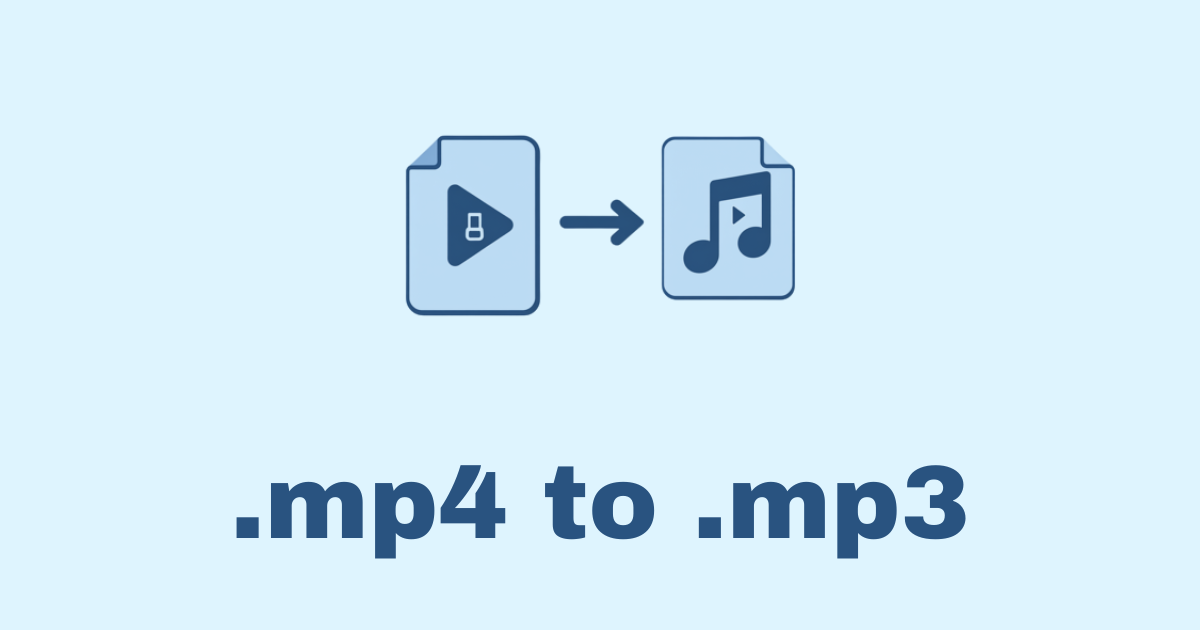
Turning an MP4 video into an MP3 audio file is one of those tasks that looks simple on the surface and then quietly becomes one of the most useful things you can learn in real life. Maybe you have a lecture video and only need the speaker’s voice. Maybe you downloaded a music performance, a podcast episode, an interview, or a tutorial and want the audio for offline listening. Maybe you are building a content pipeline, a media app, or an automation script and need a reliable way to extract sound from video files without opening a heavy editor every time. Python is a great fit for this job because it gives you the choice between quick high-level libraries and more precise low-level control. In this article, I will walk you through several practical ways to convert MP4 to MP3 in Python, explain when to use each one, show full code examples, and cover the small details that usually cause trouble only after you think the job is already done. The goal is not just to make the conversion work once, but to help you build something you can trust, repeat, and adapt later without frustration.
What MP4 and MP3 actually are
Before writing code, it helps to understand what is happening under the hood.
MP4 is a container format. That means it can hold video, audio, subtitles, and even metadata in a single file. MP3, on the other hand, is an audio-only compressed format. When you “convert MP4 to MP3,” you are usually not converting video into audio in a magical way; you are extracting the audio stream from the MP4 container and saving it into an MP3 file. In some cases, the audio can be copied or re-encoded. If the source audio is already compatible, extraction can be fast. If not, the audio must be decoded and encoded again, which takes more time.
This distinction matters because it affects quality, speed, and file size. A simple extraction may preserve the audio quality better than re-encoding, while re-encoding may give you a universally playable MP3 file. Python can help with both workflows.
When converting MP4 to MP3 is useful
There are many practical reasons to do this:
You might want to listen to a video while walking or commuting without keeping the screen on. You might need voice-only content from webinars, meetings, or lessons. You might be building a transcription pipeline where the audio is required for speech-to-text processing. You might want to reduce storage usage by removing the video track from a large MP4 file. You might also be preparing media for an app that expects audio separately from video.
In short, this is not just a technical trick. It is a small automation skill that saves real time.
The main approaches in Python
There are three common ways to do it:
Using MoviePy for a friendly Python-first experience.
Using Pydub with FFmpeg for flexible audio handling.
Using FFmpeg directly from Python through
subprocessfor maximum control.
Each approach has strengths.
MoviePy is easy to read and simple to get started with. Pydub is very handy for audio processing and can be combined with other audio tasks. FFmpeg through subprocess is often the fastest and most dependable for production scripts because it gives you direct access to the real media engine.
Method 1: Convert MP4 to MP3 with MoviePy
MoviePy is often the most beginner-friendly way to start.
Install MoviePy
pip install moviepy
MoviePy depends on FFmpeg in many setups, so make sure FFmpeg is available on your system too. If it is not already installed, you will need to install it separately.
Basic example
from moviepy import VideoFileClip

def convert_mp4_to_mp3(input_path: str, output_path: str) -> None:
    video = VideoFileClip(input_path)
    audio = video.audio
    audio.write_audiofile(output_path)
    video.close()

if __name__ == "__main__":
    convert_mp4_to_mp3("input.mp4", "output.mp3")
This is the simplest form. It opens the video, accesses the audio track, writes it to MP3, and closes the file.
A safer version with error handling
from moviepy import VideoFileClip
from pathlib import Path

def convert_mp4_to_mp3(input_path: str, output_path: str) -> None:
    input_file = Path(input_path)
    output_file = Path(output_path)

    if not input_file.exists():
        raise FileNotFoundError(f"Input file not found: {input_file}")

    if input_file.suffix.lower() != ".mp4":
        raise ValueError("Input file must be an MP4 file")

    try:
        video = VideoFileClip(str(input_file))
        if video.audio is None:
            raise ValueError("The video file has no audio track")

        video.audio.write_audiofile(str(output_file))
    finally:
        try:
            video.close()
        except Exception:
            pass

if __name__ == "__main__":
    convert_mp4_to_mp3("input.mp4", "output.mp3")
Why this works well
MoviePy is readable and easy to maintain. It feels natural to Python developers. It is especially useful if you are already doing other video tasks like clipping, trimming, resizing, or adding overlays.
Limitations
MoviePy is not always the fastest option for large-scale conversion. For a few files, it is fine. For hundreds or thousands of files, direct FFmpeg commands often perform better and give you finer control.
Method 2: Convert MP4 to MP3 with Pydub and FFmpeg
Pydub is an audio-focused library. It does not do the media decoding itself; it relies on FFmpeg or a similar backend.
Install Pydub
pip install pydub
You also need FFmpeg installed on your system.
Basic example
from pydub import AudioSegment

def convert_mp4_to_mp3(input_path: str, output_path: str) -> None:
    audio = AudioSegment.from_file(input_path, format="mp4")
    audio.export(output_path, format="mp3")

if __name__ == "__main__":
    convert_mp4_to_mp3("input.mp4", "output.mp3")
This example is very clean. Pydub loads the MP4, extracts the audio, and exports it as MP3.
With bitrate control
You may want to set the MP3 quality using bitrate.
from pydub import AudioSegment

def convert_mp4_to_mp3(input_path: str, output_path: str, bitrate: str = "192k") -> None:
    audio = AudioSegment.from_file(input_path, format="mp4")
    audio.export(output_path, format="mp3", bitrate=bitrate)

if __name__ == "__main__":
    convert_mp4_to_mp3("input.mp4", "output.mp3", bitrate="256k")
When Pydub is a good choice
Pydub is great when your workflow is audio-centric. If you are already editing sound, trimming silence, normalizing volume, or concatenating tracks, it feels natural to keep everything in one place.
Important note
Pydub generally re-encodes the audio, which means it is not just copying the stream. That is fine for many use cases, but if you need maximum performance or exact stream handling, direct FFmpeg is usually better.
Method 3: Convert MP4 to MP3 with FFmpeg from Python
This is the method many developers end up using in production.
FFmpeg is the backbone of a huge amount of media processing on the internet. Python can call FFmpeg directly using the subprocess module. This gives you precise control and often the best performance.
Check that FFmpeg is installed
Before using Python, test FFmpeg in your terminal:
ffmpeg -version
If that command works, you are ready.
Direct Python example
import subprocess
from pathlib import Path

def convert_mp4_to_mp3(input_path: str, output_path: str) -> None:
    input_file = Path(input_path)
    output_file = Path(output_path)

    if not input_file.exists():
        raise FileNotFoundError(f"Input file not found: {input_file}")

    command = [
        "ffmpeg",
        "-i", str(input_file),
        "-vn",
        "-acodec", "libmp3lame",
        "-q:a", "2",
        str(output_file)
    ]

    result = subprocess.run(
        command,
        stdout=subprocess.PIPE,
        stderr=subprocess.PIPE,
        text=True
    )

    if result.returncode != 0:
        raise RuntimeError(f"FFmpeg failed:\n{result.stderr}")

if __name__ == "__main__":
    convert_mp4_to_mp3("input.mp4", "output.mp3")
What the flags mean
-i input.mp4 sets the input file.-vn disables video output, which means only audio is kept.-acodec libmp3lame uses the MP3 encoder.-q:a 2 chooses good quality for the audio output. Lower values usually mean higher quality in this mode.output.mp3 is the final file.
A more flexible version
import subprocess
from pathlib import Path
from typing import Optional

def convert_mp4_to_mp3(
    input_path: str,
    output_path: str,
    bitrate: Optional[str] = None
) -> None:
    input_file = Path(input_path)
    output_file = Path(output_path)

    if not input_file.exists():
        raise FileNotFoundError(f"Input file not found: {input_file}")

    command = ["ffmpeg", "-y", "-i", str(input_file), "-vn"]

    if bitrate:
        command += ["-b:a", bitrate]
    else:
        command += ["-q:a", "2"]

    command += [str(output_file)]

    result = subprocess.run(
        command,
        stdout=subprocess.PIPE,
        stderr=subprocess.PIPE,
        text=True
    )

    if result.returncode != 0:
        raise RuntimeError(f"Conversion failed:\n{result.stderr}")

if __name__ == "__main__":
    convert_mp4_to_mp3("input.mp4", "output.mp3", bitrate="192k")
The -y flag overwrites the output file without asking.
Which method should you choose?
The best choice depends on your situation.
If you want something easy and Pythonic, MoviePy is a comfortable starting point. If you are already working mostly with audio and want simple export options, Pydub is a solid choice. If you care about speed, robustness, and production reliability, FFmpeg through subprocess is usually the best option.
For many developers, the final answer is this: start with MoviePy to learn the idea, then move to FFmpeg directly when you need more control.
How to handle missing FFmpeg
A lot of conversion problems come from one simple issue: FFmpeg is not installed correctly or is not available in the system PATH.
On Windows
Download FFmpeg, extract it, and add the bin directory to your PATH environment variable. Then open a new terminal and run:
ffmpeg -version
On macOS
If you use Homebrew:
brew install ffmpeg
On Ubuntu or Debian
sudo apt update
sudo apt install ffmpeg
Once FFmpeg is installed, both Pydub and MoviePy usually work much more smoothly.
A complete command-line script
If you want a script you can use from the terminal, here is a practical example using FFmpeg directly.
import argparse
import subprocess
from pathlib import Path

def convert_mp4_to_mp3(input_path: Path, output_path: Path, bitrate: str = "192k") -> None:
    if not input_path.exists():
        raise FileNotFoundError(f"Input file not found: {input_path}")

    command = [
        "ffmpeg",
        "-y",
        "-i", str(input_path),
        "-vn",
        "-b:a", bitrate,
        str(output_path)
    ]

    result = subprocess.run(
        command,
        stdout=subprocess.PIPE,
        stderr=subprocess.PIPE,
        text=True
    )

    if result.returncode != 0:
        raise RuntimeError(result.stderr)

def main():
    parser = argparse.ArgumentParser(description="Convert MP4 to MP3 using FFmpeg.")
    parser.add_argument("input", help="Path to the MP4 file")
    parser.add_argument("output", help="Path to the output MP3 file")
    parser.add_argument("--bitrate", default="192k", help="Audio bitrate, for example 128k or 320k")

    args = parser.parse_args()

    input_path = Path(args.input)
    output_path = Path(args.output)

    convert_mp4_to_mp3(input_path, output_path, args.bitrate)
    print(f"Converted {input_path} to {output_path}")

if __name__ == "__main__":
    main()
Run it like this
python convert.py input.mp4 output.mp3 --bitrate 256k
This version is simple, reusable, and friendly for real-world use.
Batch converting multiple MP4 files
Often, one file is not the real problem. The real problem is a folder full of files.
Here is how to convert all MP4 files in a directory:
import subprocess
from pathlib import Path

def convert_file(input_file: Path, output_file: Path) -> None:
    command = [
        "ffmpeg",
        "-y",
        "-i", str(input_file),
        "-vn",
        "-b:a", "192k",
        str(output_file)
    ]

    result = subprocess.run(
        command,
        stdout=subprocess.PIPE,
        stderr=subprocess.PIPE,
        text=True
    )

    if result.returncode != 0:
        print(f"Failed to convert {input_file.name}")
        print(result.stderr)

def batch_convert_mp4_to_mp3(input_folder: str, output_folder: str) -> None:
    input_dir = Path(input_folder)
    output_dir = Path(output_folder)
    output_dir.mkdir(parents=True, exist_ok=True)

    for mp4_file in input_dir.glob("*.mp4"):
        mp3_file = output_dir / f"{mp4_file.stem}.mp3"
        convert_file(mp4_file, mp3_file)
        print(f"Converted: {mp4_file.name} -> {mp3_file.name}")

if __name__ == "__main__":
    batch_convert_mp4_to_mp3("videos", "audio")
This is especially useful for downloaded lessons, meeting archives, or content libraries.
Preserving audio quality
One of the most common questions is: “How do I keep the best quality?”
There are a few things to keep in mind.
If your source audio is already high quality, use a good bitrate such as 192k or 256k. If you need smaller files, 128k may be acceptable, especially for speech. For music, higher bitrates often sound better.
A few practical tips:
Use 192k or 256k for general use.
Use 320k if quality matters and file size is less important.
Use a lower bitrate for podcasts, lectures, or voice recordings.
Avoid unnecessary repeated conversions, because every re-encode can reduce quality a little.
Here is an FFmpeg example with higher audio quality:
import subprocess

def convert_mp4_to_mp3(input_path: str, output_path: str) -> None:
    command = [
        "ffmpeg",
        "-y",
        "-i", input_path,
        "-vn",
        "-b:a", "320k",
        output_path
    ]
    subprocess.run(command, check=True)
Extracting audio without re-encoding
Sometimes you do not actually want to make an MP3 at all. You just want to extract the audio stream exactly as it is. That may not be possible when the source audio codec is incompatible with MP3, but when it is possible, you can reduce processing time.
That said, a true “copy” of audio into MP3 is not usually possible unless the audio is already in a compatible format. In many cases, MP3 creation means re-encoding.
Still, if you are interested in stream copying in general, FFmpeg can do that for certain output containers and codecs. For MP3 specifically, re-encoding is common and expected.
Adding metadata to the MP3
You can also make the final file more polished by adding metadata like title, artist, or album.
import subprocess

def convert_mp4_to_mp3_with_metadata(
    input_path: str,
    output_path: str,
    title: str,
    artist: str
) -> None:
    command = [
        "ffmpeg",
        "-y",
        "-i", input_path,
        "-vn",
        "-b:a", "192k",
        "-metadata", f"title={title}",
        "-metadata", f"artist={artist}",
        output_path
    ]
    subprocess.run(command, check=True)

if __name__ == "__main__":
    convert_mp4_to_mp3_with_metadata(
        "input.mp4",
        "output.mp3",
        title="My Audio Track",
        artist="Unknown Artist"
    )
This is very helpful if your MP3 files will be organized in a music player or audio library.
A clean reusable Python utility
Here is a more complete utility you could drop into a project.
import subprocess
from dataclasses import dataclass
from pathlib import Path
from typing import Optional

@dataclass
class ConversionResult:
    input_file: Path
    output_file: Path
    success: bool
    message: str = ""

class MP4ToMP3Converter:
    def __init__(self, bitrate: str = "192k"):
        self.bitrate = bitrate

    def convert(
        self,
        input_path: str | Path,
        output_path: str | Path,
        overwrite: bool = True
    ) -> ConversionResult:
        input_file = Path(input_path)
        output_file = Path(output_path)

        if not input_file.exists():
            return ConversionResult(
                input_file=input_file,
                output_file=output_file,
                success=False,
                message="Input file does not exist"
            )

        command = ["ffmpeg"]

        if overwrite:
            command.append("-y")
        else:
            command.append("-n")

        command += [
            "-i", str(input_file),
            "-vn",
            "-b:a", self.bitrate,
            str(output_file)
        ]

        try:
            result = subprocess.run(
                command,
                stdout=subprocess.PIPE,
                stderr=subprocess.PIPE,
                text=True,
                check=False
            )

            if result.returncode != 0:
                return ConversionResult(
                    input_file=input_file,
                    output_file=output_file,
                    success=False,
                    message=result.stderr.strip()
                )

            return ConversionResult(
                input_file=input_file,
                output_file=output_file,
                success=True,
                message="Conversion completed successfully"
            )
        except Exception as exc:
            return ConversionResult(
                input_file=input_file,
                output_file=output_file,
                success=False,
                message=str(exc)
            )

if __name__ == "__main__":
    converter = MP4ToMP3Converter(bitrate="256k")
    result = converter.convert("input.mp4", "output.mp3")

    if result.success:
        print(result.message)
    else:
        print("Error:", result.message)
This version is nice because it gives you structured results instead of just crashing. That makes it easier to use inside larger applications.
Common errors and how to fix them
1. FFmpeg is not found
If you see an error like ffmpeg is not recognized or No such file or directory, it usually means FFmpeg is not installed or not in PATH.
Fix: install FFmpeg and restart your terminal.
2. The input file has no audio stream
Some MP4 files contain video only. In that case, the conversion will either fail or create an empty output.
Fix: check whether the file actually has audio before converting.
from moviepy import VideoFileClip

video = VideoFileClip("input.mp4")
print(video.audio is not None)
video.close()
3. Output file is blank or silent
This can happen if the source file is damaged, the audio stream is unsupported, or the conversion command is wrong.
Fix: inspect the file with FFmpeg and make sure the input is valid.
ffmpeg -i input.mp4
4. Permission errors
You may not have permission to write to the output folder.
Fix: use a writable directory or run your script with the correct permissions.
5. Codec or format issues
Some files come from unusual cameras, screen recorders, or apps that use uncommon codecs.
Fix: FFmpeg usually handles more formats than Python libraries alone. Try the direct FFmpeg method first if compatibility is a concern.
A note on performance
If you are converting a single short file, performance does not matter much. But if you are processing many files, the overhead of loading Python libraries and handling files repeatedly can add up.
Direct FFmpeg calls tend to be very efficient. They are also easy to automate from Python. For batch jobs, that combination is hard to beat.
Using Python in a larger workflow
This task becomes even more powerful when it is part of something bigger.
For example, you might:
Download videos automatically.
Extract MP3 audio.
Send the audio to a transcription service.
Store the transcript in a database.
Generate summaries or search indexes.
Archive the original video separately.
That kind of pipeline is where Python really shines. A simple conversion script can become the first step in a much bigger content system.
Example: Convert and rename safely
Here is a small helper that avoids accidental overwriting and creates a clean MP3 name.
import subprocess
from pathlib import Path

def convert_mp4_to_mp3(input_path: str, output_dir: str) -> Path:
    input_file = Path(input_path)
    output_folder = Path(output_dir)
    output_folder.mkdir(parents=True, exist_ok=True)

    output_file = output_folder / f"{input_file.stem}.mp3"

    command = [
        "ffmpeg",
        "-y",
        "-i", str(input_file),
        "-vn",
        "-b:a", "192k",
        str(output_file)
    ]

    subprocess.run(command, check=True)
    return output_file

if __name__ == "__main__":
    result = convert_mp4_to_mp3("lecture.mp4", "converted_audio")
    print(f"Saved to: {result}")
This is useful when you want the output file to follow the input filename automatically.
Example: Convert only if the output does not already exist
import subprocess
from pathlib import Path

def convert_if_needed(input_path: str, output_path: str) -> None:
    input_file = Path(input_path)
    output_file = Path(output_path)

    if output_file.exists():
        print(f"Skipping existing file: {output_file}")
        return

    command = [
        "ffmpeg",
        "-i", str(input_file),
        "-vn",
        "-b:a", "192k",
        str(output_file)
    ]

    subprocess.run(command, check=True)

if __name__ == "__main__":
    convert_if_needed("input.mp4", "output.mp3")
This kind of guard is simple, but it can save a lot of time during batch processing.
Should you use Python or just FFmpeg directly?
That depends on your goal.
If your task is only to convert one file once, using FFmpeg directly in the terminal may be enough. If you are building an app, a scheduled job, a backend service, or a script that needs logic, validation, folder scanning, logging, or metadata handling, Python is the better choice because it wraps FFmpeg inside something more useful and reusable.
In other words, FFmpeg is the engine. Python is the dashboard.
A practical recommendation
If you are learning, start with MoviePy because it is easy to understand. If you need more audio-focused work, try Pydub. If you are working on a serious project, go with FFmpeg through subprocess. That approach gives you the most control and the best long-term reliability.
A very common pattern is this:
Use Python for the logic.
Use FFmpeg for the media work.
Use clear file checks and error handling to make it dependable.
That is a good recipe for a script you will not hate six months later.
Conclusion
Converting MP4 to MP3 in Python is one of those tasks that looks small but ends up being surprisingly useful in real projects. You can extract audio for podcasts, lectures, transcription, batch media processing, and content automation with just a few lines of code. MoviePy gives you a beginner-friendly start, Pydub gives you a comfortable audio workflow, and FFmpeg through subprocess gives you the most power and control. The best approach depends on your needs, but the core idea stays the same: let Python handle the workflow and let FFmpeg handle the heavy media lifting.
Once you get comfortable with this pattern, you will start noticing how often it fits into larger automation systems. A single conversion script can become the first brick in a much bigger media pipeline. That is the kind of practical skill that quietly pays off again and again. It saves time, removes repetitive manual work, and gives you a better way to manage audio from video files without relying on external software every single time.
FAQ
Can Python convert MP4 to MP3 without FFmpeg?
In practice, most reliable Python solutions still rely on FFmpeg under the hood. Libraries like MoviePy and Pydub often use FFmpeg to do the actual media processing.
Which method is best for beginners?
MoviePy is usually the easiest to start with because the code looks very Pythonic and straightforward.
Which method is best for production?
Direct FFmpeg via subprocess is often the best choice because it is fast, stable, and flexible.
Can I convert many files at once?
Yes. Batch conversion is easy with Python loops and pathlib.
Will converting reduce quality?
It can, depending on the source audio and the bitrate you choose. Higher bitrates usually preserve more quality.
Can I keep the same audio quality as the original?
Not always exactly, especially if the source audio must be re-encoded to MP3. However, using a high bitrate can produce very good results.
Final working example
Here is a compact script you can keep and reuse.
import subprocess
from pathlib import Path

def mp4_to_mp3(input_file: str, output_file: str) -> None:
    input_path = Path(input_file)
    output_path = Path(output_file)

    if not input_path.exists():
        raise FileNotFoundError(f"File not found: {input_path}")

    command = [
        "ffmpeg",
        "-y",
        "-i", str(input_path),
        "-vn",
        "-b:a", "192k",
        str(output_path)
    ]

    result = subprocess.run(
        command,
        stdout=subprocess.PIPE,
        stderr=subprocess.PIPE,
        text=True
    )

    if result.returncode != 0:
        raise RuntimeError(result.stderr)

if __name__ == "__main__":
    mp4_to_mp3("video.mp4", "audio.mp3")
    print("Conversion completed")
This script is simple, clean, and practical. It does the job without extra noise, which is often exactly what you want.
Hassan Agmir
Author · Filenewer
Writing about file tools and automation at Filenewer.
Try It Free
Process your files right now
No account needed · Fast & secure · 100% free
Browse All Tools