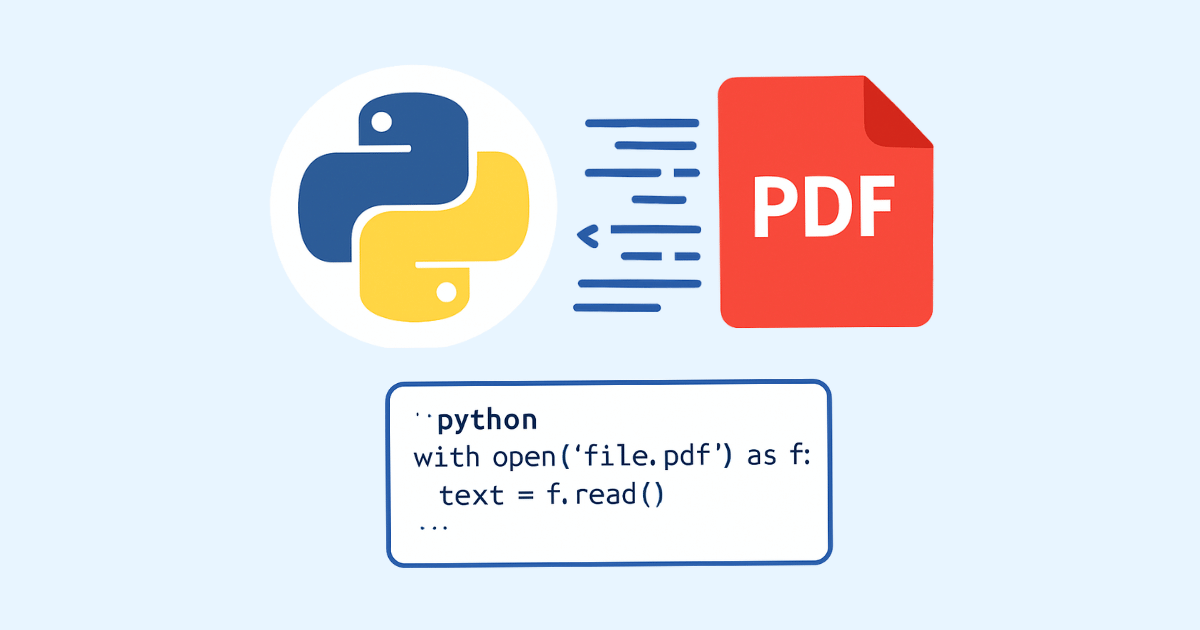
PDF files are everywhere. People use them for reports, invoices, resumes, books, contracts, manuals, research papers, and scanned documents. That is great for sharing and preserving layout, but it also creates a practical problem: the text inside a PDF is not always easy to work with in Python.
Sometimes the PDF contains real, selectable text. In other cases, the file is just a set of scanned images, so there is no actual text layer at all. Some PDFs have multiple columns, tables, headers, footers, embedded fonts, rotated pages, or password protection. Because of that, extracting text from PDF in Python is not one single task. It is a set of techniques, and the best method depends on the kind of PDF you have.
In this guide, you will learn how to extract text from PDF files in Python using several popular libraries and approaches. You will also see how to handle scanned PDFs with OCR, how to deal with tables, how to clean extracted content, and how to choose the right tool for your project.
By the end, you will understand:
the difference between text-based PDFs and scanned PDFs
how to extract text with
PyPDF2,pdfplumber,pdfminer.six, andpymupdfhow to extract text from every page
how to extract text from a specific page
how to work with scanned PDFs using OCR
how to handle broken line breaks, headers, footers, and layout issues
how to extract tables and structured content
when each library is the best choice
how to build a reusable Python script for real-world PDF text extraction
What Makes PDF Text Extraction Hard
A PDF is not like a plain text file or even like an HTML page. A PDF stores content in a format focused on visual rendering. That means the text on the page may be stored as individual characters positioned at exact coordinates, rather than as one neat paragraph.
This is why the same PDF can be easy to read in a PDF viewer but difficult to parse in code. When you extract text, the library has to guess the reading order, separate words from spacing, and reconstruct paragraphs from visual placement.
There are a few major reasons extraction becomes complicated:
1. The PDF may not contain actual text
Many PDFs are created from scanned paper documents. In that case, the page is just an image. No Python library can extract text directly from an image-based PDF unless OCR is used.
2. The reading order may be unclear
A document with two columns, sidebars, headers, or tables may produce text in a strange order. What looks normal to a human may become scrambled in the extracted output.
3. The document may use unusual fonts or encoding
Some PDFs store characters in ways that confuse extraction libraries. You may get odd symbols, missing letters, or incorrect spacing.
4. Layout elements can interfere
Headers, footers, page numbers, watermarks, footnotes, and captions may appear in the extracted text even when you do not want them.
5. Tables are especially tricky
Tables often need special handling because their content is arranged in rows and columns, not simple left-to-right text flow.
Because of these issues, the best approach is to choose the right tool and use the right extraction strategy for the PDF you are handling.
Best Python Libraries for Extracting Text from PDF
There are several excellent libraries available in Python. The most common ones are:
PyPDF2orpypdfpdfplumberpdfminer.sixPyMuPDF(fitz)OCR tools such as
pytesseractfor scanned PDFs
Each one has strengths and weaknesses.
PyPDF2 / pypdf
This is one of the simplest options. It is easy to install and use. It works well for basic text extraction from standard PDFs, but it may struggle with complex layouts.
pdfplumber
This library is very useful when you want more control over layout and tables. It is built on top of pdfminer.six and often gives cleaner results for structured documents.
pdfminer.six
This is a powerful text extraction library with good low-level control. It can work well when you need accurate layout handling, but the API may feel a bit more technical.
PyMuPDF
This is fast and flexible. It is often a strong choice when you need performance and solid text extraction for many PDFs.
OCR with pytesseract
If the PDF contains images instead of real text, you need OCR. Python can convert each page into an image and then use OCR to read the text from that image.
Install the Required Packages
Before starting, install the libraries you may need.
pip install pypdf pdfplumber pdfminer.six pymupdf pytesseract pdf2image pillow
If you want OCR to work, you also need to install the Tesseract engine on your computer.
For example:
On Windows, install Tesseract separately and add it to your PATH.
On Linux, install it from your package manager.
On macOS, install it with Homebrew.
pdf2image may also require Poppler on some systems.
If your goal is only to extract text from normal PDFs, you do not need all these packages at once. Start with one library and add others when needed.
Extract Text from PDF Using pypdf
pypdf is one of the easiest ways to begin. It is suitable for simple documents and quick scripts.
Basic example
from pypdf import PdfReader

pdf_path = "sample.pdf"
reader = PdfReader(pdf_path)

text = ""
for page in reader.pages:
    text += page.extract_text() + "\n"

print(text)
This code opens the PDF, loops through every page, extracts text from each page, and prints the result.
Extract text from a specific page
Sometimes you only need one page.
from pypdf import PdfReader

reader = PdfReader("sample.pdf")

page = reader.pages[0]
text = page.extract_text()

print(text)
Remember that page indexes start at 0, so pages[0] means the first page.
Save extracted text to a file
If you want to store the extracted content in a text file:
from pypdf import PdfReader

reader = PdfReader("sample.pdf")

with open("output.txt", "w", encoding="utf-8") as f:
    for page_number, page in enumerate(reader.pages, start=1):
        text = page.extract_text()
        f.write(f"--- Page {page_number} ---\n")
        if text:
            f.write(text)
        f.write("\n\n")
When pypdf works well
Use pypdf when:
the PDF is simple
you want a lightweight solution
you are building a quick utility
the document has mostly plain text
When pypdf may fail
pypdf may struggle with:
scanned PDFs
messy layouts
tables
multi-column formatting
PDFs with unusual text encoding
If the output looks scrambled or empty, try another library.
Extract Text from PDF Using pdfplumber
pdfplumber is a favorite among developers who need more control over PDF layout. It can extract text, tables, and words with more structure.
Basic example
import pdfplumber

pdf_path = "sample.pdf"

with pdfplumber.open(pdf_path) as pdf:
    full_text = ""
    for page in pdf.pages:
        text = page.extract_text()
        if text:
            full_text += text + "\n"

print(full_text)
Extract text from one page
import pdfplumber

with pdfplumber.open("sample.pdf") as pdf:
    page = pdf.pages[0]
    text = page.extract_text()
    print(text)
Extract words instead of raw text
Sometimes raw text is not enough. You may want to see individual words and their positions.
import pdfplumber

with pdfplumber.open("sample.pdf") as pdf:
    page = pdf.pages[0]
    words = page.extract_words()

    for word in words:
        print(word)
This can be helpful when you want to understand why text is being extracted in a strange order.
Extract tables
One of the biggest advantages of pdfplumber is table extraction.
import pdfplumber

with pdfplumber.open("sample.pdf") as pdf:
    page = pdf.pages[0]
    tables = page.extract_tables()

    for table in tables:
        for row in table:
            print(row)
The output will usually be a list of rows, where each row is a list of cells.
When pdfplumber works well
Use pdfplumber when:
the PDF has tables
you need a better understanding of layout
you want more detailed control
you are dealing with moderately complex documents
Limitations
Even though it is powerful, pdfplumber can still struggle with:
image-only PDFs
some scanned documents
highly irregular layouts
documents with poor structure
Extract Text from PDF Using pdfminer.six
pdfminer.six is a low-level and highly capable text extraction tool. It is excellent when you need detailed layout analysis and customization.
Basic example
from pdfminer.high_level import extract_text

text = extract_text("sample.pdf")
print(text)
That is surprisingly simple for a powerful library.
Extract text page by page
from pdfminer.high_level import extract_text

text = extract_text("sample.pdf", page_numbers=[0])
print(text)
You can use page_numbers to limit extraction to specific pages.
Why choose pdfminer.six
pdfminer.six is useful when you need:
better layout handling than basic tools
more precise extraction options
a mature and flexible PDF parser
Possible downside
The output can sometimes contain extra spacing, awkward line breaks, or formatting artifacts. That is normal when extracting from PDFs, and it often requires post-processing.
Extract Text from PDF Using PyMuPDF
PyMuPDF, imported as fitz, is another excellent option. It is fast and often gives very good results.
Basic example
import fitz

pdf_path = "sample.pdf"
doc = fitz.open(pdf_path)

text = ""
for page in doc:
    text += page.get_text()

print(text)
Extract text from one page
import fitz

doc = fitz.open("sample.pdf")
page = doc[0]
print(page.get_text())
Save text to file
import fitz

doc = fitz.open("sample.pdf")

with open("output.txt", "w", encoding="utf-8") as f:
    for i, page in enumerate(doc, start=1):
        f.write(f"--- Page {i} ---\n")
        f.write(page.get_text())
        f.write("\n\n")
Why PyMuPDF is popular
PyMuPDF is often chosen because it is:
fast
reliable
practical for real-world use
good for both text extraction and page rendering
It is a strong choice when you want a balance between speed and results.
Which Library Should You Use?
There is no single best answer for every PDF. The right library depends on the file.
Use pypdf when:
the PDF is simple
you need quick text extraction
you want minimal code
Use pdfplumber when:
the PDF includes tables
layout matters
you need more detailed control
Use pdfminer.six when:
you want advanced extraction options
you are okay with a slightly more technical API
you need a strong parser for text layout
Use PyMuPDF when:
performance matters
you want a fast and flexible solution
you need a good all-around library
Use OCR when:
the PDF is scanned
the PDF contains images instead of text
normal text extraction returns empty or useless output
How to Detect Whether a PDF Has Real Text
Before choosing a method, it helps to determine whether the PDF contains real text or just images.
A simple test is to try extracting text and see whether the result is empty.
from pypdf import PdfReader

reader = PdfReader("sample.pdf")

for i, page in enumerate(reader.pages):
    text = page.extract_text()
    if text and text.strip():
        print(f"Page {i + 1} has text")
    else:
        print(f"Page {i + 1} may be scanned or image-based")
If the result is empty on many pages, the document may be scanned.
Another sign is whether you can select text manually in a PDF reader. If you cannot highlight and copy the words, OCR may be required.
Extract Text from a Scanned PDF with OCR
When a PDF is just an image, the page must be converted into an image format and passed through OCR.
The usual workflow is:
render each PDF page as an image
run OCR on the image
collect the recognized text
Example using pdf2image and pytesseract
from pdf2image import convert_from_path
import pytesseract

pdf_path = "scanned.pdf"
pages = convert_from_path(pdf_path)

full_text = ""

for page_number, image in enumerate(pages, start=1):
    text = pytesseract.image_to_string(image)
    full_text += f"--- Page {page_number} ---\n{text}\n\n"

print(full_text)
Save OCR text to a file
from pdf2image import convert_from_path
import pytesseract

pdf_path = "scanned.pdf"
pages = convert_from_path(pdf_path)

with open("ocr_output.txt", "w", encoding="utf-8") as f:
    for page_number, image in enumerate(pages, start=1):
        text = pytesseract.image_to_string(image)
        f.write(f"--- Page {page_number} ---\n")
        f.write(text)
        f.write("\n\n")
Improve OCR quality
OCR results improve when the source images are clear. If the PDF scan is blurry, rotated, or low resolution, the extracted text may contain mistakes.
To improve accuracy, you can:
use high-resolution scans
straighten or deskew images
increase contrast
remove noise
crop unnecessary borders
use the correct OCR language
For example, if the document is in English, specify English explicitly:
text = pytesseract.image_to_string(image, lang="eng")
If the document is in another language, install the correct language pack and specify it accordingly.
A Complete Example: Extract Text from Every Page
Here is a more complete script that uses pypdf and saves extracted text into a file.
from pypdf import PdfReader

def extract_pdf_text(pdf_path: str, output_path: str) -> None:
    reader = PdfReader(pdf_path)

    with open(output_path, "w", encoding="utf-8") as file:
        for page_number, page in enumerate(reader.pages, start=1):
            text = page.extract_text()
            file.write(f"========== Page {page_number} ==========\n")
            if text:
                file.write(text)
            else:
                file.write("[No extractable text found on this page]")
            file.write("\n\n")

if __name__ == "__main__":
    extract_pdf_text("sample.pdf", "output.txt")
    print("Text extracted successfully.")
This script is useful as a starting point because it is simple and easy to modify.
Clean Up Extracted Text
Raw PDF extraction often contains extra line breaks, repeated spaces, strange hyphenation, and page artifacts. In real projects, you usually need to clean the output.
Remove extra spaces
import re

def normalize_whitespace(text: str) -> str:
    text = re.sub(r"[ \t]+", " ", text)
    text = re.sub(r"\n{3,}", "\n\n", text)
    return text.strip()
Remove page headers and footers
If every page contains the same header or footer, you may want to filter it out manually. For example, if each page starts with the same title, you can skip lines that match that text.
def remove_repeated_lines(text: str, lines_to_remove: set[str]) -> str:
    cleaned_lines = []
    for line in text.splitlines():
        if line.strip() not in lines_to_remove:
            cleaned_lines.append(line)
    return "\n".join(cleaned_lines)
Join broken lines
PDF extraction often inserts line breaks in the middle of sentences.
import re

def fix_broken_lines(text: str) -> str:
    text = re.sub(r"-\n", "", text)
    text = re.sub(r"\n(?!\n)", " ", text)
    text = re.sub(r" {2,}", " ", text)
    return text.strip()
This can help when the PDF uses wrapped lines that should really be continuous paragraphs.
Be careful, though. Not every line break is bad. Sometimes line breaks matter, especially in lists, poetry, code, or structured documents.
Extract Text from PDF Without Losing Structure
Sometimes you do not just want plain text. You want the text in a way that preserves paragraphs, sections, or blocks.
This is more difficult because PDF text extraction often returns content in the order it appears visually, not logically.
Some practical tips:
use
pdfplumberif layout mattersinspect word positions
extract line by line or block by block
avoid assuming that raw text output is already organized
post-process text based on your document type
For example, if you are extracting from a report or article, a manual cleanup function may improve the results significantly.
Extract Tables from PDF
Tables deserve special attention because they are often the main reason people choose pdfplumber.
Basic table extraction
import pdfplumber

with pdfplumber.open("table.pdf") as pdf:
    page = pdf.pages[0]
    tables = page.extract_tables()

    for table in tables:
        for row in table:
            print(row)
Convert table to CSV-like output
import csv
import pdfplumber

with pdfplumber.open("table.pdf") as pdf:
    page = pdf.pages[0]
    tables = page.extract_tables()

    with open("tables.csv", "w", newline="", encoding="utf-8") as f:
        writer = csv.writer(f)

        for table in tables:
            for row in table:
                writer.writerow(row)
This works well for simple tables, but more complex tables may need custom processing.
Common table issues
merged cells
repeated headers
broken rows
lines that are interpreted incorrectly
invisible table borders
When tables are important, test multiple extraction settings and inspect the results carefully.
Extract Metadata from PDF
Sometimes you need more than the text itself. You may also want the document title, author, creation date, or other metadata.
Using pypdf
from pypdf import PdfReader

reader = PdfReader("sample.pdf")
metadata = reader.metadata

print(metadata)
Using PyMuPDF
import fitz

doc = fitz.open("sample.pdf")
print(doc.metadata)
Metadata can help identify the source document or organize files in a batch processing workflow.
Extract Text from Password-Protected PDFs
Some PDFs are encrypted or protected with a password. In that case, you need to unlock them before extraction.
Example with pypdf
from pypdf import PdfReader

reader = PdfReader("protected.pdf")

if reader.is_encrypted:
    reader.decrypt("your_password")

for page in reader.pages:
    print(page.extract_text())
Keep in mind that if you do not have permission to access the file, you should not try to bypass protection. Only work with documents you are authorized to use.
Batch Extract Text from Many PDFs
In real projects, you often need to process a whole folder of documents.
Example script
import os
from pypdf import PdfReader

input_folder = "pdfs"
output_folder = "texts"

os.makedirs(output_folder, exist_ok=True)

for filename in os.listdir(input_folder):
    if filename.lower().endswith(".pdf"):
        pdf_path = os.path.join(input_folder, filename)
        txt_path = os.path.join(output_folder, filename[:-4] + ".txt")

        reader = PdfReader(pdf_path)

        with open(txt_path, "w", encoding="utf-8") as f:
            for page_number, page in enumerate(reader.pages, start=1):
                text = page.extract_text()
                f.write(f"--- Page {page_number} ---\n")
                if text:
                    f.write(text)
                f.write("\n\n")

        print(f"Processed {filename}")
This is a simple way to automate text extraction for many files at once.
Handling Common Problems
PDF text extraction is often not perfect. Here are some common problems and what to do about them.
Problem: The extracted text is empty
Possible causes:
the PDF is scanned
the file is image-based
the document is protected
the text is encoded in a strange way
What to do:
try another library
use OCR
check if the PDF can be selected manually
verify that the file is not corrupted
Problem: The output is in the wrong order
Possible causes:
multiple columns
tables
sidebars
unusual visual layout
What to do:
use
pdfplumberorpdfminer.sixinspect word positions
extract by page regions if needed
Problem: Strange characters appear
Possible causes:
font encoding issues
unsupported character mapping
embedded fonts
What to do:
try a different library
test OCR if the text layer is unreliable
clean the output after extraction
Problem: Extra spaces and line breaks
Possible causes:
line wrapping in the PDF
physical layout of the page
fragmented text placement
What to do:
normalize whitespace
join broken lines carefully
write a custom cleanup function
Problem: Tables are messy
Possible causes:
no clear grid lines
merged cells
irregular formatting
What to do:
try
pdfplumberextract table cells manually
use OCR plus table post-processing if needed
Build a Practical Extraction Workflow
A smart PDF text extraction workflow often looks like this:
Step 1: Try direct extraction
Use pypdf, PyMuPDF, or pdfplumber first.
Step 2: Check the quality of the output
Look for empty pages, scrambled text, or missing sections.
Step 3: Use OCR when necessary
If the document is scanned or image-based, switch to OCR.
Step 4: Clean the extracted text
Normalize spaces, remove repeated headers, and join broken lines.
Step 5: Save structured output
Write the text to files, database records, or JSON depending on your project.
This workflow gives you flexibility and reduces frustration when working with different PDF types.
Example: A More Robust Extractor
Below is a small utility that tries to extract text with pypdf and falls back to OCR if the result is empty.
from pypdf import PdfReader
from pdf2image import convert_from_path
import pytesseract

def extract_with_pypdf(pdf_path: str) -> str:
    reader = PdfReader(pdf_path)
    text_parts = []

    for page in reader.pages:
        text = page.extract_text()
        if text:
            text_parts.append(text)

    return "\n".join(text_parts).strip()

def extract_with_ocr(pdf_path: str) -> str:
    pages = convert_from_path(pdf_path)
    text_parts = []

    for page_number, image in enumerate(pages, start=1):
        text = pytesseract.image_to_string(image)
        text_parts.append(f"--- Page {page_number} ---\n{text}")

    return "\n\n".join(text_parts).strip()

def extract_pdf_text(pdf_path: str) -> str:
    text = extract_with_pypdf(pdf_path)

    if text:
        return text

    return extract_with_ocr(pdf_path)

if __name__ == "__main__":
    pdf_file = "sample.pdf"
    result = extract_pdf_text(pdf_file)

    with open("final_output.txt", "w", encoding="utf-8") as f:
        f.write(result)

    print("Done.")
This pattern is useful because it automatically handles both normal PDFs and scanned PDFs.
Tips for Better Accuracy
Here are practical tips that make a real difference:
Use the right library for the document
Do not force one library to solve every problem. A basic invoice, a scanned report, and a research paper may need different methods.
Test on multiple files
One PDF may look perfect while another from the same source is badly formatted. Always test with a variety of samples.
Inspect page by page
A document may contain some pages with text and other pages with images. Do not assume every page behaves the same.
Clean after extraction
Raw output is rarely final output. Post-processing is part of the job.
Preserve original files
When you are experimenting, keep a copy of the original PDF so you can compare results later.
Extract PDF Text into Python Data Structures
Sometimes you want more than a plain string. You may want a list of pages or a JSON-like structure.
Example: store each page separately
from pypdf import PdfReader

def extract_pages(pdf_path: str) -> list[dict]:
    reader = PdfReader(pdf_path)
    pages_data = []

    for i, page in enumerate(reader.pages, start=1):
        text = page.extract_text() or ""
        pages_data.append({
            "page_number": i,
            "text": text
        })

    return pages_data

pages = extract_pages("sample.pdf")

for page in pages:
    print(page["page_number"])
    print(page["text"])
This is useful for search indexing, document analysis, or storing content in a database.
Extract Only Certain Pages
Sometimes you only need part of a document, such as pages 2 to 5.
Example using pypdf
from pypdf import PdfReader

reader = PdfReader("sample.pdf")

for i in range(1, 5):
    page = reader.pages[i]
    print(page.extract_text())
Remember that pages[i] uses zero-based indexing. So page number 2 is index 1.
Extract Text from PDF in a Web App or API
If you are building a Flask, Django, FastAPI, or Laravel-connected Python service, text extraction often needs to happen behind the scenes when a user uploads a file.
A common flow is:
user uploads a PDF
backend saves the file temporarily
Python reads the PDF
extracted text is returned or stored
temporary files are removed
This is useful for:
document search
invoice parsing
resume analysis
research tools
note-taking applications
AI chat systems that read documents
When building an application, also remember to handle:
file size limits
invalid file uploads
timeouts for large PDFs
memory usage
security restrictions
Security and Safety Considerations
When processing user-uploaded PDFs, be careful.
Validate uploaded files
Do not trust the filename alone. Make sure the file is actually a PDF.
Handle malicious or corrupted files
Some files may be broken or intentionally crafted to cause errors. Wrap extraction in exception handling.
from pypdf import PdfReader

try:
    reader = PdfReader("sample.pdf")
    for page in reader.pages:
        print(page.extract_text())
except Exception as e:
    print(f"Failed to extract text: {e}")
Limit file size
Large PDFs can be slow or memory-intensive, especially when OCR is involved.
Remove temporary files
If you convert PDF pages to images, delete them after processing if you no longer need them.
Example with Error Handling
A good production-ready script should not crash easily.
from pypdf import PdfReader

def safe_extract_text(pdf_path: str) -> str:
    try:
        reader = PdfReader(pdf_path)

        if reader.is_encrypted:
            try:
                reader.decrypt("")
            except Exception:
                return "PDF is encrypted and could not be decrypted."

        texts = []
        for page in reader.pages:
            page_text = page.extract_text()
            if page_text:
                texts.append(page_text)

        return "\n".join(texts).strip() or "No text found."

    except FileNotFoundError:
        return "File not found."
    except Exception as e:
        return f"Error extracting text: {e}"

print(safe_extract_text("sample.pdf"))
This kind of function is much safer for real applications.
Choosing the Right Output Format
Text extraction is not the end of the story. After getting the content, you should think about where it will go.
Plain text
Best for:
quick reading
search indexing
debugging
JSON
Best for:
structured apps
APIs
storing page-level content
CSV
Best for:
simple tabular data
spreadsheet import
report summaries
Database records
Best for:
large applications
document management systems
search and analytics tools
The format you choose should match your goal.
Frequently Asked Questions
Can Python extract text from any PDF?
Not always. Python can extract text from PDFs that contain actual text. For scanned PDFs, OCR is needed.
Which library is easiest for beginners?
pypdf is one of the easiest because it is simple and requires little code.
Which library is best for tables?
pdfplumber is often one of the best choices for table extraction.
Why does my PDF output contain strange line breaks?
Because PDFs are visual documents, text may be stored in fragments. You often need cleanup after extraction.
Can I extract text from encrypted PDFs?
Yes, if you have the correct password and permission to open the file.
What should I use for scanned PDFs?
Use OCR with pytesseract, usually after converting pages into images with pdf2image.
Final Thoughts
Extracting text from PDF in Python is easy in simple cases, but it becomes more challenging as the document layout becomes more complex. The best approach depends on the PDF itself.
For normal text-based PDFs, pypdf or PyMuPDF may be enough. For layout-sensitive documents and tables, pdfplumber is often a better choice. For advanced parsing, pdfminer.six can help. For scanned PDFs, OCR is the real solution.
The most important lesson is this: do not expect one library to solve every PDF problem. Start with direct text extraction, inspect the result, and move to OCR or more specialized tools when needed. Once you add cleanup and validation, you can build a reliable PDF text extraction workflow for almost any project.
Hassan Agmir
Author · Filenewer
Writing about file tools and automation at Filenewer.
Try It Free
Process your files right now
No account needed · Fast & secure · 100% free
Browse All Tools