Python makes file management feel surprisingly natural. Whether you are reading a text file, saving user data, organizing folders, processing CSV reports, or cleaning up temporary files, Python gives you tools that are simple enough for beginners and powerful enough for real projects.
At first, file handling may look like a small topic. Open a file, read a file, write a file, close a file. Easy enough. But once you start building real applications, file management becomes much more than that. You begin to care about paths, file encodings, missing files, permissions, directory structures, binary data, logs, large files, backups, and safe cleanup. Suddenly, “just working with files” becomes an important part of writing reliable software.
This article walks through file management in Python in a human, practical way. We will start with the basics and move step by step into more advanced patterns. You will see real code examples, common mistakes, and best practices you can use in your own projects.
Why file management matters
Files are everywhere in software development.
A web app might save uploaded documents.
A desktop tool might export reports.
A script might read a configuration file.
A data pipeline might process thousands of CSV rows.
A game might store save data.
A logging system might write error messages to disk.
If your application touches data, it probably touches files too.
Good file management helps you:
keep data organized
prevent data loss
avoid bugs caused by bad paths or missing files
work with text and binary content safely
make programs easier to maintain
handle large files without crashing memory
Python is especially nice for this because its standard library includes many tools for file and directory operations. You often do not need external packages for the basic tasks.
The simplest way to open a file
The most common way to work with a file in Python is the open() function.
file = open("notes.txt", "r")
content = file.read()
print(content)
file.close()
This works, but it is not the best habit to build.
Why? Because if an error happens before file.close(), the file may stay open. That can cause resource leaks or locked files in some environments.
A better pattern is to use a with statement.
with open("notes.txt", "r") as file:
    content = file.read()
    print(content)
This is one of the most important habits in Python file management. The with block automatically closes the file when the block ends, even if something goes wrong.
File modes in Python
When opening a file, you choose a mode. The mode controls how Python interacts with the file.
Common modes include:
"r": read text mode"w": write text mode, overwrite existing file"a": append to the end of a file"x": create a new file, fail if it already exists"b": binary mode"t": text mode, usually default"r+": read and write"w+": write and read, overwrite file"a+": append and read
Examples:
with open("data.txt", "r") as file:
    print(file.read())
with open("output.txt", "w") as file:
    file.write("Hello, Python!")
with open("log.txt", "a") as file:
    file.write("New event recorded\n")
with open("new_file.txt", "x") as file:
    file.write("This file did not exist before.\n")
A quick rule of thumb:
use
rwhen you only want to readuse
wwhen you want to replace everythinguse
awhen you want to keep existing content and add moreuse
xwhen you want to ensure a file is created only once
Reading files in Python
Reading files can be done in several ways, depending on how much data you want and how you want to process it.
Read the whole file
with open("story.txt", "r", encoding="utf-8") as file:
    content = file.read()

print(content)
This loads the entire file into memory. That is fine for small files, but not ideal for very large ones.
Read line by line
with open("story.txt", "r", encoding="utf-8") as file:
    for line in file:
        print(line.strip())
This is better for large text files because Python reads one line at a time.
Read all lines into a list
with open("story.txt", "r", encoding="utf-8") as file:
    lines = file.readlines()

print(lines)
This gives you a list where each item is one line, including newline characters.
Sometimes that is useful, but in many cases the plain loop is cleaner and more memory-friendly.
Writing files in Python
Writing files is just as common as reading them. You might save user input, export report data, generate logs, or write configuration values.
Write a single string
with open("message.txt", "w", encoding="utf-8") as file:
    file.write("Hello from Python!\n")
    file.write("This is a second line.\n")
Every time you use "w", the file is overwritten.
Write multiple lines
lines = [
    "First line\n",
    "Second line\n",
    "Third line\n"
]

with open("output.txt", "w", encoding="utf-8") as file:
    file.writelines(lines)
Note that writelines() does not add newline characters automatically. You need to include them yourself.
Append to a file
with open("log.txt", "a", encoding="utf-8") as file:
    file.write("User logged in\n")
Appending is useful for logs, history files, and anything where you want to preserve old data.
Working with encodings
One of the most common file bugs happens because of encoding.
Text files are stored as bytes. Python needs to know how to convert bytes into characters. The most common encoding today is UTF-8, and it is usually a safe choice.
Always specify encoding when you are working with text files, especially if the file may contain non-English characters.
with open("arabic_text.txt", "r", encoding="utf-8") as file:
    content = file.read()
    print(content)
with open("output.txt", "w", encoding="utf-8") as file:
    file.write("مرحبا بالعالم")
Without an encoding, your code may work on one machine and fail on another. That is a frustrating kind of bug because it appears random when it is really just environment-dependent.
File paths: relative and absolute
A file path tells Python where a file lives.
Relative path
A relative path is based on the current working directory.
with open("data/report.txt", "r", encoding="utf-8") as file:
    print(file.read())
Absolute path
An absolute path includes the full location.
with open("/home/user/project/data/report.txt", "r", encoding="utf-8") as file:
    print(file.read())
Relative paths are convenient, but they can break if the script is run from a different directory. That is why it is often better to build paths in a more reliable way.
Using pathlib for modern file management
The pathlib module is one of the nicest parts of modern Python file handling. It gives you an object-oriented way to work with paths.
from pathlib import Path

file_path = Path("data") / "report.txt"
print(file_path)
This is cleaner than manually building strings with slashes.
Check if a file exists
from pathlib import Path

file_path = Path("notes.txt")

if file_path.exists():
    print("File exists")
else:
    print("File does not exist")
Read a file with pathlib
from pathlib import Path

file_path = Path("story.txt")
content = file_path.read_text(encoding="utf-8")
print(content)
Write text with pathlib
from pathlib import Path

file_path = Path("output.txt")
file_path.write_text("Hello, pathlib!", encoding="utf-8")
Create directories
from pathlib import Path

folder = Path("reports")
folder.mkdir(exist_ok=True)
pathlib makes path handling easier to read and less error-prone.
Creating folders and nested directories
When your program saves files, you often need to create folders first.
from pathlib import Path

Path("data").mkdir()
That works only if the parent folder already exists. If you want to create nested folders, use parents=True.
from pathlib import Path

Path("data/reports/2026").mkdir(parents=True, exist_ok=True)
parents=Truecreates missing parent directoriesexist_ok=Trueavoids an error if the folder already exists
This is very useful in scripts that generate reports or organize output files by date.
Renaming files
You can rename files using os or pathlib.
Using pathlib
from pathlib import Path

old_file = Path("draft.txt")
new_file = Path("final.txt")

old_file.rename(new_file)
Using os.rename()
import os

os.rename("draft.txt", "final.txt")
pathlib usually reads more naturally.
Copying files
Python’s shutil module is the standard tool for copying files.
import shutil

shutil.copy("source.txt", "backup.txt")
You can also preserve metadata with copy2().
import shutil

shutil.copy2("source.txt", "backup.txt")
Use copy() when you just want the content. Use copy2() when metadata matters too.
Moving files
Moving a file is often done with shutil.move().
import shutil

shutil.move("old_folder/file.txt", "new_folder/file.txt")
This can also rename the file during the move.
import shutil

shutil.move("notes.txt", "archive/notes_2026.txt")
This is useful for automation scripts that sort incoming files into folders.
Deleting files
Sometimes you need to remove files after processing them.
Using pathlib
from pathlib import Path

file_path = Path("old_file.txt")

if file_path.exists():
    file_path.unlink()
Using os.remove()
import os

os.remove("old_file.txt")
Deleting files is one of those operations where caution matters. It is a good idea to check carefully before removing anything important.
Working with directories
Directories are just as important as files. A project often needs to scan folders, list contents, and sort files.
List files in a directory
from pathlib import Path

folder = Path("data")

for item in folder.iterdir():
    print(item)
Filter only files
from pathlib import Path

folder = Path("data")

for item in folder.iterdir():
    if item.is_file():
        print(item.name)
Filter only directories
from pathlib import Path

folder = Path("data")

for item in folder.iterdir():
    if item.is_dir():
        print(item.name)
Recursively walk through subfolders
from pathlib import Path

folder = Path("data")

for item in folder.rglob("*.txt"):
    print(item)
The rglob() method is very powerful when you need to find matching files in many folders.
Reading and writing CSV files
CSV files are everywhere in data work and business automation.
Python’s built-in csv module makes them easy to handle.
Read a CSV file
import csv

with open("users.csv", "r", encoding="utf-8", newline="") as file:
    reader = csv.reader(file)

    for row in reader:
        print(row)
Read a CSV with column names
import csv

with open("users.csv", "r", encoding="utf-8", newline="") as file:
    reader = csv.DictReader(file)

    for row in reader:
        print(row["name"], row["email"])
Write a CSV file
import csv

data = [
    ["name", "email"],
    ["Hassan", "hassan@example.com"],
    ["Sara", "sara@example.com"]
]

with open("output.csv", "w", encoding="utf-8", newline="") as file:
    writer = csv.writer(file)
    writer.writerows(data)
Write a CSV with dictionaries
import csv

rows = [
    {"name": "Hassan", "email": "hassan@example.com"},
    {"name": "Sara", "email": "sara@example.com"}
]

with open("contacts.csv", "w", encoding="utf-8", newline="") as file:
    fieldnames = ["name", "email"]
    writer = csv.DictWriter(file, fieldnames=fieldnames)

    writer.writeheader()
    writer.writerows(rows)
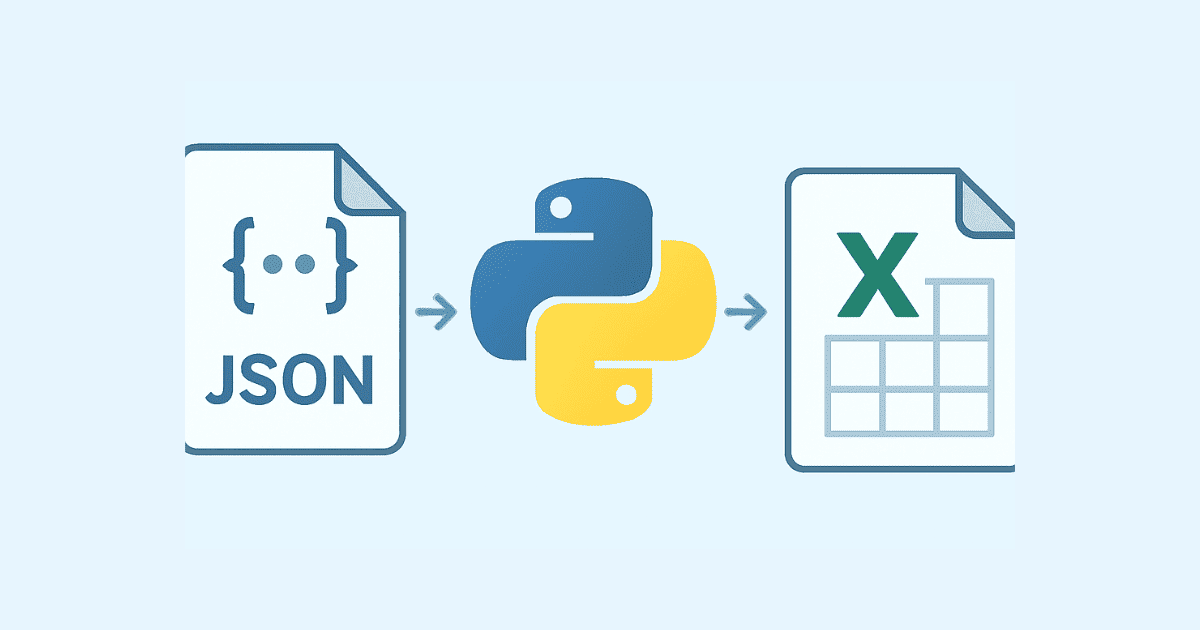
Working with JSON files
JSON is one of the most common file formats in modern development. It is used for configs, APIs, cache files, and data exchange.
Python has a built-in json module.
Read JSON
import json

with open("config.json", "r", encoding="utf-8") as file:
    config = json.load(file)

print(config)
Write JSON
import json

data = {
    "app_name": "My App",
    "version": "1.0",
    "debug": True
}

with open("config.json", "w", encoding="utf-8") as file:
    json.dump(data, file, indent=4)
Convert JSON string to Python object
import json

json_string = '{"name": "Hassan", "age": 30}'
data = json.loads(json_string)

print(data["name"])
Convert Python object to JSON string
import json

data = {"name": "Hassan", "age": 30}
json_string = json.dumps(data, indent=2)

print(json_string)
JSON is great when you need structured file storage without the complexity of a database.
Working with binary files
Not all files are text. Images, audio, PDFs, videos, and many other formats are binary files.
To work with binary data, use "rb" and "wb".
Read a binary file
with open("image.png", "rb") as file:
    data = file.read()

print(type(data))
Write a binary file
with open("copy.png", "wb") as file:
    file.write(data)
Binary files are copied as bytes, not as text.
If you open a binary file as text, you may get decoding errors or corrupted output.
Chunked file reading for large files
Reading a huge file all at once is not always a good idea. It may use too much memory. Instead, process it in chunks.
Read chunks from a large binary file
chunk_size = 1024 * 1024  # 1 MB

with open("large_file.zip", "rb") as file:
    while True:
        chunk = file.read(chunk_size)
        if not chunk:
            break
        print(f"Read {len(chunk)} bytes")
Process a large text file line by line
with open("big_log.txt", "r", encoding="utf-8") as file:
    for line in file:
        if "ERROR" in line:
            print(line.strip())
This is a smarter and safer way to handle large data.
Reading specific parts of a file
Sometimes you do not need the whole file. You only need part of it.
Read the first few characters
with open("story.txt", "r", encoding="utf-8") as file:
    first_100_chars = file.read(100)

print(first_100_chars)
Read the first line
with open("story.txt", "r", encoding="utf-8") as file:
    first_line = file.readline()

print(first_line)
Read line by line manually
with open("story.txt", "r", encoding="utf-8") as file:
    line1 = file.readline()
    line2 = file.readline()

print(line1)
print(line2)
This is useful when working with logs or custom text formats.
File metadata: size, modification time, and more
Sometimes you need to know details about a file, not just its content.
from pathlib import Path

file_path = Path("notes.txt")

print("Exists:", file_path.exists())
print("Size:", file_path.stat().st_size)
print("Modified:", file_path.stat().st_mtime)
The stat() method gives you system-level metadata.
You can also format times:
from pathlib import Path
from datetime import datetime

file_path = Path("notes.txt")
modified_timestamp = file_path.stat().st_mtime
modified_time = datetime.fromtimestamp(modified_timestamp)

print(modified_time)
This is handy for reports, cleanup tools, and file synchronization scripts.
Handling errors safely
File operations are not always smooth. Files may be missing, permissions may be blocked, or the path may be wrong.
A safe program should handle these cases.
Catch file not found errors
try:
    with open("missing.txt", "r", encoding="utf-8") as file:
        content = file.read()
except FileNotFoundError:
    print("The file was not found.")
Catch permission errors
try:
    with open("/root/secret.txt", "r", encoding="utf-8") as file:
        content = file.read()
except PermissionError:
    print("You do not have permission to read this file.")
Catch general file errors
try:
    with open("data.txt", "r", encoding="utf-8") as file:
        content = file.read()
except OSError as error:
    print(f"File error: {error}")
Use specific exceptions whenever possible. That makes debugging much easier.
Checking whether a file exists before using it
This pattern is common:
from pathlib import Path

file_path = Path("config.json")

if file_path.exists():
    print(file_path.read_text(encoding="utf-8"))
else:
    print("Config file not found.")
Still, in many cases it is better to just try opening the file and handle the exception. That avoids race conditions where a file disappears between the check and the open.
Temporary files
Sometimes you need a file only for a short time. Python’s tempfile module is perfect for that.
import tempfile

with tempfile.NamedTemporaryFile(mode="w+", delete=True, encoding="utf-8") as temp_file:
    temp_file.write("temporary data")
    temp_file.seek(0)
    print(temp_file.read())
Temporary files are useful for testing, caching, and intermediate processing.
Dealing with file paths the safe way
One common mistake is building paths manually like this:
path = "data/" + "report.txt"
That can work, but it is not ideal. Different operating systems use different path separators. Python’s tools solve this for you.
Better approach with pathlib
from pathlib import Path

path = Path("data") / "report.txt"
print(path)
Using os.path.join
import os

path = os.path.join("data", "report.txt")
print(path)
For modern Python code, pathlib is usually the nicer choice.
A practical example: simple file organizer
Let us build something useful: a small script that sorts files into folders by extension.
from pathlib import Path
import shutil

source_folder = Path("downloads")

for file_path in source_folder.iterdir():
    if file_path.is_file():
        extension = file_path.suffix.lower().replace(".", "")
        if not extension:
            extension = "no_extension"

        target_folder = source_folder / extension
        target_folder.mkdir(exist_ok=True)

        target_path = target_folder / file_path.name
        shutil.move(str(file_path), str(target_path))

        print(f"Moved {file_path.name} to {target_folder}")
This script looks simple, but it captures a real file-management workflow:
inspect files
detect their types
create folders if needed
move files into the right place
That is exactly the kind of script many developers write for automating everyday tasks.
A practical example: log file search
Imagine a log file with many lines, and you want to find errors.
from pathlib import Path

log_file = Path("app.log")

with open(log_file, "r", encoding="utf-8") as file:
    for line_number, line in enumerate(file, start=1):
        if "ERROR" in line:
            print(f"{line_number}: {line.strip()}")
This reads the file line by line and prints only the relevant lines.
You can expand it further:
from pathlib import Path

log_file = Path("app.log")
errors = []

with open(log_file, "r", encoding="utf-8") as file:
    for line_number, line in enumerate(file, start=1):
        if "ERROR" in line:
            errors.append((line_number, line.strip()))

for number, message in errors:
    print(f"Error at line {number}: {message}")
This kind of pattern is very common in scripts that analyze system logs.
A practical example: simple text backup
Backups matter more than people think. Here is a tiny backup script:
from pathlib import Path
import shutil
from datetime import datetime

source_file = Path("notes.txt")

timestamp = datetime.now().strftime("%Y%m%d_%H%M%S")
backup_folder = Path("backups")
backup_folder.mkdir(exist_ok=True)

backup_file = backup_folder / f"{source_file.stem}_{timestamp}{source_file.suffix}"

shutil.copy2(source_file, backup_file)

print(f"Backup created: {backup_file}")
This script:
creates a backup folder
generates a timestamp
copies the file safely
keeps metadata with
copy2()
It is small, but very useful.
Common mistakes in Python file management
A lot of file bugs are not complicated. They are just easy to overlook.
Forgetting to close files
Bad:
file = open("data.txt", "r")
content = file.read()
Better:
with open("data.txt", "r", encoding="utf-8") as file:
    content = file.read()
Forgetting the encoding
Bad:
with open("text.txt", "r") as file:
    content = file.read()
Better:
with open("text.txt", "r", encoding="utf-8") as file:
    content = file.read()
Overwriting files accidentally
Bad:
with open("important_data.txt", "w", encoding="utf-8") as file:
    file.write("new content")
This replaces everything.
Using hardcoded separators
Bad:
path = "data\\report.txt"
Better:
from pathlib import Path
path = Path("data") / "report.txt"
Reading huge files into memory
Bad for large files:
content = open("big.txt", "r", encoding="utf-8").read()
Better:
with open("big.txt", "r", encoding="utf-8") as file:
    for line in file:
        print(line)
Good habits for clean file code
Here are some habits that make your code more reliable and easier to maintain.
1. Use with blocks
This is the safest way to open files.
2. Always specify encoding for text
UTF-8 is usually the right default.
3. Prefer pathlib
It makes path code cleaner and more readable.
4. Handle exceptions
Files can disappear, permissions can fail, and devices can be disconnected.
5. Process large files in chunks
Do not load massive files all at once unless you really need to.
6. Keep paths configurable
Do not hardcode paths everywhere. Use variables, config files, or command-line arguments.
7. Separate reading, processing, and writing
This makes your code easier to test and debug.
File management in real projects
File management shows up in many kinds of applications.
In web applications
saving uploads
generating PDFs
storing exports
writing logs
managing cache files
In data processing scripts
reading CSV or JSON input
cleaning raw data
exporting results
archiving old files
In automation tools
moving files from one folder to another
renaming files in bulk
compressing folders
generating reports
In desktop apps
opening user-selected files
saving preferences
storing project data locally
Once you understand file handling well, a lot of everyday programming tasks become much easier.
A bigger example: reading a folder of text files and counting words
Here is a more complete example that shows practical file management in action.
from pathlib import Path
import re

folder = Path("articles")

word_counts = {}

for file_path in folder.glob("*.txt"):
    with open(file_path, "r", encoding="utf-8") as file:
        text = file.read().lower()
        words = re.findall(r"\b\w+\b", text)
        word_counts[file_path.name] = len(words)

for filename, count in word_counts.items():
    print(f"{filename}: {count} words")
This script:
loops through a folder
reads each text file
extracts words with a regular expression
counts them
prints the results
This is the kind of script that helps with document processing, content analysis, and simple data reporting.
A bigger example: cleaning up old files
Sometimes you need to remove files older than a certain number of days.
from pathlib import Path
from datetime import datetime, timedelta

folder = Path("temp_files")
cutoff = datetime.now() - timedelta(days=7)

for file_path in folder.iterdir():
    if file_path.is_file():
        modified_time = datetime.fromtimestamp(file_path.stat().st_mtime)

        if modified_time < cutoff:
            file_path.unlink()
            print(f"Deleted: {file_path.name}")
This script compares each file’s modified time with a cutoff date and deletes the old ones.
Be careful with scripts like this. It is a good idea to test them on non-important files first.
A gentle introduction to file permissions
Sometimes a file exists, but your program still cannot use it.
This usually happens because of permissions.
For example:
with open("protected.txt", "r", encoding="utf-8") as file:
    print(file.read())
If permission is denied, Python may raise PermissionError.
On Linux and macOS, permissions are a major part of file management. On Windows, file locks and access control can also matter.
If your application will be used in different environments, it is wise to:
handle permission errors gracefully
store files in user-accessible locations
avoid writing to system folders unless necessary
File management and testing
When you write file-based code, testing becomes important.
You do not want your tests to damage real data. Use temporary directories and temporary files.
Python’s tempfile module is useful here.
import tempfile
from pathlib import Path

with tempfile.TemporaryDirectory() as temp_dir:
    temp_path = Path(temp_dir)
    test_file = temp_path / "sample.txt"

    test_file.write_text("hello test", encoding="utf-8")
    print(test_file.read_text(encoding="utf-8"))
This creates a safe folder that disappears automatically after the test.
File management in automation scripts
File handling is one of the most useful skills for automation.
Examples:
rename thousands of images
convert files from one format to another
sort downloaded attachments
create daily backups
generate reports from raw inputs
A good automation script often follows a pattern like this:
discover files
validate them
read the content
process data
write the output
archive or delete the originals
That workflow appears in many real-world projects.
Using file management with configuration files
Many applications store settings in a file.
JSON is a popular choice:
import json
from pathlib import Path

config_path = Path("config.json")

default_config = {
    "theme": "dark",
    "language": "en",
    "autosave": True
}

if config_path.exists():
    with open(config_path, "r", encoding="utf-8") as file:
        config = json.load(file)
else:
    config = default_config
    with open(config_path, "w", encoding="utf-8") as file:
        json.dump(config, file, indent=4)

print(config)
This pattern is useful when building tools that need persistent settings.
Using file management to build a simple notes app
Here is a tiny notes example that saves and loads notes from a text file.
from pathlib import Path

notes_file = Path("my_notes.txt")

def add_note(note):
    with open(notes_file, "a", encoding="utf-8") as file:
        file.write(note + "\n")

def show_notes():
    if notes_file.exists():
        with open(notes_file, "r", encoding="utf-8") as file:
            for line in file:
                print("-", line.strip())
    else:
        print("No notes found.")

add_note("Buy groceries")
add_note("Finish Python article")
show_notes()
This is a simple example, but it shows how file management supports basic persistence in applications.
When to use files and when to use a database
Files are great when your data is:
small to medium
simple
local
easy to serialize
not heavily queried
A database is better when your data needs:
complex searching
concurrent access
relationships between records
reliable transactions
scalable updates
A lot of beginners try to use files for everything. That works for a while, but as the project grows, a database may become the better option.
Still, files remain extremely valuable for:
logs
exports
backups
configs
cache
temporary storage
Final thoughts
File management in Python is one of those skills that quietly powers a huge amount of real software. At first it feels like a small technical detail, but once you start building scripts and applications, it becomes part of your daily workflow.
The good news is that Python gives you a very friendly set of tools for the job. open() handles reading and writing, with keeps things safe, pathlib makes paths easier to manage, csv and json handle common formats, and shutil helps with copying and moving files. Add a little care around encodings, errors, and large files, and you can handle most file tasks confidently.
The best way to get comfortable is to practice with real examples. Read a folder of files. Write a small backup script. Parse a CSV. Save settings to JSON. Rename files in bulk. The more you use file management in real projects, the more natural it becomes.
And once it clicks, you will notice something important: many “hard” automation problems are really just file problems in disguise.
Hassan Agmir
Author · Filenewer
Writing about file tools and automation at Filenewer.
Try It Free
Process your files right now
No account needed · Fast & secure · 100% free
Browse All Tools