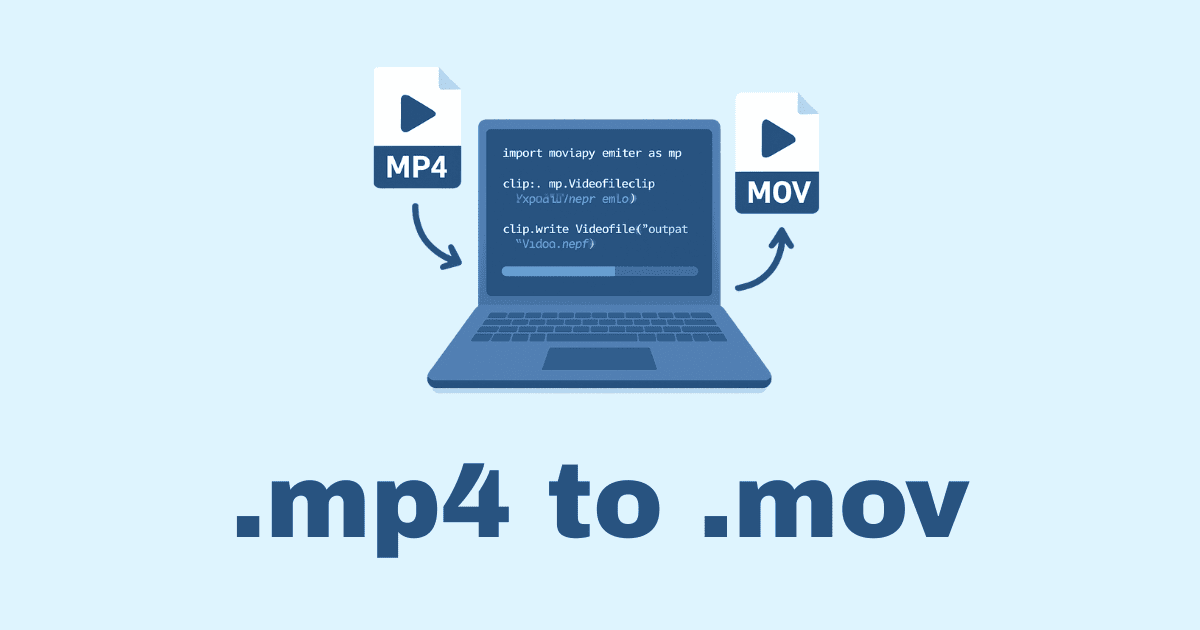
Converting a video from .mp4 to .mov in Python sounds simple at first glance, but there is a real difference between “changing the file extension” and “actually converting the video into a different container format.” That distinction matters a lot. A lot of people run into the same trap: they rename video.mp4 to video.mov, expect it to work everywhere, and then wonder why some apps refuse to open it or why the audio is broken. The truth is that MP4 and MOV are both containers, not the actual video itself. Inside them are video and audio streams, and those streams may be encoded in different ways. So when we talk about conversion, we are usually talking about re-wrapping streams or transcoding them into a format that is more compatible with MOV.
Python is a great choice for this task because it gives you flexibility. You can keep things lightweight and use subprocess with FFmpeg, or use a higher-level library like MoviePy if you want simpler code. The right approach depends on your project: maybe you need one-off conversion for a personal script, maybe you are building an upload pipeline, or maybe you are processing hundreds of files in a folder. In this article, we will walk through all of that carefully, with practical code examples, tables, and the little real-world details that usually make the difference between a script that “works on my machine” and a script that is actually useful.
What MP4 and MOV Really Are
Before writing code, it helps to know what you are dealing with.
MP4 and MOV are both container formats. A container is like a box that holds audio, video, subtitles, and metadata. The container itself does not define the quality of the video. Instead, the actual video is encoded with a codec such as H.264, H.265, ProRes, or others.
That means these two statements are very different:
Convert the file container from MP4 to MOV without re-encoding.
Convert the video stream to a MOV-friendly codec like ProRes.
The first can be very fast and preserve quality perfectly if the streams are compatible. The second is a full transcode and may change file size, quality, and playback compatibility.
Here is a simple comparison:
Format | Type | Typical Use | Strengths | Notes |
|---|---|---|---|---|
MP4 | Container | Web, mobile, general playback | Small files, broad support | Very common and efficient |
MOV | Container | Apple workflows, editing, post-production | Good for editing, strong support in Apple tools | Often used with ProRes or similar codecs |
H.264 | Codec | Streaming, playback | Efficient, widely supported | Can be inside MP4 or MOV |
ProRes | Codec | Editing, professional workflows | High quality, easy to edit | Files are much larger |
If your goal is simply to make a .mov file, you do not always need to re-encode. If your goal is compatibility with Final Cut Pro, QuickTime, or certain editing workflows, re-encoding may be necessary depending on the source codecs and audio format.
When You Should Convert MP4 to MOV
There are a few common reasons for converting to MOV:
Situation | Why MOV Helps |
|---|---|
Video editing on Apple tools | MOV is often more natural in editing pipelines |
Delivery to a client who asks for MOV | Some teams standardize on MOV |
Preserving high-quality intermediate files | MOV is frequently used in post-production |
Compatibility with a workflow that expects MOV | Certain tools prefer or require MOV |
Rewrapping with metadata | MOV can be useful for organized media pipelines |
Sometimes the request is not about video quality at all. It is about workflow expectations. For example, someone may say “send me the MOV version” because their editor or internal system was built around that convention. In those cases, having a clean Python script that can do the conversion reliably is a big advantage.
The Best Way to Convert in Python
There are two main practical options:
Method | Best For | Pros | Cons |
|---|---|---|---|
FFmpeg via | Production scripts, batch jobs, full control | Fast, reliable, flexible, industry standard | Slightly more verbose |
MoviePy | Simpler Python code, beginner-friendly scripts | Easier syntax, good for quick tasks | Slower, less control, depends on FFmpeg anyway |
If you want the most reliable solution, use FFmpeg through Python. If you want easier Python code and do not mind a bit more overhead, MoviePy is fine.
Install the Tools You Need
1) Install FFmpeg
FFmpeg is the engine behind most serious audio/video conversion tasks.
On Windows, macOS, or Linux, install FFmpeg through your package manager or by downloading it from the official builds. After installing, verify it in the terminal:
ffmpeg -version
You should see version details instead of an error.
2) Install Python Libraries
For the approaches in this article, you may need:
pip install moviepy
If you only use FFmpeg through Python’s built-in subprocess, you do not need extra packages.
First Approach: Convert MP4 to MOV Using FFmpeg in Python
This is the approach I recommend for most real projects.
Simple Rewrap Without Re-encoding
If the codecs inside the MP4 are already compatible with MOV, you can simply copy the streams into a MOV container. This is fast and preserves quality.
import subprocess
from pathlib import Path

def mp4_to_mov(input_path: str, output_path: str) -> None:
    input_file = Path(input_path)
    output_file = Path(output_path)

    if not input_file.exists():
        raise FileNotFoundError(f"Input file not found: {input_file}")

    command = [
        "ffmpeg",
        "-i", str(input_file),
        "-c", "copy",
        str(output_file)
    ]

    result = subprocess.run(command, capture_output=True, text=True)

    if result.returncode != 0:
        raise RuntimeError(f"FFmpeg failed:\n{result.stderr}")

    print(f"Converted successfully: {output_file}")

# Example usage
mp4_to_mov("sample.mp4", "sample.mov")
What This Does
-i input.mp4tells FFmpeg which file to read.-c copytells FFmpeg to copy audio and video streams without re-encoding.The output file ends in
.mov.
This is ideal when the source video already uses codecs that MOV can hold properly.
Important Note
This is not a “magic rename.” It is a container remux. If the source streams are incompatible with MOV in some player or editor, the file may still fail or behave strangely. That is when transcoding becomes necessary.
Second Approach: Convert and Re-encode to MOV
Sometimes you need better compatibility, especially in editing environments. In that case, you can force a codec that works well inside MOV.
A common choice is H.264 for video and AAC for audio:
import subprocess
from pathlib import Path

def mp4_to_mov_reencode(input_path: str, output_path: str) -> None:
    input_file = Path(input_path)
    output_file = Path(output_path)

    if not input_file.exists():
        raise FileNotFoundError(f"Input file not found: {input_file}")

    command = [
        "ffmpeg",
        "-i", str(input_file),
        "-c:v", "libx264",
        "-preset", "medium",
        "-crf", "23",
        "-c:a", "aac",
        "-b:a", "192k",
        str(output_file)
    ]

    result = subprocess.run(command, capture_output=True, text=True)

    if result.returncode != 0:
        raise RuntimeError(f"FFmpeg failed:\n{result.stderr}")

    print(f"Converted successfully: {output_file}")

# Example usage
mp4_to_mov_reencode("sample.mp4", "sample.mov")
Understanding the Settings
Option | Meaning |
|---|---|
| H.264 video encoder |
| Balances speed and compression |
| Quality control; lower means better quality and larger file |
| Common audio codec for MOV |
| Audio bitrate |
A CRF value between 18 and 23 is a common range. Lower values give better quality but larger files. For high-quality work, try 18–20. For general use, 23 is fine.
When to Use Copy vs Re-encode
Here is a practical guide:
Goal | Use | Use re-encoding |
|---|---|---|
Fast conversion | Yes | No |
No quality loss | Yes | No |
Best compatibility in editors | Sometimes | Often |
Reduce file size | No | Maybe |
Fix codec issues | No | Yes |
Batch processing many files | Yes, if compatible | Only when needed |
A good rule of thumb: try copy first, and only re-encode if the output has issues or the target app rejects the file.
A More Robust Python Script
Let us build a nicer version that checks inputs, creates output paths automatically, and gives you useful errors.
import subprocess
from pathlib import Path
from typing import Optional

def convert_mp4_to_mov(
    input_file: str,
    output_file: Optional[str] = None,
    reencode: bool = False
) -> Path:
    input_path = Path(input_file)

    if not input_path.exists():
        raise FileNotFoundError(f"Input file not found: {input_path}")

    if input_path.suffix.lower() != ".mp4":
        raise ValueError("Input file must be an .mp4 file")

    if output_file:
        output_path = Path(output_file)
    else:
        output_path = input_path.with_suffix(".mov")

    if reencode:
        command = [
            "ffmpeg",
            "-y",
            "-i", str(input_path),
            "-c:v", "libx264",
            "-preset", "medium",
            "-crf", "23",
            "-c:a", "aac",
            "-b:a", "192k",
            str(output_path)
        ]
    else:
        command = [
            "ffmpeg",
            "-y",
            "-i", str(input_path),
            "-c", "copy",
            str(output_path)
        ]

    result = subprocess.run(command, capture_output=True, text=True)

    if result.returncode != 0:
        raise RuntimeError(
            f"Conversion failed for {input_path.name}:\n{result.stderr}"
        )

    return output_path

if __name__ == "__main__":
    out = convert_mp4_to_mov("sample.mp4")
    print(f"Created: {out}")
Why This Version Is Better
It validates the input file.
It supports optional output names.
It lets you choose between remuxing and re-encoding.
It raises meaningful errors instead of silently failing.
That kind of script is much easier to reuse in a real project.
Using MoviePy for a Simpler Python Workflow
MoviePy is convenient if you want to stay in Python and avoid manually building FFmpeg commands. It is especially friendly for beginners.
Install MoviePy
pip install moviepy
Basic Example
from moviepy import VideoFileClip

def mp4_to_mov_moviepy(input_path: str, output_path: str) -> None:
    clip = VideoFileClip(input_path)
    clip.write_videofile(
        output_path,
        codec="libx264",
        audio_codec="aac"
    )
    clip.close()

# Example usage
mp4_to_mov_moviepy("sample.mp4", "sample.mov")
Pros and Cons of MoviePy
Pros | Cons |
|---|---|
Easier to read | Slower than direct FFmpeg use |
Pythonic API | Less control over advanced flags |
Good for small projects | More overhead for large batch jobs |
Nice for editing and effects | Still depends on FFmpeg underneath |
For a small app, MoviePy is often enough. For serious media pipelines, FFmpeg usually wins.
Batch Convert an Entire Folder
A very common real-world need is converting many MP4 files at once.
Here is a safe batch conversion script using FFmpeg and stream copy:
import subprocess
from pathlib import Path

def batch_convert_mp4_to_mov(input_folder: str, output_folder: str) -> None:
    input_dir = Path(input_folder)
    output_dir = Path(output_folder)
    output_dir.mkdir(parents=True, exist_ok=True)

    mp4_files = list(input_dir.glob("*.mp4"))

    if not mp4_files:
        print("No MP4 files found.")
        return

    for mp4_file in mp4_files:
        output_file = output_dir / f"{mp4_file.stem}.mov"
        print(f"Converting {mp4_file.name} -> {output_file.name}")

        command = [
            "ffmpeg",
            "-y",
            "-i", str(mp4_file),
            "-c", "copy",
            str(output_file)
        ]

        result = subprocess.run(command, capture_output=True, text=True)

        if result.returncode != 0:
            print(f"Failed: {mp4_file.name}")
            print(result.stderr)
        else:
            print(f"Done: {output_file}")

# Example usage
batch_convert_mp4_to_mov("input_videos", "output_movs")
Why This Matters
Batch conversion is where scripts start saving real time. Manual conversion is fine for one file, but it becomes a headache very quickly when you have dozens or hundreds. A simple loop like this can turn a repetitive task into a one-command process.
Batch Convert with Re-encoding When Needed
If your workflow requires compatibility over speed, use a re-encoding version:
import subprocess
from pathlib import Path

def batch_convert_mp4_to_mov_reencode(input_folder: str, output_folder: str) -> None:
    input_dir = Path(input_folder)
    output_dir = Path(output_folder)
    output_dir.mkdir(parents=True, exist_ok=True)

    for mp4_file in input_dir.glob("*.mp4"):
        output_file = output_dir / f"{mp4_file.stem}.mov"
        print(f"Re-encoding {mp4_file.name} -> {output_file.name}")

        command = [
            "ffmpeg",
            "-y",
            "-i", str(mp4_file),
            "-c:v", "libx264",
            "-preset", "medium",
            "-crf", "20",
            "-c:a", "aac",
            "-b:a", "192k",
            str(output_file)
        ]

        result = subprocess.run(command, capture_output=True, text=True)

        if result.returncode != 0:
            print(f"Failed: {mp4_file.name}")
            print(result.stderr)
        else:
            print(f"Done: {output_file}")

# Example usage
batch_convert_mp4_to_mov_reencode("input_videos", "output_movs")
Preserving Metadata
In some cases, you might want to preserve metadata such as title, comment, or creation time.
FFmpeg can copy metadata in many cases by default, but it is sometimes useful to be explicit.
import subprocess

command = [
    "ffmpeg",
    "-i", "sample.mp4",
    "-map_metadata", "0",
    "-c", "copy",
    "sample.mov"
]

subprocess.run(command, check=True)
Here -map_metadata 0 tells FFmpeg to copy metadata from the first input file.
Extracting and Inspecting Video Information in Python
Before converting, it can help to inspect the source file. For example, maybe the file contains an unusual codec or a weird audio track. Knowing this ahead of time can save you from confusion.
You can use ffprobe, which is part of FFmpeg:
import subprocess
import json

def get_video_info(file_path: str) -> dict:
    command = [
        "ffprobe",
        "-v", "error",
        "-print_format", "json",
        "-show_format",
        "-show_streams",
        file_path
    ]

    result = subprocess.run(command, capture_output=True, text=True)

    if result.returncode != 0:
        raise RuntimeError(result.stderr)

    return json.loads(result.stdout)

info = get_video_info("sample.mp4")
print(info)
This is useful when you want to make decisions programmatically, such as:
copy streams if codecs are compatible,
re-encode if the video uses an unsupported codec,
preserve audio if present,
detect resolution or frame rate.
Automatically Decide Whether to Copy or Re-encode
A nice improvement is to inspect the codecs and choose a conversion path automatically.
Here is a simplified example:
import json
import subprocess
from pathlib import Path

def probe_codecs(file_path: str) -> dict:
    command = [
        "ffprobe",
        "-v", "error",
        "-print_format", "json",
        "-show_streams",
        file_path
    ]
    result = subprocess.run(command, capture_output=True, text=True, check=True)
    return json.loads(result.stdout)

def smart_mp4_to_mov(input_file: str, output_file: str) -> None:
    data = probe_codecs(input_file)
    streams = data.get("streams", [])

    video_codec = None
    audio_codec = None

    for stream in streams:
        if stream.get("codec_type") == "video" and not video_codec:
            video_codec = stream.get("codec_name")
        elif stream.get("codec_type") == "audio" and not audio_codec:
            audio_codec = stream.get("codec_name")

    # Basic rule:
    # If video is H.264 and audio is AAC, try stream copy.
    # Otherwise, re-encode.
    if video_codec == "h264" and (audio_codec in ("aac", None)):
        cmd = [
            "ffmpeg",
            "-y",
            "-i", input_file,
            "-c", "copy",
            output_file
        ]
    else:
        cmd = [
            "ffmpeg",
            "-y",
            "-i", input_file,
            "-c:v", "libx264",
            "-preset", "medium",
            "-crf", "23",
            "-c:a", "aac",
            "-b:a", "192k",
            output_file
        ]

    subprocess.run(cmd, check=True)

smart_mp4_to_mov("sample.mp4", "sample.mov")
This is not a perfect decision engine, but it is a practical start.
Choosing the Right MOV Codec
If you are targeting editing software or professional workflows, codec selection matters.
Codec | Good For | File Size | Notes |
|---|---|---|---|
H.264 | General playback | Small | Great compatibility |
H.265 / HEVC | Better compression | Smaller than H.264 | Not always ideal for editing |
ProRes | Editing and post-production | Very large | Excellent for workflows, not for storage |
MPEG-4 Part 2 | Legacy support | Medium | Less common now |
PCM audio | Editing | Large | High quality, uncompressed |
For most users, H.264 + AAC inside MOV is a safe and practical choice. For editors, ProRes may be better, but at the cost of much larger files.
High-Quality MOV Example with ProRes
If you need a high-quality intermediate file, you can convert to ProRes:
import subprocess

def mp4_to_mov_prores(input_file: str, output_file: str) -> None:
    command = [
        "ffmpeg",
        "-y",
        "-i", input_file,
        "-c:v", "prores_ks",
        "-profile:v", "3",
        "-c:a", "pcm_s16le",
        output_file
    ]
    subprocess.run(command, check=True)

mp4_to_mov_prores("sample.mp4", "sample_prores.mov")
What This Means
prores_ksis a widely used ProRes encoder.-profile:v 3selects a quality profile.pcm_s16legives uncompressed audio.
This is a strong choice when you care more about editing quality than file size.
Common Problems and Fixes
Here is a practical troubleshooting table:
Problem | Likely Cause | Fix |
|---|---|---|
Output MOV will not open | Unsupported codec copied into MOV | Re-encode with H.264 or ProRes |
Audio missing after conversion | Audio stream issue or invalid source | Check input streams with |
File size is huge | Re-encoding to ProRes or low compression settings | Use H.264/AAC or increase CRF |
Conversion is too slow | Full re-encoding | Use |
Script says FFmpeg not found | FFmpeg is not installed or not in PATH | Install FFmpeg and verify |
Output is corrupted | Interrupted process or bad source file | Re-run and check source integrity |
Handling Errors Gracefully
A good Python script should not fail silently. Here is an example of stronger error handling:
import subprocess
from pathlib import Path

def convert_with_error_handling(input_file: str, output_file: str) -> bool:
    input_path = Path(input_file)

    if not input_path.exists():
        print(f"Error: {input_file} does not exist.")
        return False

    command = [
        "ffmpeg",
        "-y",
        "-i", str(input_path),
        "-c", "copy",
        output_file
    ]

    try:
        result = subprocess.run(
            command,
            capture_output=True,
            text=True,
            check=True
        )
        print(f"Success: {output_file}")
        return True

    except subprocess.CalledProcessError as e:
        print("Conversion failed.")
        print("STDOUT:", e.stdout)
        print("STDERR:", e.stderr)
        return False

convert_with_error_handling("sample.mp4", "sample.mov")
This style is especially useful in production or automation scripts, where you need logs that actually help when something goes wrong.
Making a Small Command-Line Tool
Sometimes the best solution is a tiny script that you can run from the terminal.
import argparse
import subprocess
from pathlib import Path

def convert_mp4_to_mov(input_file: str, output_file: str, reencode: bool) -> None:
    input_path = Path(input_file)

    if not input_path.exists():
        raise FileNotFoundError(f"Input file not found: {input_file}")

    if reencode:
        command = [
            "ffmpeg",
            "-y",
            "-i", str(input_path),
            "-c:v", "libx264",
            "-preset", "medium",
            "-crf", "23",
            "-c:a", "aac",
            "-b:a", "192k",
            output_file
        ]
    else:
        command = [
            "ffmpeg",
            "-y",
            "-i", str(input_path),
            "-c", "copy",
            output_file
        ]

    subprocess.run(command, check=True)

def main():
    parser = argparse.ArgumentParser(
        description="Convert MP4 to MOV using Python and FFmpeg"
    )
    parser.add_argument("input", help="Input MP4 file")
    parser.add_argument(
        "-o", "--output",
        help="Output MOV file"
    )
    parser.add_argument(
        "--reencode",
        action="store_true",
        help="Re-encode instead of stream copy"
    )

    args = parser.parse_args()

    input_path = Path(args.input)
    output_file = args.output or str(input_path.with_suffix(".mov"))

    convert_mp4_to_mov(args.input, output_file, args.reencode)
    print(f"Created: {output_file}")

if __name__ == "__main__":
    main()
You can run it like this:
python convert.py video.mp4
python convert.py video.mp4 -o output.mov
python convert.py video.mp4 --reencode
This is a very practical pattern for everyday use.
A Comparison of the Main Approaches
Approach | Speed | Quality Control | Ease of Use | Best Use Case |
|---|---|---|---|---|
| Very fast | Perfect preservation | Medium | Simple container change |
FFmpeg re-encode | Slower | High control | Medium | Compatibility and quality tuning |
MoviePy | Slower | Good | Easy | Small scripts and learning |
ProRes encoding | Slowest / largest files | Excellent for editing | Medium | Post-production workflows |
Real-World Advice from Experience
In real projects, the best approach is usually not the fanciest one. It is the one that reliably solves the problem. If the MP4 already contains H.264 video and AAC audio, a stream copy into MOV is often enough. It is fast, elegant, and avoids unnecessary quality loss. But if you are handing the file to an editor or a tool that behaves poorly with copied streams, then re-encoding may save you a lot of frustration later.
A lot of people focus too much on the extension. The extension is just the label on the box. What actually matters is what is inside the box. A .mov file with the wrong codec can still fail to play in the software you care about, while a well-encoded .mp4 might work perfectly. So the real goal is not just “make it MOV,” but “make it behave correctly in the destination workflow.”
Recommended Default Strategy
If I had to choose a default strategy for most Python projects, it would be:
Try
ffmpeg -c copyfirst.If the output is not compatible, re-encode to H.264 + AAC.
For editing workflows, consider ProRes.
For batch jobs, automate with
subprocessand clear error handling.
That keeps your script fast when it can be fast, and compatible when it needs to be compatible.
Full Example: Smart Converter Script
Here is a more complete script that combines the ideas above.
import json
import subprocess
from pathlib import Path
from typing import Optional

def probe_streams(file_path: str) -> dict:
    command = [
        "ffprobe",
        "-v", "error",
        "-print_format", "json",
        "-show_streams",
        file_path
    ]
    result = subprocess.run(command, capture_output=True, text=True, check=True)
    return json.loads(result.stdout)

def should_copy_streams(file_path: str) -> bool:
    try:
        data = probe_streams(file_path)
        streams = data.get("streams", [])

        video_codec = None
        audio_codec = None

        for stream in streams:
            if stream.get("codec_type") == "video" and not video_codec:
                video_codec = stream.get("codec_name")
            elif stream.get("codec_type") == "audio" and not audio_codec:
                audio_codec = stream.get("codec_name")

        return video_codec == "h264" and (audio_codec in ("aac", None))
    except Exception:
        return False

def convert_mp4_to_mov(
    input_file: str,
    output_file: Optional[str] = None
) -> Path:
    input_path = Path(input_file)

    if not input_path.exists():
        raise FileNotFoundError(f"Input file not found: {input_file}")

    if input_path.suffix.lower() != ".mp4":
        raise ValueError("Only .mp4 files are supported")

    output_path = Path(output_file) if output_file else input_path.with_suffix(".mov")

    if should_copy_streams(str(input_path)):
        command = [
            "ffmpeg",
            "-y",
            "-i", str(input_path),
            "-c", "copy",
            str(output_path)
        ]
    else:
        command = [
            "ffmpeg",
            "-y",
            "-i", str(input_path),
            "-c:v", "libx264",
            "-preset", "medium",
            "-crf", "23",
            "-c:a", "aac",
            "-b:a", "192k",
            str(output_path)
        ]

    result = subprocess.run(command, capture_output=True, text=True)

    if result.returncode != 0:
        raise RuntimeError(result.stderr)

    return output_path

if __name__ == "__main__":
    output = convert_mp4_to_mov("sample.mp4")
    print(f"Converted to: {output}")
This version is useful because it tries to be smart without becoming too complicated.
Final Thoughts
Converting .mp4 to .mov in Python is one of those tasks that looks small on the surface but becomes much more interesting once you care about quality, compatibility, speed, and workflow. The good news is that Python gives you excellent ways to handle it. For most cases, FFmpeg through subprocess is the most dependable choice. If you want something friendlier and more Pythonic, MoviePy is a solid option. If you are building a tool for editors or post-production work, ProRes inside MOV may be the right path.
The biggest lesson is simple: do not just change the extension. Think about what the destination software actually needs. Once you do that, the conversion process becomes much clearer, and your scripts become more reliable.
If you are building this into a bigger project, the next natural step is to add progress logging, folder watching, or a small web interface that lets users upload a video and download the converted MOV automatically.
Hassan Agmir
Author · Filenewer
Writing about file tools and automation at Filenewer.
Try It Free
Process your files right now
No account needed · Fast & secure · 100% free
Browse All Tools