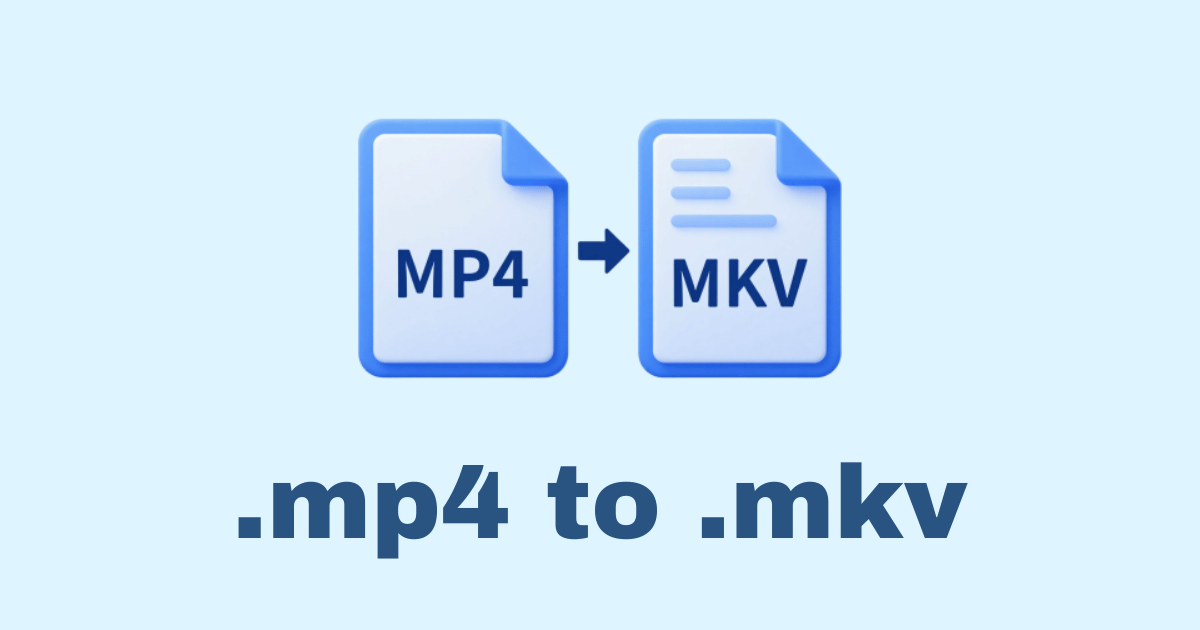
There is something oddly satisfying about taking a video file and turning it into a cleaner, more flexible container without touching the actual quality. That is exactly what happens when you convert MP4 to MKV in Python. You are not always “changing” the video in the deep sense of the word; more often, you are remuxing it, which means moving the existing video, audio, and subtitle streams from one container to another. That small distinction matters more than many beginners realize, because it can save time, preserve quality, and avoid unnecessary re-encoding. If you have ever worked with videos that came from phones, screen recorders, cameras, or download tools, you already know the practical pain points: some players do not like a certain audio track, subtitles are missing, metadata is awkward, or you simply prefer the MKV container because it handles multiple streams more gracefully. Python can help you automate that workflow in a clean and reliable way, and once you set it up properly, you can convert one file or a thousand with almost the same amount of code.
The best part is that Python itself is not doing the heavy video lifting. Instead, it acts as a smart, readable orchestrator around tools like FFmpeg. That is a good thing. Video processing is a specialized domain, and FFmpeg has spent years becoming the industry standard for the kind of work we want to do here. Python lets you wrap FFmpeg into scripts, pipelines, desktop tools, or backend services with very little friction. In other words, Python gives you the control and flexibility, while FFmpeg does the real media work. Together, they make a reliable combination for converting MP4 to MKV in a way that feels practical instead of magical. And practical is what matters when you are building real scripts for real people.
Why convert MP4 to MKV?
Before writing code, it helps to understand why this conversion is useful at all. MP4 is popular because it is widely supported, compact, and convenient. MKV, on the other hand, is a more flexible container format that is often preferred when you want to store multiple audio tracks, subtitles, chapters, or advanced metadata in one place. MKV does not automatically make the video better, and it does not magically improve compression. What it does is provide a more capable package for media streams. That means if you have a movie with multiple subtitle languages, a tutorial video with embedded chapters, or a file with several audio options, MKV is often the more comfortable home.
There is also a subtle but important reason people choose MKV: long-term organization. MP4 is great for everyday playback, but MKV is very common in archiving, media libraries, and advanced playback setups. If you are building a video management workflow, especially one involving subtitles or multiple tracks, MKV tends to be a better fit. It is also very common to remux MP4 to MKV without quality loss, because you can copy the streams directly instead of re-encoding them. That means the video stays identical, but the container changes. For many tasks, that is exactly what you want.
What you need before starting
To convert MP4 to MKV in Python, you usually need three things: Python installed, FFmpeg installed, and a Python script that calls FFmpeg correctly. You do not need a huge framework or a heavy dependency tree for the basic task. In fact, the simplest and most reliable approach is often to use Python’s built-in subprocess module and call FFmpeg directly. That gives you excellent control over arguments, error handling, and portability.
If you want a slightly more Pythonic wrapper, you can also use libraries like ffmpeg-python, but it is still useful to understand the underlying FFmpeg command first. Once you understand the command, everything else becomes easier to reason about. You know what is happening, what is being copied, and when re-encoding happens. That kind of clarity is worth keeping.
Install FFmpeg
On many systems, FFmpeg may already be installed. If not, you can install it through your operating system package manager or download a build from the official FFmpeg project sources. The exact installation command depends on your platform, but the important part is that the ffmpeg executable must be available from the command line.
After installation, test it by running:
ffmpeg -version
If that prints version information, you are ready. If your terminal says the command is not found, Python will not be able to use it either. That is one of the most common reasons a conversion script fails, and it is worth checking before writing any code.
The simplest possible conversion
If your goal is just to convert one MP4 file to MKV while keeping the streams unchanged, the core FFmpeg command looks like this:
ffmpeg -i input.mp4 -c copy output.mkv
This command is powerful because -c copy tells FFmpeg to copy the existing streams instead of re-encoding them. When the codecs in the MP4 file are compatible with MKV, the conversion is fast and lossless in practice. You are not recompressing the video. You are simply changing the outer shell.
Now let us translate that into Python.
Convert MP4 to MKV in Python using subprocess
This is the most direct and dependable method. It does not depend on a third-party wrapper, and it gives you precise control over the command line.
from pathlib import Path
import subprocess
import sys


def convert_mp4_to_mkv(input_path: str, output_path: str | None = None) -> str:
    """
    Convert an MP4 file to MKV using FFmpeg without re-encoding.

    Parameters:
        input_path: Path to the source .mp4 file
        output_path: Optional path to the output .mkv file

    Returns:
        The path to the created MKV file

    Raises:
        FileNotFoundError: If input file or ffmpeg is missing
        RuntimeError: If FFmpeg fails
    """
    input_file = Path(input_path)

    if not input_file.exists():
        raise FileNotFoundError(f"Input file not found: {input_file}")

    if input_file.suffix.lower() != ".mp4":
        raise ValueError(f"Expected an MP4 file, got: {input_file.suffix}")

    if output_path is None:
        output_file = input_file.with_suffix(".mkv")
    else:
        output_file = Path(output_path)

    command = [
        "ffmpeg",
        "-y",               # overwrite output if it exists
        "-i", str(input_file),
        "-c", "copy",       # copy streams without re-encoding
        str(output_file),
    ]

    try:
        result = subprocess.run(
            command,
            stdout=subprocess.PIPE,
            stderr=subprocess.PIPE,
            text=True,
            check=True
        )
    except FileNotFoundError as exc:
        raise FileNotFoundError(
            "FFmpeg was not found. Make sure it is installed and available in PATH."
        ) from exc
    except subprocess.CalledProcessError as exc:
        raise RuntimeError(
            f"FFmpeg failed with exit code {exc.returncode}:\n{exc.stderr}"
        ) from exc

    return str(output_file)


if __name__ == "__main__":
    if len(sys.argv) < 2:
        print("Usage: python convert.py input.mp4 [output.mkv]")
        sys.exit(1)

    input_file = sys.argv[1]
    output_file = sys.argv[2] if len(sys.argv) > 2 else None

    try:
        created_file = convert_mp4_to_mkv(input_file, output_file)
        print(f"Created: {created_file}")
    except Exception as e:
        print(f"Error: {e}")
        sys.exit(1)
This script is small, but it covers the essentials. It checks whether the input exists, makes sure the extension is .mp4, chooses a default output path if none is given, and runs FFmpeg safely. The use of -y is convenient for automation because it avoids a prompt when the output file already exists. If you are building a script for manual use, that behavior is usually fine. If you are building a production tool, you may want to check whether the file exists first and decide whether to overwrite it.
Notice the -c copy argument. That is the heart of the conversion. Without it, FFmpeg may re-encode the streams, which can be slower and may reduce quality. For a container-to-container conversion, copying is usually the most sensible choice.
Understanding what happens under the hood
This is a good place to pause and think about what the script is actually doing. MP4 and MKV are not the video itself. They are containers. Inside the container, you might have H.264 or H.265 video, AAC or Opus audio, subtitle streams, chapters, and metadata. When you convert MP4 to MKV using stream copy, you are not changing the actual encoded media data. You are moving it into a different container. That is why the process is quick. It is also why it is often safe.
However, you should always remember that not every stream combination is ideal in every container. MKV is very flexible, but some edge cases exist. If the source file contains unusual or malformed streams, FFmpeg may still convert them, but playback behavior can vary depending on the media player. In most typical cases, though, this is a smooth and stable workflow.
A cleaner version with reusable functions
When a script grows a little, it helps to separate concerns. Instead of putting everything in one block, you can create small functions for validation, path handling, and execution. That makes your code easier to maintain later, especially if you want batch conversion.
from pathlib import Path
import subprocess


def validate_input_file(input_file: Path) -> None:
    if not input_file.exists():
        raise FileNotFoundError(f"File does not exist: {input_file}")
    if not input_file.is_file():
        raise ValueError(f"Not a file: {input_file}")
    if input_file.suffix.lower() != ".mp4":
        raise ValueError("Input must be an MP4 file")


def build_output_path(input_file: Path, output_path: str | None = None) -> Path:
    if output_path:
        return Path(output_path)
    return input_file.with_suffix(".mkv")


def run_ffmpeg(input_file: Path, output_file: Path) -> None:
    command = [
        "ffmpeg",
        "-y",
        "-i", str(input_file),
        "-c", "copy",
        str(output_file),
    ]

    process = subprocess.run(
        command,
        stdout=subprocess.PIPE,
        stderr=subprocess.PIPE,
        text=True
    )

    if process.returncode != 0:
        raise RuntimeError(process.stderr)


def convert_mp4_to_mkv(input_path: str, output_path: str | None = None) -> str:
    input_file = Path(input_path)
    validate_input_file(input_file)
    output_file = build_output_path(input_file, output_path)
    run_ffmpeg(input_file, output_file)
    return str(output_file)
This version is easier to test and reuse. For example, you could later write unit tests for build_output_path or mock run_ffmpeg without having to change the high-level conversion function. When you are building real tools, this kind of structure makes the code feel calmer and more professional.
Batch convert a folder of MP4 files
A very common real-world case is not one file, but many files. Maybe you downloaded a folder full of MP4 lectures and want to store them as MKV. Maybe you have a media archive and want to normalize the format. In those cases, batch processing is where Python starts to shine.
from pathlib import Path
import subprocess


def convert_file(input_file: Path, output_file: Path) -> None:
    command = [
        "ffmpeg",
        "-y",
        "-i", str(input_file),
        "-c", "copy",
        str(output_file),
    ]

    result = subprocess.run(
        command,
        stdout=subprocess.PIPE,
        stderr=subprocess.PIPE,
        text=True
    )

    if result.returncode != 0:
        raise RuntimeError(f"Failed to convert {input_file.name}:\n{result.stderr}")


def batch_convert_mp4_to_mkv(folder: str) -> None:
    folder_path = Path(folder)

    if not folder_path.exists() or not folder_path.is_dir():
        raise ValueError(f"Invalid folder: {folder_path}")

    for mp4_file in folder_path.glob("*.mp4"):
        mkv_file = mp4_file.with_suffix(".mkv")
        try:
            print(f"Converting {mp4_file.name} -> {mkv_file.name}")
            convert_file(mp4_file, mkv_file)
        except Exception as exc:
            print(f"Error converting {mp4_file.name}: {exc}")


if __name__ == "__main__":
    batch_convert_mp4_to_mkv("videos")
This script walks through the folder and converts every MP4 file it finds. That sounds simple, but in practice it is extremely useful. You can easily extend it to handle nested folders, different output locations, logging, retries, or progress summaries. In a production environment, you might even save conversion results to a database or write a report file afterward.
One detail worth noticing is error handling. A batch job should not necessarily stop because one file fails. That is why the loop catches exceptions per file and continues. That way, one bad video does not ruin the entire batch.
How to preserve subtitles and metadata
When people talk about “conversion,” they often really mean “keep everything important exactly as it is, but change the container.” MKV is particularly useful because it can carry multiple subtitle tracks, chapter markers, and metadata more naturally than some other formats. If the MP4 file already contains subtitles or additional audio streams, a stream copy conversion can preserve them.
The basic -c copy command usually copies all streams it can. Still, it is helpful to know that FFmpeg lets you be more explicit. For example:
ffmpeg -i input.mp4 -map 0 -c copy output.mkv
Here, -map 0 tells FFmpeg to include all streams from the input. This is especially useful if you want to be sure subtitles, chapters, and all audio tracks are preserved. In Python, that becomes:
import subprocess
from pathlib import Path


def convert_preserving_all_streams(input_path: str) -> str:
    input_file = Path(input_path)
    output_file = input_file.with_suffix(".mkv")

    command = [
        "ffmpeg",
        "-y",
        "-i", str(input_file),
        "-map", "0",
        "-c", "copy",
        str(output_file),
    ]

    result = subprocess.run(
        command,
        stdout=subprocess.PIPE,
        stderr=subprocess.PIPE,
        text=True
    )

    if result.returncode != 0:
        raise RuntimeError(result.stderr)

    return str(output_file)
This variation is often a better default when your source files are rich media files rather than simple clips. It reduces the chance that FFmpeg decides to omit something you care about. For media libraries, that extra explicitness is often worth it.
Re-encoding when stream copy is not enough
Most of the time, you will want to avoid re-encoding because it is slower and may reduce quality. But there are situations where stream copy is not the right choice. For example, maybe the source MP4 has a codec or stream configuration that you do not want to keep exactly as is. Or maybe you need to change the audio codec, lower the bitrate, or make the video compatible with a specific playback environment.
In that case, you can re-encode the streams. Here is a basic example that re-encodes video using H.264 and audio using AAC:
import subprocess
from pathlib import Path


def reencode_mp4_to_mkv(input_path: str) -> str:
    input_file = Path(input_path)
    output_file = input_file.with_suffix(".mkv")

    command = [
        "ffmpeg",
        "-y",
        "-i", str(input_file),
        "-c:v", "libx264",
        "-crf", "23",
        "-preset", "medium",
        "-c:a", "aac",
        "-b:a", "192k",
        str(output_file),
    ]

    result = subprocess.run(
        command,
        stdout=subprocess.PIPE,
        stderr=subprocess.PIPE,
        text=True
    )

    if result.returncode != 0:
        raise RuntimeError(result.stderr)

    return str(output_file)
This is not the default approach for simple MP4-to-MKV conversion, but it is useful to understand. The -crf value controls quality, where lower numbers generally mean higher quality and larger files. The -preset controls encoding speed versus compression efficiency. These settings can be tuned based on your goals. If you are building a practical script for everyday conversion, though, stream copy remains the best starting point.
Using ffmpeg-python for a more Pythonic style
Some developers prefer to avoid writing raw command arrays. They like a more expressive Python interface. That is where ffmpeg-python can be helpful. It acts as a wrapper around FFmpeg and gives you a chainable API. The downside is that you still need FFmpeg installed, and the wrapper adds another dependency. The upside is readability.
Install it first:
pip install ffmpeg-python
Then use it like this:
import ffmpeg


def convert_mp4_to_mkv(input_path: str, output_path: str | None = None) -> str:
    if output_path is None:
        output_path = input_path.rsplit(".", 1)[0] + ".mkv"

    (
        ffmpeg
        .input(input_path)
        .output(output_path, c="copy")
        .overwrite_output()
        .run()
    )

    return output_path
This is nice and compact. It reads almost like a sentence. Still, many developers continue to prefer subprocess for production tools because it avoids abstraction and makes debugging easier. There is no single right answer here. The best choice depends on the kind of project you are building. For a quick utility script, subprocess is excellent. For a small app where you want slightly cleaner syntax, ffmpeg-python is also perfectly reasonable.
Showing FFmpeg progress in Python
One of the most common frustrations with media scripts is that they appear to “do nothing” for a while. Videos can take time, and if you are batch converting larger files, it helps to show progress. FFmpeg can emit progress data, but parsing it takes a bit more work. A full featured progress tracker may read FFmpeg’s stderr output line by line and estimate completion from duration and current timestamp.
Here is a lightweight example that at least streams the FFmpeg output to the console so the user can see activity:
import subprocess
from pathlib import Path


def convert_with_live_output(input_path: str) -> str:
    input_file = Path(input_path)
    output_file = input_file.with_suffix(".mkv")

    command = [
        "ffmpeg",
        "-y",
        "-i", str(input_file),
        "-c", "copy",
        str(output_file),
    ]

    process = subprocess.Popen(
        command,
        stdout=subprocess.PIPE,
        stderr=subprocess.STDOUT,
        text=True
    )

    assert process.stdout is not None

    for line in process.stdout:
        print(line, end="")

    return_code = process.wait()

    if return_code != 0:
        raise RuntimeError(f"FFmpeg exited with code {return_code}")

    return str(output_file)
This does not create a fancy progress bar, but it gives immediate feedback, which is often enough for a simple script. If you want a richer interface later, you can parse the output more carefully and feed it into tqdm or a custom progress display.
Handling file names safely
A good conversion script should not assume file names are simple. Some users store media files with spaces, punctuation, parentheses, or non-Latin characters. Python’s Path object handles this well, and using a list of command arguments with subprocess.run prevents shell quoting problems. That is one of the major advantages of avoiding shell=True for this kind of work. The script becomes much safer and more portable.
For example, this is good:
subprocess.run(["ffmpeg", "-i", str(input_file), "-c", "copy", str(output_file)])
And this is something to avoid unless you have a very specific reason:
subprocess.run(f'ffmpeg -i "{input_file}" -c copy "{output_file}"', shell=True)
The shell version can work, but it creates more room for quoting bugs and security problems. In media automation, there is almost never a reason to risk that when the list-based approach is cleaner and safer.
Adding logging for real projects
Once your script grows beyond a personal utility, logging becomes very helpful. It gives you a permanent record of what was converted, what failed, and when. That matters if you are processing a server folder or building a desktop app that handles user files.
import logging
import subprocess
from pathlib import Path

logging.basicConfig(
    level=logging.INFO,
    format="%(asctime)s [%(levelname)s] %(message)s"
)


def convert_mp4_to_mkv(input_path: str) -> str:
    input_file = Path(input_path)
    output_file = input_file.with_suffix(".mkv")

    logging.info("Starting conversion: %s", input_file.name)

    command = [
        "ffmpeg",
        "-y",
        "-i", str(input_file),
        "-c", "copy",
        str(output_file),
    ]

    result = subprocess.run(
        command,
        stdout=subprocess.PIPE,
        stderr=subprocess.PIPE,
        text=True
    )

    if result.returncode != 0:
        logging.error("Conversion failed: %s", input_file.name)
        logging.error(result.stderr)
        raise RuntimeError("FFmpeg conversion failed")

    logging.info("Finished conversion: %s", output_file.name)
    return str(output_file)
That small improvement can save a lot of time later. When a file fails, the log tells you what happened. When a batch job succeeds, the log becomes a useful record instead of a vague memory.
Building a command-line tool
Many developers eventually turn scripts into small command-line tools. That is a natural next step because video conversion is the sort of task people run repeatedly. A tiny CLI can make the tool feel polished and convenient.
import argparse
from pathlib import Path
import subprocess


def convert_mp4_to_mkv(input_path: str, output_path: str | None = None) -> str:
    input_file = Path(input_path)
    if output_path is None:
        output_file = input_file.with_suffix(".mkv")
    else:
        output_file = Path(output_path)

    command = [
        "ffmpeg",
        "-y",
        "-i", str(input_file),
        "-c", "copy",
        str(output_file),
    ]

    result = subprocess.run(
        command,
        stdout=subprocess.PIPE,
        stderr=subprocess.PIPE,
        text=True
    )

    if result.returncode != 0:
        raise RuntimeError(result.stderr)

    return str(output_file)


def main():
    parser = argparse.ArgumentParser(description="Convert MP4 to MKV using FFmpeg")
    parser.add_argument("input", help="Path to the MP4 file")
    parser.add_argument("-o", "--output", help="Optional output MKV path")

    args = parser.parse_args()

    try:
        result = convert_mp4_to_mkv(args.input, args.output)
        print(f"Converted successfully: {result}")
    except Exception as exc:
        print(f"Error: {exc}")


if __name__ == "__main__":
    main()
This tool can be run like:
python convert.py video.mp4
or
python convert.py video.mp4 -o archive/video_converted.mkv
The beauty of a CLI is that it scales from one-off use to repeated use without much extra effort. You can drop it into a scripts folder, call it from automation jobs, or integrate it into other pipelines.
Common mistakes and how to avoid them
A lot of conversion problems have very ordinary causes. One common mistake is assuming the conversion failed when the output file is actually fine, but the script did not check the return code correctly. Another is forgetting that FFmpeg must be installed separately from Python. Another is using -c copy on a file that has a stream combination you do not expect, then being surprised when a player behaves differently. Most of these problems are solvable with patient debugging.
It also helps to think carefully about output paths. If you hard-code output names, you may accidentally overwrite files or write them to the wrong directory. It is usually better to derive the output path from the input path, unless the user explicitly gives you a different location. That tiny bit of care makes the script much friendlier.
And of course, always test with a small sample first. Video scripts can feel innocent, but long conversions take time, and a subtle mistake can waste quite a bit of it. A short test file can save you from that frustration.
When MKV is the better choice and when it is not
MKV is excellent when you want flexibility, rich stream support, and a container that behaves well in advanced media libraries. It is often the better archival choice when you care about subtitles, alternate audio, and metadata. It is also popular among users who manage personal libraries with tools like media servers and local players.
MP4 remains the better choice when maximum universal compatibility matters most. If you are sending a file to a broad audience, or you need compatibility with casual devices and platforms, MP4 still has a strong advantage. So the right question is not “Which format is better?” but “What do I need this file to do?” If you are preserving streams and organizing a personal archive, MKV is often excellent. If you are sharing a video broadly, MP4 may still be the safer choice.
That practical mindset saves time and prevents format debates that are more emotional than useful. The container should serve the job, not the other way around.
A more complete script with file checks and batch support
Here is a more polished version that combines several of the ideas above into one script. It converts either a single file or every MP4 inside a folder, and it gives clearer feedback.
from pathlib import Path
import subprocess
import sys


def convert_one(input_file: Path, output_file: Path) -> None:
    command = [
        "ffmpeg",
        "-y",
        "-i", str(input_file),
        "-map", "0",
        "-c", "copy",
        str(output_file),
    ]

    result = subprocess.run(
        command,
        stdout=subprocess.PIPE,
        stderr=subprocess.PIPE,
        text=True
    )

    if result.returncode != 0:
        raise RuntimeError(result.stderr)


def convert_mp4_to_mkv(path_str: str) -> None:
    path = Path(path_str)

    if not path.exists():
        raise FileNotFoundError(f"Path not found: {path}")

    if path.is_file():
        if path.suffix.lower() != ".mp4":
            raise ValueError(f"Expected MP4 file, got {path.suffix}")
        output_file = path.with_suffix(".mkv")
        print(f"Converting file: {path.name}")
        convert_one(path, output_file)
        print(f"Created: {output_file}")
        return

    if path.is_dir():
        mp4_files = list(path.glob("*.mp4"))
        if not mp4_files:
            print("No MP4 files found in the folder.")
            return

        for mp4_file in mp4_files:
            output_file = mp4_file.with_suffix(".mkv")
            try:
                print(f"Converting: {mp4_file.name}")
                convert_one(mp4_file, output_file)
                print(f"Done: {output_file.name}")
            except Exception as exc:
                print(f"Failed: {mp4_file.name} -> {exc}")
        return

    raise ValueError("Path must be a file or a directory")


if __name__ == "__main__":
    if len(sys.argv) != 2:
        print("Usage: python convert.py <file-or-folder>")
        sys.exit(1)

    try:
        convert_mp4_to_mkv(sys.argv[1])
    except Exception as exc:
        print(f"Error: {exc}")
        sys.exit(1)
This version is intentionally simple, but it is already useful in real life. It handles a single file or a whole directory, and it uses -map 0 to preserve all streams. That makes it a strong default for media workflows. It is not overengineered. It just does the job.
A human note on working with video tools
Video automation can feel intimidating at first because the file sizes are larger, the terminology is unfamiliar, and FFmpeg error messages do not always read like friendly English. But once you get through the first few conversions, the process becomes much less mysterious. Most of the work is not about “coding” in the abstract sense. It is about understanding the behavior of containers, codecs, and stream mapping, then wrapping that understanding into small, reliable scripts. That is one reason Python is so pleasant here. It lets you stay close to the problem without getting lost in boilerplate.
There is also something satisfying about building a tool that quietly saves time. Maybe it turns a folder of files into a cleaner archive. Maybe it preserves subtitles for later viewing. Maybe it helps a friend who just wants their videos organized. These are small wins, but they are real wins, and real wins are often the most useful kind.
Conclusion
Converting MP4 to MKV in Python is one of those tasks that looks simple on the surface, yet becomes much more interesting once you understand what is really happening. You are usually not re-encoding at all. You are remuxing streams from one container to another, often with zero quality loss and very little processing time. Python gives you a clean way to automate that work, whether you are converting a single file, a whole folder, or a much larger media pipeline.
For most cases, the best starting point is FFmpeg through Python’s subprocess module, using -c copy and often -map 0 when you want to preserve all streams. From there, you can add logging, progress output, batch processing, a command-line interface, or even a graphical app. The core idea stays the same: let FFmpeg do the media work, and let Python make the workflow pleasant.
That combination is small, practical, and surprisingly powerful.
Hassan Agmir
Author · Filenewer
Writing about file tools and automation at Filenewer.
Try It Free
Process your files right now
No account needed · Fast & secure · 100% free
Browse All Tools