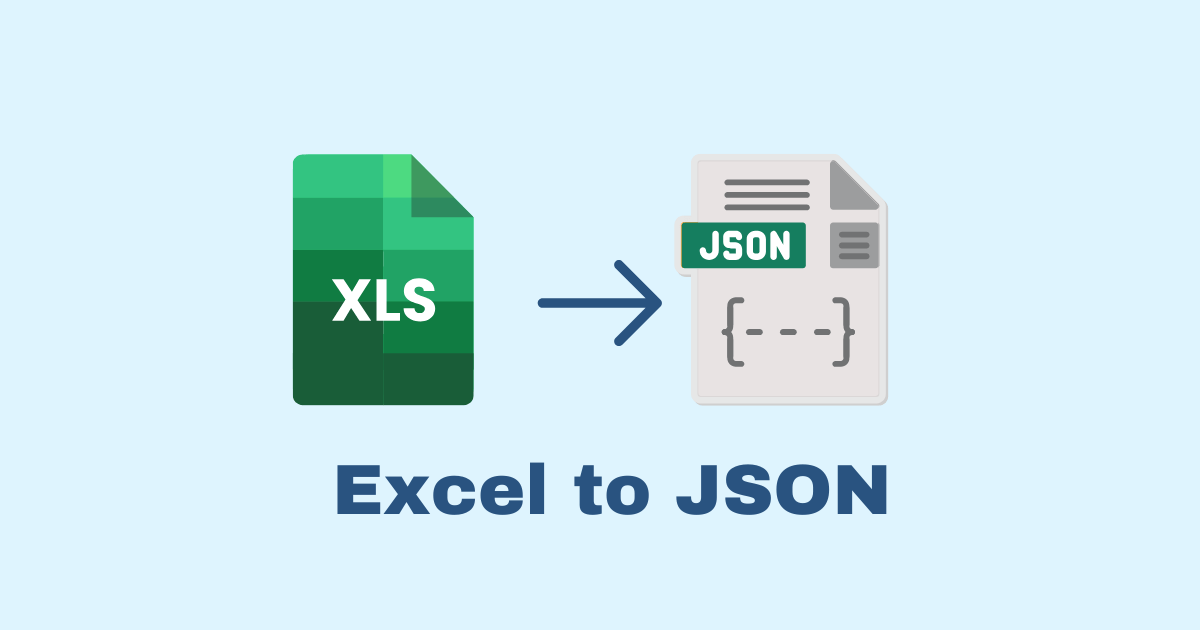
Working with data often means moving information from one format to another. Excel spreadsheets are widely used for storing business records, customer information, product inventories, financial reports, and countless other types of data. However, when you want to use this information in a web application, mobile app, API, or software development project, JSON is often a more convenient format.
Converting Excel to JSON allows you to transform spreadsheet rows and columns into structured data that developers can easily read, process, share, and integrate into modern applications.
Imagine that you have an Excel file containing hundreds of products, including their names, prices, categories, and stock quantities. Instead of manually copying every row into your JavaScript code or database, you can convert the spreadsheet into JSON within seconds.
In this guide, we will explore what Excel-to-JSON conversion means, why it is useful, how JSON structures spreadsheet data, and how to convert Excel files using online tools, JavaScript, Python, and PHP. We will also discuss common conversion problems, data validation, security considerations, and practical examples you can apply to your own projects.
What Is Excel to JSON Conversion?
Excel to JSON conversion is the process of transforming spreadsheet data from an Excel file into JavaScript Object Notation (JSON).
Excel files typically contain worksheets organized into rows and columns. Each row can represent a record, while each column represents a particular property of that record.
JSON, on the other hand, represents information using objects, arrays, and key-value pairs. This structure makes it especially useful for exchanging information between applications.
For example, imagine that an Excel spreadsheet contains the following information:
ID | Name | Role | |
|---|---|---|---|
1 | Ahmed | Developer | |
2 | Sara | Designer | |
3 | Youssef | Manager |
After converting this spreadsheet into JSON, the data might look like this:
[
  {
    "ID": 1,
    "Name": "Ahmed",
    "Email": "ahmed@example.com",
    "Role": "Developer"
  },
  {
    "ID": 2,
    "Name": "Sara",
    "Email": "sara@example.com",
    "Role": "Designer"
  },
  {
    "ID": 3,
    "Name": "Youssef",
    "Email": "youssef@example.com",
    "Role": "Manager"
  }
]
Each spreadsheet row becomes an object, and each column heading becomes a property of that object.
This structure is easy to understand, and it can be used directly in JavaScript applications or sent to a backend API.
One important detail is that JSON does not preserve every aspect of an Excel workbook. Formulas, cell formatting, charts, macros, merged cells, and multiple worksheets may require additional processing if you need to retain their meaning.
Why Convert Excel Files to JSON?
Excel is excellent for organizing information manually, but it is not always the best format for integrating data into software applications.
JSON provides a flexible structure that works naturally with modern programming languages and web technologies.
1. Integrate Spreadsheet Data into Web Applications
Suppose you are developing a React application that displays a list of employees. Your employee information is currently stored in an Excel spreadsheet.
You could manually enter each employee into your application, but that approach becomes impractical when the spreadsheet contains hundreds or thousands of records.
By converting the spreadsheet into JSON, you can process the records programmatically and display them in your interface.
For example:
const employees = [
  {
    id: 1,
    name: "Ahmed",
    position: "Developer"
  },
  {
    id: 2,
    name: "Sara",
    position: "Designer"
  }
];

employees.forEach((employee) => {
  console.log(employee.name);
});
You can use the same approach to populate tables, dashboards, search interfaces, and administrative panels.
2. Exchange Data Between Frontend and Backend Applications
JSON is commonly used for communication between frontend applications and backend services.
For example, a React frontend can send JSON data to a Laravel, Django, Node.js, or .NET API.
Imagine importing product information from an Excel spreadsheet into an inventory management application. Once the file has been converted, your application can send the resulting records to an API for validation and database storage.
This makes Excel-to-JSON conversion useful for importing existing business data into new systems without manually recreating every record.
3. Automate Repetitive Tasks
Many organizations still maintain important information in Excel files. Employees may update these spreadsheets every day, week, or month.
Manually transferring that information into another system wastes time and introduces opportunities for mistakes.
An automated conversion process can read the spreadsheet, transform its records, validate the resulting data, and send it to another application.
For example, a business could automatically convert a weekly product inventory spreadsheet into JSON and use that data to update its internal dashboard.
4. Simplify Data Processing
JSON is supported by JavaScript and many other programming languages.
Once Excel data has been converted into JSON, developers can filter records, search for specific values, calculate totals, group information, and transform the dataset using ordinary programming techniques.
For example, you could identify products whose stock quantity is below a particular threshold without manually searching through an Excel worksheet.
5. Support API Development and Testing
Developers frequently need sample data when building and testing APIs.
An existing Excel file can provide realistic test records. Converting those records into JSON makes it easier to use them in API requests, automated tests, mock services, and application prototypes.
Instead of inventing test data from scratch, you can work with information that already exists.
Understanding the Structure of Excel and JSON
Before converting a spreadsheet, it helps to understand how the two formats organize information.
Excel stores information in worksheets. Each worksheet contains cells identified by their row and column positions.
JSON uses a different structure based on objects, arrays, strings, numbers, booleans, and null values.
The conversion process must decide how spreadsheet cells should be represented using these JSON data types.
Excel Rows Become JSON Objects
Consider a spreadsheet containing product information:
Product ID | Product Name | Price |
|---|---|---|
101 | Keyboard | 250 |
102 | Mouse | 120 |
A common JSON representation is an array of objects:
[
  {
    "Product ID": 101,
    "Product Name": "Keyboard",
    "Price": 250
  },
  {
    "Product ID": 102,
    "Product Name": "Mouse",
    "Price": 120
  }
]
The array contains two objects because the spreadsheet contains two product records.
This representation is useful when every row follows the same structure.
Column Headings Become JSON Keys
Column headings usually become object property names.
For example, the Excel column heading Product Name becomes the JSON key "Product Name".
You can preserve spaces in JSON property names, but accessing those properties in JavaScript requires bracket notation:
const product = {
  "Product Name": "Keyboard"
};

console.log(product["Product Name"]);
Alternatively, you can normalize column headings into simpler names:
{
  "product_name": "Keyboard"
}
This can make the resulting data easier to use in applications, especially when the spreadsheet contains long headings or inconsistent naming conventions.
However, changing property names should be intentional because other systems may depend on the original column headings.
Empty Cells and Missing Values
Excel spreadsheets frequently contain empty cells.
Depending on the conversion tool, an empty cell might become an empty string, a null value, or an omitted property.
For example:
{
  "name": "Ahmed",
  "phone": ""
}
This represents an empty phone number using an empty string.
Another possible representation is:
{
  "name": "Ahmed",
  "phone": null
}
The choice depends on your application's requirements. An empty string and null are not always interchangeable, particularly when validating data or inserting records into a database.
How to Convert Excel to JSON Using an Online Tool
For many users, an online Excel-to-JSON converter is the fastest solution.
You do not need to install a programming language, configure a development environment, or write a conversion script. You simply upload the spreadsheet, select the appropriate options, and convert the data.
The exact interface depends on the tool you choose, but the general process is similar.
Step 1: Prepare Your Excel File
Open your spreadsheet in Microsoft Excel, LibreOffice Calc, or another compatible application.
Check that the first row contains clear column headings.
For example:
Name | Department | |
|---|---|---|
Ahmed | IT | |
Sara | Marketing |
Avoid unnecessary blank rows, duplicate column headings, and inconsistent data types.
Although many converters can process imperfect spreadsheets, cleaning your data first reduces the risk of unexpected results.
Step 2: Upload Your Spreadsheet
Open an Excel-to-JSON conversion tool and select your .xlsx or .xls file.
Some converters also support .csv files, but CSV is a text-based format rather than a complete Excel workbook format.
If your workbook contains multiple worksheets, check whether the converter allows you to select a specific worksheet or convert several worksheets separately.
Step 3: Configure the Conversion Options
Depending on the tool, you may be able to configure:
Which worksheet should be converted.
Whether the first row contains column headings.
How empty cells should be handled.
Whether column names should be preserved or transformed.
Whether the output should be formatted with indentation.
Whether numbers and dates should be converted to specific types.
These options matter because two tools can produce different JSON structures from the same spreadsheet.
Step 4: Convert the Data
Start the conversion process and wait for the tool to generate the JSON output.
For a small spreadsheet, the result may appear immediately. Larger workbooks may take longer to process.
Review the generated JSON to confirm that the records, property names, and values match your original data.
Step 5: Download or Copy the JSON Result
Once the conversion is complete, copy the output or download it as a .json file.
For example, you could save the converted information as:
products.json
You can then import the file into a project, use it in a JavaScript application, or send its contents to an API.
Step 6: Validate the Result
Do not assume that a successful conversion guarantees correct data.
Check whether product IDs remain unchanged, prices are represented as numbers, dates have the expected format, and empty cells have been handled correctly.
For sensitive business files, consider a local conversion tool instead of uploading the spreadsheet to an external service. You should also review the provider's privacy policy before submitting confidential information.
Convert Excel to JSON Using JavaScript
If you are a JavaScript developer, you can convert Excel files programmatically using the SheetJS library.
This approach is useful when building a browser-based converter, a Node.js script, an import feature, or an automated data-processing workflow.
SheetJS provides functionality for reading spreadsheet files and converting worksheet data into JavaScript objects.
Step 1: Create a JavaScript Project
Create a new directory for your project:
mkdir excel-to-json
cd excel-to-json
npm init -y
Install the spreadsheet processing library:
npm install xlsxStep 2: Create an Excel File
Create a spreadsheet named products.xlsx with the following information:
id | name | price | category |
|---|---|---|---|
1 | Keyboard | 250 | Accessories |
2 | Mouse | 120 | Accessories |
3 | Monitor | 1800 | Displays |
Save the file in your project directory.
Step 3: Read the Excel File and Convert It to JSON
Create a file named convert.js:
const XLSX = require("xlsx");
const fs = require("fs");

// Read the Excel workbook
const workbook = XLSX.readFile("products.xlsx");

// Select the first worksheet
const worksheetName = workbook.SheetNames[0];
const worksheet = workbook.Sheets[worksheetName];

// Convert worksheet rows into an array of objects
const data = XLSX.utils.sheet_to_json(worksheet);

// Convert the JavaScript data into formatted JSON
const jsonData = JSON.stringify(data, null, 2);

// Save the JSON output
fs.writeFileSync("products.json", jsonData, "utf8");

console.log("Excel file converted to JSON successfully!");
Run the script:
node convert.jsThe script reads the Excel workbook, selects its first worksheet, converts the worksheet into JavaScript objects, and saves the resulting data in products.json.
The generated output will resemble the following:
[
  {
    "id": 1,
    "name": "Keyboard",
    "price": 250,
    "category": "Accessories"
  },
  {
    "id": 2,
    "name": "Mouse",
    "price": 120,
    "category": "Accessories"
  },
  {
    "id": 3,
    "name": "Monitor",
    "price": 1800,
    "category": "Displays"
  }
]
Understanding the JavaScript Code
The script uses four main operations.
1. Read the workbook
const workbook = XLSX.readFile("products.xlsx");This loads the spreadsheet into memory.
2. Select the worksheet
const worksheet = workbook.Sheets[workbook.SheetNames[0]];An Excel workbook can contain several worksheets. This line selects the first worksheet in the workbook.
3. Convert the worksheet into objects
const data = XLSX.utils.sheet_to_json(worksheet);The library reads the worksheet and uses its column headings as property names.
4. Generate the JSON file
fs.writeFileSync(
  "products.json",
  JSON.stringify(data, null, 2),
  "utf8"
);
JSON.stringify() converts the JavaScript data into JSON text. The second and third arguments control indentation, making the output easier to read.
The filesystem module then writes the result to a file.
One practical detail: sheet_to_json() generally treats the first row as column headings. If the spreadsheet does not contain headers, you will need a different conversion configuration.
Convert Excel to JSON in a Browser Without Uploading the File
You can also build a simple Excel-to-JSON converter that runs directly in the browser.
This is useful if you want to offer a conversion feature on your website. The user selects a spreadsheet, and JavaScript processes the file locally rather than sending it to your server.
Here is a complete example using HTML, JavaScript, and SheetJS.
Save the following code as index.html:
<!DOCTYPE html>
<html lang="en">
<head>
    <meta charset="UTF-8">
    <meta name="viewport" content="width=device-width, initial-scale=1.0">

    <title>Excel to JSON Converter</title>

    <script src="https://cdn.sheetjs.com/xlsx-latest/package/dist/xlsx.full.min.js"></script>

    <style>
        body {
            font-family: Arial, sans-serif;
            max-width: 900px;
            margin: 40px auto;
            padding: 20px;
            background: #f5f7fa;
        }

        h1 {
            color: #1f2937;
        }

        input,
        button {
            margin: 10px 0;
            padding: 10px;
        }

        button {
            background: #2563eb;
            color: white;
            border: none;
            cursor: pointer;
            border-radius: 5px;
        }

        button:hover {
            background: #1d4ed8;
        }

        textarea {
            width: 100%;
            min-height: 300px;
            box-sizing: border-box;
            margin-top: 15px;
            padding: 12px;
            font-family: monospace;
        }

        #message {
            color: #166534;
        }
    </style>
</head>
<body>

    <h1>Excel to JSON Converter</h1>

    <p>Select an Excel file to convert its first worksheet into JSON.</p>

    <input
        type="file"
        id="excelFile"
        accept=".xlsx,.xls"
    >

    <br>

    <button id="convertButton" type="button">
        Convert to JSON
    </button>

    <button id="downloadButton" type="button" disabled>
        Download JSON
    </button>

    <p id="message" role="status"></p>

    <textarea
        id="jsonOutput"
        placeholder="Your JSON output will appear here..."
        readonly
    ></textarea>

    <script>
        const fileInput = document.getElementById("excelFile");
        const convertButton = document.getElementById("convertButton");
        const downloadButton = document.getElementById("downloadButton");
        const jsonOutput = document.getElementById("jsonOutput");
        const message = document.getElementById("message");

        let jsonData = "";

        convertButton.addEventListener("click", async () => {
            const file = fileInput.files[0];

            if (!file) {
                message.textContent = "Please select an Excel file first.";
                return;
            }

            if (!/\.(xlsx|xls)$/i.test(file.name)) {
                message.textContent = "Please select a valid Excel file.";
                return;
            }

            try {
                message.textContent = "Converting file...";
                downloadButton.disabled = true;
                jsonOutput.value = "";
                jsonData = "";

                const buffer = await file.arrayBuffer();

                const workbook = XLSX.read(buffer, {
                    type: "array"
                });

                const worksheetName = workbook.SheetNames[0];

                if (!worksheetName) {
                    throw new Error("The workbook contains no worksheets.");
                }

                const worksheet = workbook.Sheets[worksheetName];

                const data = XLSX.utils.sheet_to_json(worksheet);

                jsonData = JSON.stringify(data, null, 2);
                jsonOutput.value = jsonData;

                downloadButton.disabled = false;
                message.textContent =
                    `Conversion completed: ${data.length} records found.`;

            } catch (error) {
                message.textContent =
                    "Conversion failed. Please check your Excel file.";

                console.error(error);
            }
        });

        downloadButton.addEventListener("click", () => {
            if (!jsonData) {
                return;
            }

            const blob = new Blob(
                [jsonData],
                { type: "application/json;charset=utf-8" }
            );

            const url = URL.createObjectURL(blob);
            const link = document.createElement("a");

            link.href = url;
            link.download = "converted-data.json";

            document.body.appendChild(link);
            link.click();
            link.remove();

            URL.revokeObjectURL(url);
        });
    </script>

</body>
</html>
How This Browser Converter Works
The interface provides a file selector, a conversion button, a text area for the JSON output, and a download button.
When the user selects an Excel file and clicks the conversion button, JavaScript reads the file into an ArrayBuffer.
SheetJS then parses the workbook and converts the first worksheet into an array of objects. The result is displayed in the text area.
The download button creates a Blob containing the JSON text and triggers a download.
This approach can be useful for a small utility website because the spreadsheet does not need to be uploaded to a backend server.
However, the example uses a third-party CDN dependency. For production, pin a tested SheetJS release or bundle a reviewed package locally, and follow the library's current security guidance. Browser-side processing avoids sending the file to your application server, but it does not automatically guarantee privacy if external scripts or other services are involved.
Convert Excel to JSON Using Python
Python is another excellent choice for Excel-to-JSON conversion, especially when processing large datasets, automating reports, or integrating spreadsheet imports into data analysis workflows.
The pandas library provides convenient methods for reading Excel files and converting tabular data into JSON.
Step 1: Install the Required Libraries
Install pandas and the Excel reader:
pip install pandas openpyxlPandas provides the data-processing functionality, while openpyxl supports reading many .xlsx files.
Step 2: Create the Conversion Script
Create a file named convert_excel.py:
import json
import pandas as pd

# Read the Excel file
df = pd.read_excel("products.xlsx")

# Convert spreadsheet records into dictionaries
records = df.to_dict(orient="records")

# Save the JSON file
with open("products.json", "w", encoding="utf-8") as file:
    json.dump(
        records,
        file,
        indent=2,
        ensure_ascii=False
    )

print("Excel file converted to JSON successfully!")
Run the script:
python convert_excel.pyYour JSON output will contain one object for each spreadsheet record.
Understanding the Python Code
The read_excel() function loads the spreadsheet into a pandas DataFrame.
The following line transforms the DataFrame into a list of dictionaries:
records = df.to_dict(orient="records")Each dictionary represents one row, with column headings used as keys.
Finally, json.dump() writes the data to a JSON file. The ensure_ascii=False option helps preserve readable Unicode characters, including names and text written in languages that use non-Latin scripts.
This can be particularly helpful when working with multilingual business data.
Convert a Specific Worksheet
If the workbook contains multiple worksheets, you can specify which one to read:
df = pd.read_excel(
    "products.xlsx",
    sheet_name="Products"
)
Replace "Products" with the actual worksheet name.
You can also inspect the available worksheet names before conversion:
excel_file = pd.ExcelFile("products.xlsx")

print(excel_file.sheet_names)
This makes it easier to build scripts that process specific sheets in complex workbooks.
Convert Excel to JSON Using PHP
PHP is a practical option when building a conversion feature inside a Laravel application or another PHP-based website.
For example, you may want administrators to upload an Excel file containing products, customers, or inventory records and then convert those records into JSON for further processing.
A commonly used library for reading Excel files in PHP is PhpSpreadsheet.
Step 1: Install PhpSpreadsheet
In your PHP project, run:
composer require phpoffice/phpspreadsheetFollow the library's current PHP and extension requirements if Composer reports a compatibility issue.
Step 2: Create the Conversion Script
Create a file named convert.php:
<?php

require __DIR__ . '/vendor/autoload.php';

use PhpOffice\PhpSpreadsheet\IOFactory;

$inputFile = __DIR__ . '/products.xlsx';
$outputFile = __DIR__ . '/products.json';

try {
    // Load the Excel workbook
    $spreadsheet = IOFactory::load($inputFile);

    // Select the first worksheet
    $worksheet = $spreadsheet->getSheet(0);

    // Convert worksheet rows into an array
    $rows = $worksheet->toArray(
        null,
        true,
        true,
        false
    );

    if (empty($rows)) {
        throw new RuntimeException(
            'The worksheet is empty.'
        );
    }

    // Use the first row as column headings
    $headers = array_shift($rows);

    // Remove leading and trailing whitespace from headings
    $headers = array_map(
        fn ($header) => trim((string) $header),
        $headers
    );

    if (in_array('', $headers, true)) {
        throw new RuntimeException(
            'Every column must have a heading.'
        );
    }

    if (count($headers) !== count(array_unique($headers))) {
        throw new RuntimeException(
            'Duplicate column headings are not allowed.'
        );
    }

    // Build the JSON records
    $data = [];

    foreach ($rows as $row) {
        if (count(array_filter(
            $row,
            fn ($value) => $value !== null && $value !== ''
        )) === 0) {
            continue;
        }

        $record = [];

        foreach ($headers as $index => $header) {
            $record[$header] = $row[$index] ?? null;
        }

        $data[] = $record;
    }

    // Encode the data as formatted JSON
    $json = json_encode(
        $data,
        JSON_PRETTY_PRINT |
        JSON_UNESCAPED_UNICODE |
        JSON_THROW_ON_ERROR
    );

    // Save the result
    file_put_contents($outputFile, $json);

    echo 'Excel file converted to JSON successfully!';

} catch (Throwable $exception) {
    http_response_code(500);

    echo 'Conversion failed: ' .
        htmlspecialchars(
            $exception->getMessage(),
            ENT_QUOTES,
            'UTF-8'
        );
}
Run the script from your terminal:
php convert.phpThe script reads the first worksheet, treats the first row as column headings, skips completely empty rows, and creates a JSON array.
It also checks for blank and duplicate column headings before constructing the output.
Important Considerations for PHP Conversion
This example is designed for a local file-processing script. A production web application requires additional safeguards.
For example, if you implement this feature in Laravel, validate the uploaded file, limit its size, use a private temporary storage location, and avoid allowing user-controlled file paths.
You should also decide how values will be represented. PhpSpreadsheet can return different PHP values depending on the cell contents and reading options. Excel dates, formulas, and numeric identifiers may need explicit handling before JSON encoding.
For example, an identifier such as 000123 should not accidentally become 123 if the leading zeros are important to your business.
Convert Excel to JSON in React
If you are developing a React application, you can create an interface that allows users to select a spreadsheet, convert its contents, preview the resulting JSON, and download the output.
This is a useful feature for administrative dashboards, internal tools, and online file converters.
Install the spreadsheet library:
npm install xlsxCreate a component named ExcelToJson.jsx:
import { useState } from "react";
import * as XLSX from "xlsx";

export default function ExcelToJson() {
    const [jsonData, setJsonData] = useState("");
    const [message, setMessage] = useState("");

    async function handleFileChange(event) {
        const file = event.target.files?.[0];

        setJsonData("");
        setMessage("");

        if (!file) {
            return;
        }

        if (!/\.(xlsx|xls)$/i.test(file.name)) {
            setMessage("Please select a valid Excel file.");
            return;
        }

        try {
            const buffer = await file.arrayBuffer();

            const workbook = XLSX.read(buffer, {
                type: "array"
            });

            const worksheetName = workbook.SheetNames[0];

            if (!worksheetName) {
                throw new Error(
                    "The workbook contains no worksheets."
                );
            }

            const worksheet = workbook.Sheets[worksheetName];

            const records = XLSX.utils.sheet_to_json(
                worksheet
            );

            const output = JSON.stringify(
                records,
                null,
                2
            );

            setJsonData(output);
            setMessage(
                `Successfully converted ${records.length} records.`
            );
        } catch (error) {
            console.error(error);
            setMessage(
                "Unable to convert this Excel file."
            );
        }
    }

    function downloadJson() {
        if (!jsonData) {
            return;
        }

        const blob = new Blob(
            [jsonData],
            { type: "application/json;charset=utf-8" }
        );

        const url = URL.createObjectURL(blob);
        const link = document.createElement("a");

        link.href = url;
        link.download = "converted-data.json";
        link.click();

        URL.revokeObjectURL(url);
    }

    return (
        <main>
            <h2>Excel to JSON Converter</h2>

            <input
                type="file"
                accept=".xlsx,.xls"
                onChange={handleFileChange}
            />

            <p role="status">{message}</p>

            <textarea
                value={jsonData}
                readOnly
                rows={15}
                placeholder="Converted JSON will appear here..."
                style={{ width: "100%" }}
            />

            <button
                type="button"
                onClick={downloadJson}
                disabled={!jsonData}
            >
                Download JSON
            </button>
        </main>
    );
}
Import the component into your application:
import ExcelToJson from "./ExcelToJson";

function App() {
    return <ExcelToJson />;
}

export default App;
This component handles the main conversion workflow without requiring a backend.
For a production application, you may want to add a worksheet selector, file-size limits, data previews, conversion settings, and more detailed error messages.
If the application processes sensitive files, also review your dependency security and deployment configuration. Client-side conversion reduces server-side file handling but does not replace a comprehensive security review.
Convert Multiple Excel Worksheets into JSON
One of the most common mistakes when converting Excel to JSON is assuming that a workbook contains only one worksheet.
In reality, a workbook might include separate sheets for products, customers, orders, and inventory.
For example:
Productscontains product details.Customerscontains customer records.Orderscontains sales transactions.
If you convert only the first worksheet, the remaining information will not appear in the output.
There are several ways to represent multiple worksheets in JSON.
Option 1: Create a Separate JSON File for Each Worksheet
With JavaScript and SheetJS, you can loop through the workbook's worksheets and save each one separately:
const XLSX = require("xlsx");
const fs = require("fs");

const workbook = XLSX.readFile("business-data.xlsx");

workbook.SheetNames.forEach((sheetName, index) => {
    const worksheet = workbook.Sheets[sheetName];

    const data = XLSX.utils.sheet_to_json(worksheet);

    const json = JSON.stringify(data, null, 2);

    const filename = `sheet-${index + 1}.json`;

    fs.writeFileSync(filename, json, "utf8");

    console.log(`Created ${filename}`);
});
This creates one JSON file for each worksheet.
Using numbered filenames avoids relying on worksheet names as filesystem paths. You can also generate descriptive filenames using a sanitization function.
Option 2: Combine All Worksheets into One JSON Object
Another approach is to preserve each worksheet's identity in a single JSON file:
const XLSX = require("xlsx");
const fs = require("fs");

const workbook = XLSX.readFile("business-data.xlsx");

const result = {};

for (const sheetName of workbook.SheetNames) {
    const worksheet = workbook.Sheets[sheetName];

    result[sheetName] = XLSX.utils.sheet_to_json(worksheet);
}

fs.writeFileSync(
    "business-data.json",
    JSON.stringify(result, null, 2),
    "utf8"
);

console.log("All worksheets converted successfully.");
The output might look like this:
{
  "Products": [
    {
      "id": 1,
      "name": "Keyboard"
    }
  ],
  "Customers": [
    {
      "id": 101,
      "name": "Ahmed"
    }
  ],
  "Orders": [
    {
      "id": 5001,
      "customer_id": 101
    }
  ]
}
This format keeps related datasets together and makes it easier to identify which records came from each worksheet.
However, combining worksheets does not automatically establish relationships between records. For example, an order's customer_id must still be matched against the appropriate customer record.
Handling Excel Dates, Numbers, and Special Values
Although converting a basic spreadsheet is straightforward, real-world files often contain values that need special attention.
If your application depends on accurate business data, you should understand these issues before deploying a converter.
Excel Dates
Excel stores many dates as serial numbers rather than ordinary text strings.
Depending on the conversion library and its settings, a date cell may be converted into a number or a JavaScript Date object.
For example, your original spreadsheet might contain:
Employee | Start Date |
|---|---|
Ahmed | 2026-01-15 |
But the resulting JSON may contain an unexpected number if the date is interpreted as an Excel serial value.
With SheetJS, you can request formatted cell values:
const data = XLSX.utils.sheet_to_json(worksheet, {
    raw: false,
    dateNF: "yyyy-mm-dd"
});
This can help produce readable values based on spreadsheet formatting.
However, formatted output is not always the same as a standardized date representation. If your API requires ISO 8601 dates, explicitly normalize the values and verify the intended timezone.
Numbers and Decimal Values
A price such as 250.50 should normally remain a JSON number:
{
  "price": 250.5
}
JSON does not require preserving trailing zeros in numeric values. If displaying two decimal places matters, apply that formatting in your application.
Be careful with identifiers, postal codes, phone numbers, and account numbers. Although they may contain only digits, they often represent labels rather than quantities.
For example, the code 00125 should remain a string when the leading zeros are meaningful.
Boolean Values
A spreadsheet may use values such as Yes, No, True, and False.
Your application may require these values to be represented as JSON booleans:
{
  "is_active": true
}
Conversion tools do not always infer these values consistently. Normalize them explicitly when necessary.
Formulas
An Excel cell may contain a formula such as:
=B2*C2The JSON output usually contains a cell value rather than an executable Excel formula, depending on the conversion method and options.
If the workbook contains formulas, you should decide whether the JSON should include the calculated result, the formula text, or both.
Also remember that spreadsheet-reading libraries generally do not calculate Excel formulas themselves. If cached results are missing or outdated, you may need to recalculate the workbook in compatible spreadsheet software before conversion.
Empty Rows and Columns
Blank rows and columns can introduce unnecessary records or properties.
You can often configure the conversion process to omit empty rows or skip unused columns. For important datasets, inspect the generated JSON before importing it into a database.
Duplicate Column Names
A spreadsheet might contain two columns named Name, Price, or Date.
JSON objects should have unique property names for predictable behavior. Duplicate headings can cause data to be overwritten, renamed, or interpreted inconsistently by different tools.
Rename duplicate headings before conversion or reject the spreadsheet with a clear validation error.
Common Problems When Converting Excel to JSON
Even with a reliable conversion library, some spreadsheets require additional work.
Here are several common problems and ways to address them.
The JSON Output Is Empty
If the generated JSON is an empty array, the selected worksheet might be blank, the wrong worksheet might have been selected, or the data might not be arranged as expected.
Check the worksheet name, inspect the first few rows, and verify that the workbook contains actual cell values.
If your spreadsheet contains a title above the table, the converter might interpret that title as a column heading instead of using the intended header row.
Column Headings Are Missing
Most Excel-to-JSON conversion methods expect the first row of the selected data range to contain column headings.
If the spreadsheet begins with data instead, the conversion tool may generate default property names.
For example, a row containing Ahmed, Developer, and Fes could become:
{
  "Ahmed": "Developer",
  "__EMPTY": "Fes"
}
The exact output depends on the library and its configuration.
The solution is to provide a proper header row or explicitly define how the columns should be named.
Numbers Are Converted into Strings
Some tools preserve cell values as formatted text, while others interpret numeric cells as numbers.
If your application expects a numeric price, a string such as "250" may need to be converted into the number 250.
However, do not automatically convert every numeric-looking string. Doing so could corrupt phone numbers, postal codes, product identifiers, and values with leading zeros.
Special Characters Are Displayed Incorrectly
Names containing accented letters, Arabic text, or other Unicode characters should be preserved during conversion.
Use UTF-8 when reading and writing text files, and use appropriate JSON serialization options.
In Python, for example:
json.dump(
    records,
    file,
    indent=2,
    ensure_ascii=False
)
This produces more readable text for multilingual data.
The JSON File Is Too Large
Large spreadsheets can contain hundreds of thousands of records. Converting the entire workbook into a single in-memory JSON string may consume considerable memory.
For large datasets, consider processing the data in batches, exporting separate files, or using a streaming-oriented workflow.
Also remember that JSON output can be larger than the original compressed .xlsx file because Excel workbooks commonly use ZIP compression.
Nested JSON Is Not Generated Automatically
An Excel spreadsheet might contain related information spread across several columns.
For example:
Customer | City | Country |
|---|---|---|
Ahmed | Fes | Morocco |
A standard converter might produce:
{
  "Customer": "Ahmed",
  "City": "Fes",
  "Country": "Morocco"
}
But your application might require a nested object:
{
  "customer": "Ahmed",
  "address": {
    "city": "Fes",
    "country": "Morocco"
  }
}
This requires an additional transformation step. Excel-to-JSON conversion does not automatically infer the correct nested structure for every dataset.
Best Practices for Reliable Excel-to-JSON Conversion
A successful conversion is not simply about producing syntactically valid JSON. The result must also represent the original information accurately and fit the requirements of the system that will consume it.
Consider the following practices when building a converter.
Clean the Spreadsheet Before Conversion
Remove unnecessary title rows, standardize column headings, and check for duplicate names.
Ensure that each column contains the expected type of information. For example, a price column should not mix numeric values with comments such as Contact supplier.
Cleaning the input makes the conversion process more predictable.
Choose a Consistent JSON Structure
Decide whether the output should be an array of objects, a single object containing multiple worksheets, or another structure.
For a typical table, an array of objects is a good starting point:
[
  {
    "id": 1,
    "name": "Keyboard"
  },
  {
    "id": 2,
    "name": "Mouse"
  }
]
Use a different structure when the receiving application requires one.
Validate the Converted Data
Check that required fields are present, identifiers are unique where necessary, and values use the expected types.
For example, a product-import workflow might require every record to have a product name, a valid price, and a nonnegative stock quantity.
A conversion can succeed even when these business rules are violated, so validation should happen before the data is imported.
Handle Errors Gracefully
A converter should provide useful messages when a file cannot be read, a worksheet is missing, or the input contains invalid data.
Avoid exposing internal filesystem paths, stack traces, or sensitive server information to ordinary users.
For large imports, log technical details securely and display a clear message explaining how the user can correct the file.
Protect Uploaded Files
If you develop an online Excel-to-JSON service, validate file types and sizes, restrict file access, and use secure temporary storage.
Treat uploaded spreadsheets as untrusted input. Avoid executing macros or formulas, and do not assume that a file is safe merely because its filename ends in .xlsx.
For confidential data, make it clear whether files are processed locally or uploaded to a server. Define how temporary files are deleted and avoid retaining user data unnecessarily.
Test With Realistic Data
Before deploying a converter, test spreadsheets containing empty cells, duplicate headers, unusual date formats, Unicode text, large numbers, and multiple worksheets.
A few carefully selected test files can reveal problems that are not apparent when testing with a simple two-column example.
Excel to JSON for APIs and Database Imports
One of the most useful applications of Excel-to-JSON conversion is importing existing business information into a database or API.
Suppose your company manages products in Excel but is moving toward an inventory management application.
Your spreadsheet contains the product name, SKU, price, and available quantity.
After conversion, the data can be sent to an API in a structure such as:
[
  {
    "sku": "KB-001",
    "name": "Keyboard",
    "price": 250,
    "quantity": 35
  },
  {
    "sku": "MS-001",
    "name": "Mouse",
    "price": 120,
    "quantity": 80
  }
]
Your backend can validate the request and insert the records into the appropriate database tables.
However, the conversion step should not be confused with database importing. The JSON output still needs to be validated, authorized, and mapped to the target schema.
For example, a backend may need to verify that each SKU is unique, that the price is nonnegative, and that the current user has permission to create products.
For large files, importing records in batches can also help prevent timeouts and reduce memory usage.
Excel to JSON vs. Excel to CSV
Excel-to-JSON and Excel-to-CSV conversion solve related problems, but they produce different output formats.
CSV stores tabular data as text, usually with rows separated by newline characters and values separated by commas or another delimiter.
JSON can represent arrays, objects, nested structures, strings, numbers, booleans, and null values.
Consider the same product information in both formats.
CSV:
id,name,price
1,Keyboard,250
2,Mouse,120
JSON:
[
  {
    "id": 1,
    "name": "Keyboard",
    "price": 250
  },
  {
    "id": 2,
    "name": "Mouse",
    "price": 120
  }
]
CSV is often appropriate for straightforward tabular data exchange and compatibility with spreadsheet applications.
JSON is generally more convenient when working with web APIs, JavaScript applications, nested data, and systems that require explicit data structures.
Neither format is universally better. The correct choice depends on the application that will use the converted information.
Frequently Asked Questions
Can I convert Excel to JSON for free?
Yes. You can use free online converters or write a conversion script using libraries such as SheetJS, pandas, or PhpSpreadsheet.
The best option depends on whether you need a quick one-time conversion or an automated workflow.
Can I convert Excel to JSON without programming?
Yes. An online converter can handle the process without requiring programming knowledge.
You generally select the Excel file, configure the conversion options, generate the JSON output, and download the result.
Can I convert XLSX files to JSON?
Yes. XLSX is a common Excel workbook format supported by many spreadsheet conversion tools and libraries.
Older XLS files are also supported by many tools, but you should verify compatibility with your chosen library.
Does Excel-to-JSON conversion preserve formatting?
Usually, standard data conversion focuses on cell values and column headings rather than the complete visual appearance of the workbook.
Fonts, colors, borders, charts, conditional formatting, and other presentation details generally require separate handling.
Can I convert several worksheets into one JSON file?
Yes. You can combine each worksheet's records under a property named after the worksheet, or create a separate JSON file for every worksheet.
Choose the structure that best matches the requirements of the application consuming the data.
Can I convert Excel to JSON using JavaScript?
Yes. SheetJS provides utilities for reading Excel workbooks and converting worksheet data into JavaScript objects.
The resulting data can then be serialized with JSON.stringify() and saved as a JSON file.
Is JSON better than Excel for web development?
JSON is often more convenient for passing structured data between web applications and APIs.
Excel remains useful for manual editing, analysis, reporting, and business workflows. Many applications benefit from supporting both formats for different purposes.
Can I convert Excel to JSON in Laravel?
Yes. You can use PhpSpreadsheet to read an uploaded Excel workbook and convert its rows into JSON-compatible PHP arrays.
A Laravel implementation can then validate the records, return a JSON response, or save the output as a downloadable file.
Is it safe to use an online Excel-to-JSON converter?
It depends on how the service processes and stores files.
If the spreadsheet contains confidential customer information, employee records, financial details, or other sensitive data, prefer a trusted local conversion workflow unless you have verified that the online service meets your privacy requirements.
Why does my converted JSON contain unexpected values?
Unexpected values can result from missing headers, duplicate column names, Excel date serials, formulas, empty cells, or incorrect data-type inference.
Inspect the original worksheet and review your converter's configuration. You may need to normalize values before generating the final JSON.
Conclusion
Converting Excel to JSON is a practical way to make spreadsheet data available to modern applications. Whether you are importing products into an inventory system, building a React dashboard, creating an API, or automating a reporting workflow, JSON provides a flexible structure for exchanging information.
For a quick conversion, an online tool may be all you need. If you are a developer, JavaScript and SheetJS offer a convenient solution for browser-based and Node.js applications. Python works well for data processing and automation, while PHP and PhpSpreadsheet integrate naturally into Laravel projects.
The most important lesson is to look beyond the conversion itself. A reliable workflow should preserve meaningful values, handle dates and empty cells correctly, validate column headings, and protect sensitive information.
Start with a small spreadsheet, check the generated JSON carefully, and test the result with the application that will consume it. Once the process is reliable, you can extend it to larger workbooks, multiple worksheets, automated imports, and complete data-processing pipelines.
Hassan Agmir
Author · Filenewer
Writing about file tools and automation at Filenewer.
Try It Free
Process your files right now
No account needed · Fast & secure · 100% free
Browse All Tools